Changing phones should feel exciting, not stressful. But for most people, the real anxiety kicks in when they think:
If I switch phones, will I lose all my WhatsApp chats, photos, and groups?
This guide solves that.
You’ll learn exactly how to transfer WhatsApp to a new phone without losing chats, media, or groups — whether you’re moving:
- Android → Android
- iPhone → iPhone
- Android → iPhone
- iPhone → Android
This article is written for beginners:
- You don’t need to be “techy.”
- Every method is official and within WhatsApp’s Terms of Service.
- No “mods,” no APK tricks, no spy tools — just what actually works.
By the end, you’ll know:
- Why transferring WhatsApp is not as simple as logging into an email account
- Which transfer method is right for your situation
- The exact steps to follow — and mistakes to avoid so you don’t wipe your history by accident
What This Feature/Problem Is
When people say “transfer WhatsApp to a new phone,” they usually mean three things:
- Move chat history
All your one-to-one chats, groups, photos, videos, voice notes, documents, etc. - Keep your account and profile
Your WhatsApp account tied to your phone number, name, profile photo, and settings. - Continue where you left off
Your chats should look identical on the new phone.
WhatsApp doesn’t work like a cloud email account. Messages are:
- End-to-end encrypted
- Stored mainly on your device, not WhatsApp’s servers
To “transfer WhatsApp,” you’re basically doing one of two things:
- Create a backup (Google Drive/iCloud) and restore on new phone
- Use WhatsApp’s direct QR transfer (device-to-device)
The method depends on your device type, backup status, and whether you still have the old phone.
Why This Happens / Why It Exists
1. End-to-end encryption
Your device holds the encryption keys. WhatsApp cannot rebuild your chat history from its servers because they do not store readable copies.
- No long-term message retention on WhatsApp servers
- Delivered messages are removed shortly after delivery
2. One primary phone per number
WhatsApp only allows one “primary device” per phone number.
This prevents:
- Account hijacking
- Chat cloning
- Privacy breaches
3. Different platforms = different backup systems
- Android → Google Drive + Local Database
- iPhone → iCloud Backup
Cross-platform transfers require special tools (Move to iOS, OEM transfer tools, USB cable transfers).
Step-by-Step Guide
This covers:
- Preparation
- Android → Android
- iPhone → iPhone
- Android → iPhone
- iPhone → Android
Step 1 — Prepare Your Old and New Phones
- Use the same phone number
If changing numbers, do it via Settings → Account → Change number before transfer. - Stable internet + enough battery
Use Wi-Fi. Keep both phones above 50% battery. - Ensure enough storage on new phone
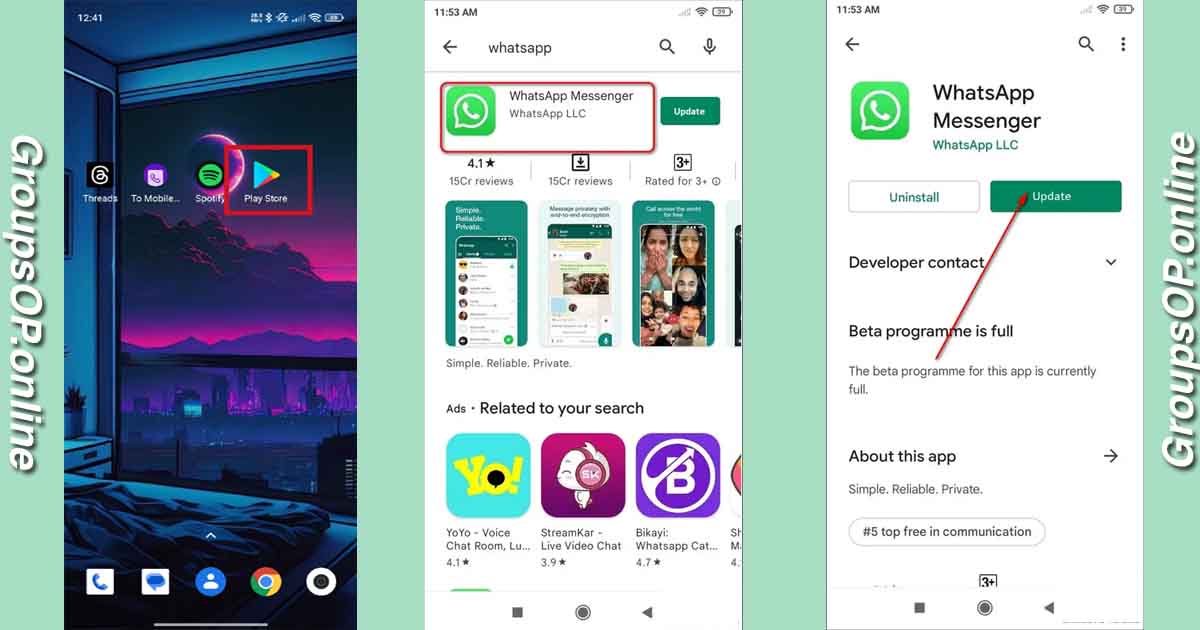
Restore requires free space equal to your backup size. - Update WhatsApp
Update on both devices.
Method 1 — Transfer WhatsApp from Android to Android
Two methods:
- A. QR Transfer (device-to-device)
- B. Google Drive Backup
A. Android → Android via QR “Transfer chats”
On the new phone:
- Install WhatsApp
- Verify number
- Select “Transfer from old phone”
On the old phone:
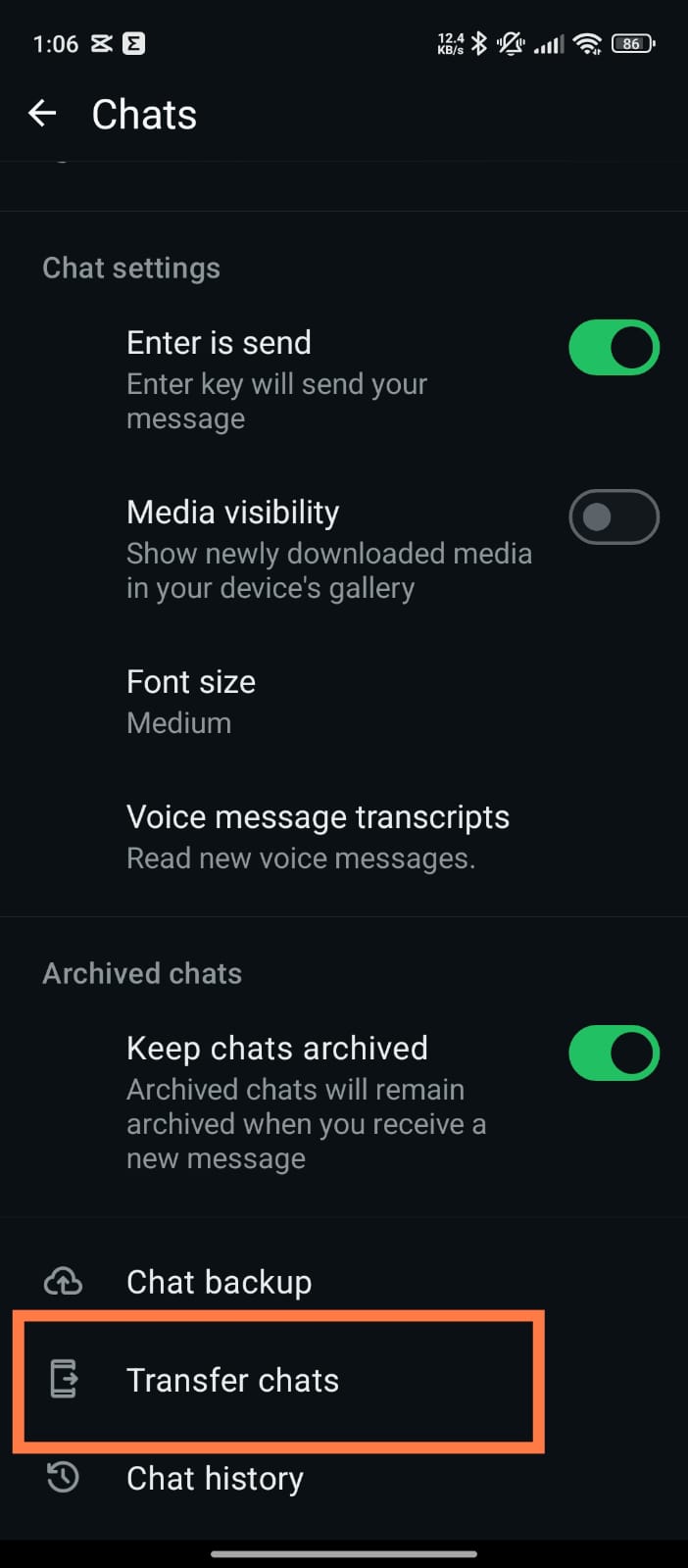
- Open WhatsApp → Settings → Chats → Transfer chats
- Tap Start
- Scan QR with the old phone
- Give permissions
- Keep phones close until finished
If QR transfer fails at 40–60%, toggle Wi-Fi OFF/ON on both phones. This resets the internal LAN tunnel WhatsApp uses.
B. Android → Android via Google Drive Backup
On the old phone:
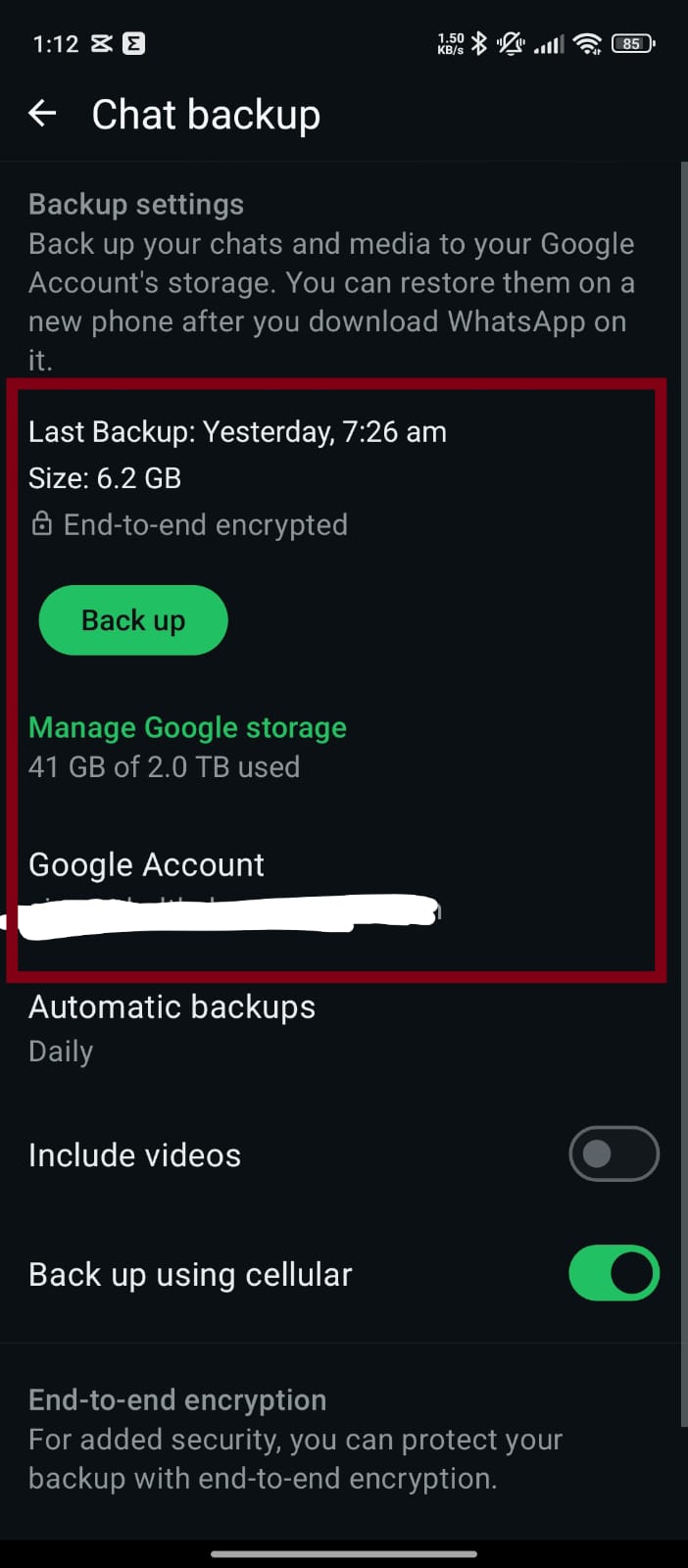
- Go to WhatsApp → Settings → Chats → Chat backup
- Select correct Google account
- Tap Back up
On the new phone:
- Install WhatsApp
- Verify number
- Tap Restore
If backup is 10GB+, expect 1–3 hours. Large media slows restore but doesn’t indicate a problem.
Method 2 — Transfer WhatsApp from iPhone to iPhone (iCloud)
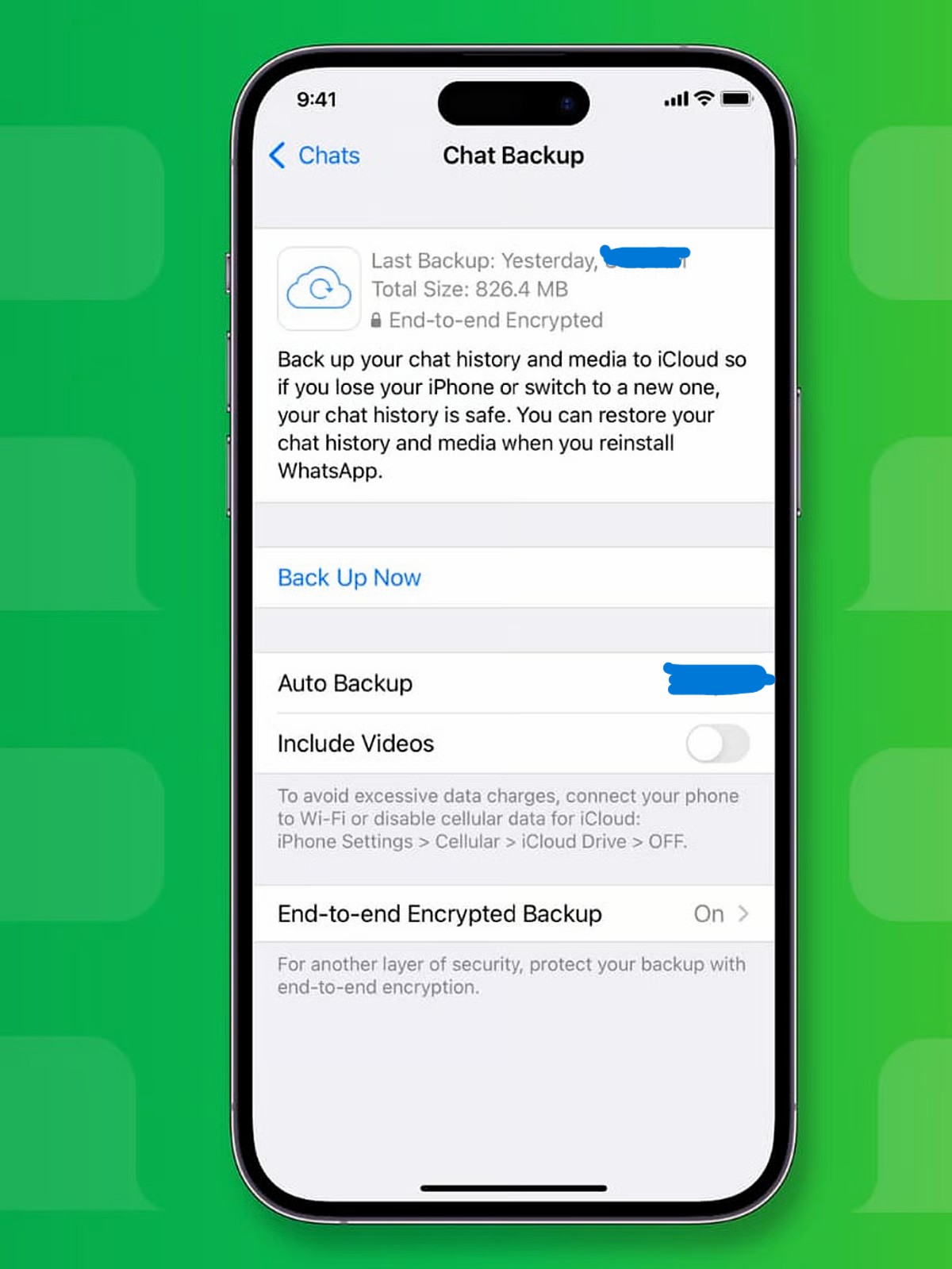
On the old iPhone:
- Enable iCloud Drive
- Enable WhatsApp inside iCloud settings
- Go to WhatsApp → Settings → Chats → Chat Backup
- Tap Back Up Now
On the new iPhone:
- Sign into same Apple ID
- Install WhatsApp
- Verify number
- Tap Restore Chat History
Method 3 — Transfer WhatsApp from Android to iPhone
Uses Apple’s Move to iOS.
Requirements:
- Factory-reset or new iPhone
- Android device with WhatsApp
- Same phone number
On the iPhone:
- Setup → Apps & Data → Move Data from Android
On the Android phone:
- Install Move to iOS
- Enter code shown on iPhone
- Select WhatsApp
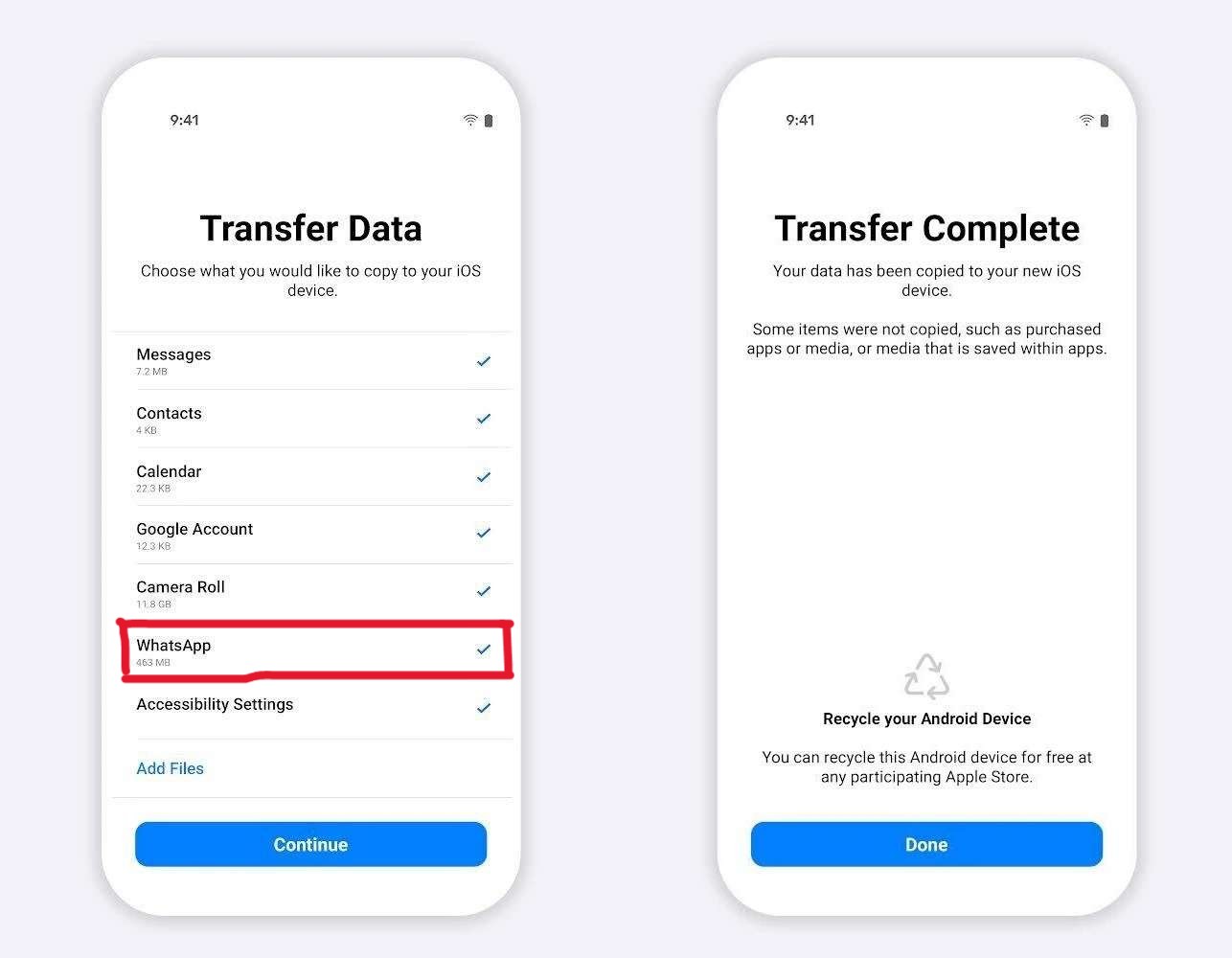
After transfer → install WhatsApp on iPhone → verify number → import data.
Method 4 — Transfer WhatsApp from iPhone to Android
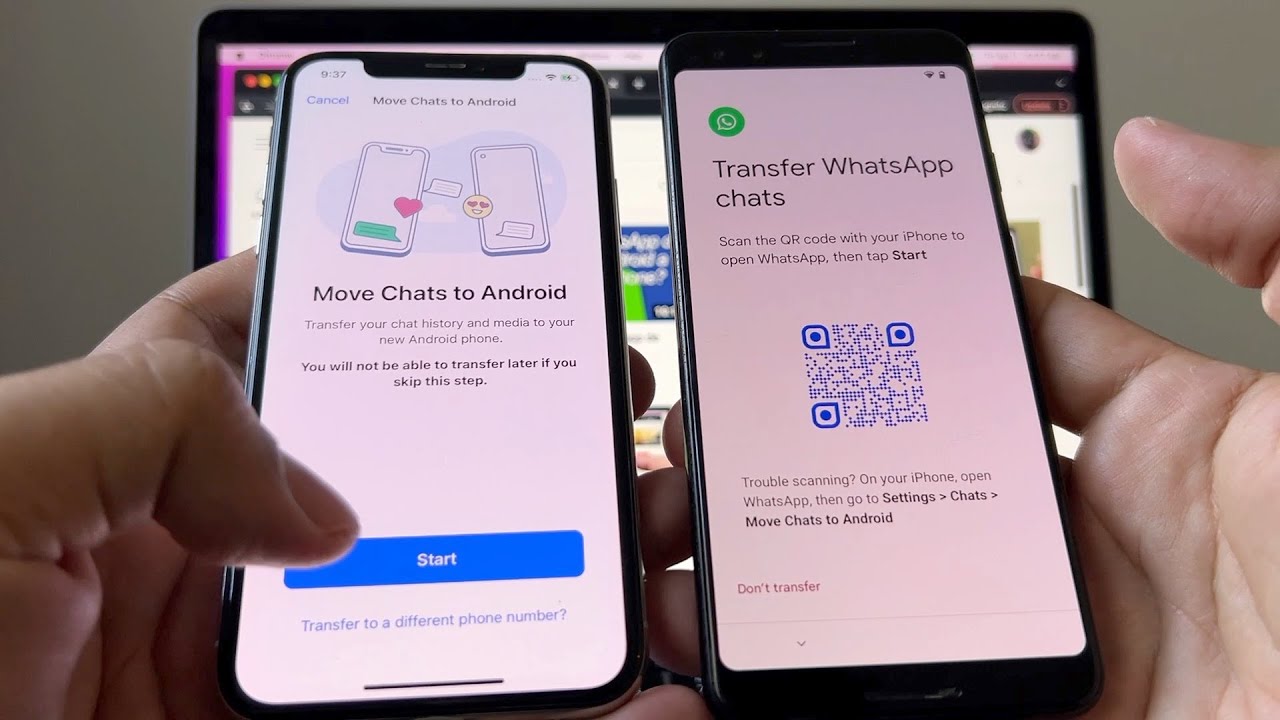
Newer Android phones allow WhatsApp import using cable or Wi-Fi during setup.
On the new Android phone:
- Start setup
- Choose “Import from iPhone”
On the iPhone:
- Keep WhatsApp installed
- Allow transfer
Real-World Problems People Face When Transferring WhatsApp (And How to Fix Them)
WhatsApp’s official instructions assume everything works perfectly. Real users deal with issues, errors, missing backups, failed restores, and confusing messages. This section covers the practical problems people face — and the fixes that actually work.
1. Backup exists but WhatsApp says “No backup found”
This usually happens because one of the required identifiers doesn’t match:
- Wrong phone number
- Wrong Google account / Apple ID
- Corrupted cloud metadata
- Different region Play Store/App Store build (rare)
Fix:
- Logout from Google/Apple account on the new phone.
- Sign in again with the exact same account from the old phone.
- Uninstall WhatsApp.
- Reinstall and verify number again.
Most cloud-metadata issues resolve on the second restore attempt.
2. Old phone is lost, broken, or dead — can you still restore?
The truth:
- If cloud backup was ON → you can restore.
- If cloud backup was OFF → chats are unrecoverable.
- Your phone number alone does NOT restore chats.
WhatsApp cannot reconstruct chat history because they do not store readable copies of your messages.
3. Restore stuck on “Preparing…” or stuck at 99%
This happens when:
- Backup contains large videos
- Wi-Fi is unstable
- Phone is in battery saver mode
- Backup is 8GB+ and decrypting slowly
Fix:
- Disable Battery Saver / Low Power Mode
- Connect to strong 5GHz Wi-Fi
- Plug phone into charger
- Clear Google Drive app cache (Android only)
4. Messages restored but media missing (or vice versa)
Reasons:
- Backup older than expected
- “Include videos” was off
- You received new messages after backup
Media downloads in the background after restore. Blurry thumbnails are normal for several hours.
5. New phone shows smaller WhatsApp storage size
This is normal. Reasons:
- WhatsApp rebuilds media index and removes duplicates
- Temporary cached files are not transferred
- Android/iOS handle thumbnails differently
Smaller storage after restore is a good sign — not a problem.
6. QR transfer fails consistently (40–60%)
This is caused by local Wi-Fi session drops.
Fix:
- Turn Wi-Fi OFF → ON on both phones
- Disable hotspot, VPN, Private DNS
- Keep phones touching during transfer
7. Already set up new phone — can you still transfer?
Yes — you don’t need to factory reset the entire device.
You only need to:
- Uninstall WhatsApp
- Reinstall it
- Verify number again
- Accept restore prompt immediately
Hidden WhatsApp Rules Most People Don’t Know
1. WhatsApp backups are tied to THREE things
A backup appears only when these match:
- Phone number
- Google/Apple account
- Encryption key generated on the old phone
If ANY one is different → backup won’t show.
2. Android keeps a 7-day rotating local backup
Location:
/WhatsApp/Databases/
This can save you if Google Drive backup fails and the old phone is still accessible.
3. Transfer speed depends on Wi-Fi band
- 2.4GHz → slow, unstable
- 5GHz → fast, ideal for QR transfers
Switch both phones to the same 5GHz network for faster transfers.
4. SIM card doesn’t matter — the number does
You don’t need the SIM inserted to restore. You just need to:
- Enter the correct phone number
- Receive the OTP somehow
5. iPhone → Android transfers often work better with a cable
USB-C to Lightning gives the highest success rate, especially for large backups.
Common Mistakes & Misunderstandings
1. Installing WhatsApp on the new phone and “just using it”
If you start chatting before restoring → the restore will overwrite new messages. You cannot merge histories.
2. Using a different phone number
Cloud backups are number-specific. Wrong number = no backup detected.
3. Trying to change number + device at the same time
Do this instead:
- Change number on old phone
- Backup/transfer with new number
4. Using phone clone apps
These break WhatsApp restore paths. Always use official transfer methods.
5. Doing full transfers on weak mobile data
Expect corruption, incomplete backups, and stuck restores.
Practical Tips
These make future migrations easier:
1. Enable automatic cloud backups
Android: Google Drive backup (daily/weekly).
iPhone: Auto Backup in iCloud.
2. Decide whether you really need all media
Videos drastically slow restore. Disable “Include videos” if unnecessary.
3. Clean up before backup
- Delete forwarded junk
- Remove giant videos
- Clear unused stickers/files
4. Stick to one account
Switching Google/Apple accounts mid-way makes backups appear “missing.”
5. Wait 24 hours before wiping old phone
Just in case you need to retry the restore.
Troubleshooting
1. “No backup found”
Fix by verifying phone number + cloud account + reinstall.
2. Restore stuck
Switch Wi-Fi, disable battery saver, plug into charger, clean old backup.
3. Missing chats/media
Backup may be old or incomplete.
4. Opened WhatsApp before restore
Reinstall and accept restore immediately.
5. Different phone number
Use Change Number on old phone first.
FAQs
1. Can I transfer WhatsApp without backup?
Only if you still have the old phone and use QR device-to-device transfer.
2. Can I use WhatsApp on two primary phones?
No. One primary device only. Linked devices are different.
3. Do groups and blocked contacts transfer?
Yes — they are part of your backup.
4. Can I transfer WhatsApp between Android & iPhone anytime?
You must use the official flows and have both devices with you.
5. Can I move a single chat?
No. Export Chat is for reading only, not for importing.
6. What if I skip the restore prompt?
Uninstall WhatsApp → reinstall → restore.
7. Are backups encrypted?
Yes. Device-level E2E encryption + optional encrypted cloud backups.
8. Can I restore older backups?
No — WhatsApp restores only the latest available backup.
Conclusion
Transferring WhatsApp to a new phone isn’t magic — it’s a strict, security-driven process. As long as you:
- Use the same number
- Use the correct Google/Apple account
- Choose the right transfer method
- Avoid the common mistakes
…you’ll move everything safely: chats, media, settings, and years of memories.
Your WhatsApp migration will be smooth — whether you're switching between Android, iPhone, or across platforms.