WhatsApp is one of the tools people rely on every day — for personal chats, work messages, sharing documents, and staying connected with the people who matter. Because we use it so often, it's important to make sure our accounts are set up with strong privacy and security protections. WhatsApp offers excellent built-in tools, but many of them are tucked away inside menus that most users never explore.
Over the past months, several digital safety organizations have been encouraging people to turn on stronger protections across the apps they use daily. The goal isn’t fear — it’s simply to help users reduce the chance of losing access to an important account or exposing personal information accidentally.
Most people I’ve helped over the years didn’t even know some of WhatsApp’s strongest protections existed. And honestly, that’s not their fault — WhatsApp doesn’t highlight these settings clearly.
This guide explains the essential WhatsApp security settings you should enable right now. The steps are simple, beginner-friendly, and based entirely on official features.
The Most Important WhatsApp Security Settings (Step-by-Step)
These steps keep your account safe, stable, and private without adding complexity.
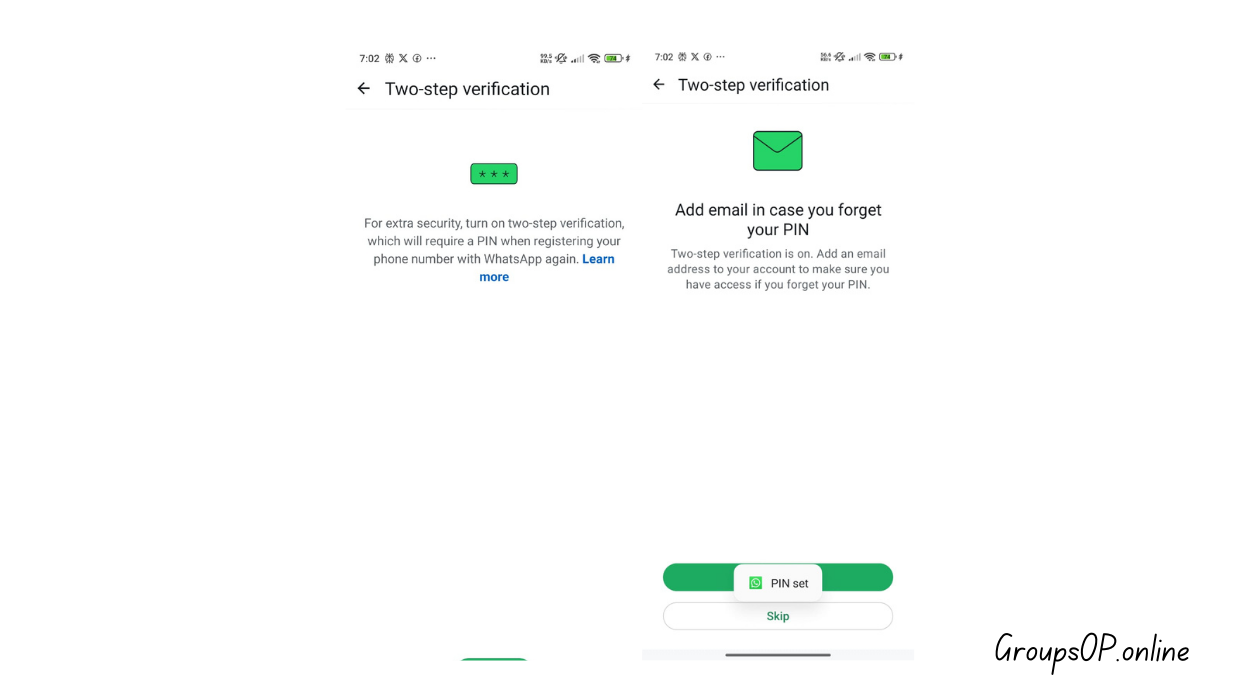
1. Enable Two-Step Verification (Essential)
What to do:
WhatsApp → Settings → Account → Two-step verification → Turn On → Create a 6-digit PIN.
Why it matters:
This PIN adds an extra confirmation layer whenever WhatsApp is set up on a new device. It prevents unwanted access attempts and gives you strong control over your account.
Common beginner mistake:
Choosing a simple or predictable PIN.
Tip:
If the option doesn’t appear immediately, close WhatsApp and reopen it — it refreshes the menu.
2. Add a Recovery Email for Two-Step Verification
What to do:
During setup → Add Email (optional but highly recommended).
Why it matters:
If you forget your PIN, you can reset it easily. Without an email, recovery takes longer.
Common mistake:
Skipping the email field.
Tip:
Use an email account you actively check.
3. Turn On Biometric Screen Lock for WhatsApp
What to do:
WhatsApp → Settings → Privacy → Screen Lock → Enable Face ID / Touch ID / Fingerprint.
Why it matters:
It adds a layer of protection if your phone is unlocked or shared temporarily.
Common mistake:
Leaving this disabled because it adds “one more step.”
It’s a quick step that protects your private conversations.
Tip:
Set the lock to activate “Immediately.”
From my personal exprience, If your mobile's fingerprint sensor have some issue, then don't turn on this settings. it will become headache for you.
4. Review Your Active Linked Devices
What to do:
WhatsApp → Settings → Linked Devices.
Why it matters:
You can see every device currently connected to your WhatsApp account. It ensures you’re the only one accessing your chats on additional browsers or computers.
Common mistake:
Never checking this list.
Tip:
Remove any device you don’t recognize or no longer use.
5. Turn On Security Notifications
What to do:
WhatsApp → Settings → Account → Security → Show Security Notifications.
Why it matters:
WhatsApp uses encryption keys behind the scenes. When a contact changes their phone or reinstalls WhatsApp, this option notifies you that their encryption details were updated — a normal event but good to be aware of.
Common mistake:
Thinking this setting means something is wrong. It’s simply informational.
6. Adjust Your Privacy Controls
Privacy settings help protect your personal information.
Go to:
WhatsApp → Settings → Privacy → adjust:
- Last Seen & Online
- Profile Photo
- About
- Status
- Read Receipts
- Groups
Why it matters:
These settings control who can see your details. Restricting them helps you keep your WhatsApp experience private.
Common mistake:
Leaving Profile Photo and About visible to “Everyone.”
Tip:
“My Contacts” or “My Contacts Except…” gives you better control.
7. Control Who Can Add You to Groups
What to do:
WhatsApp → Settings → Privacy → Groups.
Why it matters:
This prevents unexpected group invitations and keeps your experience clean.
Common mistake:
Keeping this on “Everyone.”
Tip:
Use “My Contacts” or “My Contacts Except…” for maximum control.
8. Use “View Once” for Sensitive Photos or Videos
What to do:
When sending media, tap the small “1” icon to make it viewable only once.
Why it matters:
Useful for sharing temporary information that you don’t want stored in chat history.
Common mistake:
Thinking View Once protects against screenshots — it does not.
Tip:
Use it only when necessary.
9. Turn On Encrypted Backups (Optional but Recommended)
What to do:
WhatsApp → Settings → Chats → Chat Backup → End-to-end encrypted backup → Turn on.
Why it matters:
This adds a security key to your Google Drive or iCloud backup so only you can restore it.
Common mistake:
Losing the encryption password — it cannot be recovered.
Tip:
Write the password somewhere safe.
Personal-Experience Notes
I’ve tested these settings on both Android and iPhone. The placement differs slightly, but the steps themselves are almost identical. The unusual part is how many powerful features—like security notifications and screen lock—are hidden deep inside menus, so most users never notice them until someone points them out.
Real Examples (Simple, Safe, Non-Sensitive)
Example 1: Privacy Settings Not Adjusted
Someone once told me their profile picture kept appearing to unknown contacts. After checking, their Profile Photo setting was still on “Everyone.” Changing it to “My Contacts” solved it instantly.
Example 2: Linked Device Not Recognized
Another person wondered why WhatsApp seemed active on their computer even when they weren’t using it. The reason was simple: a previous session had stayed logged in. Removing it from the Linked Devices list fixed everything.
Common Mistakes & Fixes
1. “Forgot my two-step PIN.”
Cause: No recovery email added.
Fix: Add an email so recovery becomes simple.
2. “WhatsApp opens without authentication.”
Cause: Screen Lock disabled.
Fix: Turn on biometric lock.
3. “Too many people can see my profile.”
Cause: Privacy defaults unchanged.
Fix: Set Profile Photo, About, and Status to “My Contacts.”
4. “I keep getting unexpected group invites.”
Cause: Group permissions set to “Everyone.”
Fix: Restrict to your contacts.
5. “My backup seems unprotected.”
Cause: Encrypted backup not enabled.
Fix: Turn on end-to-end encrypted backup.
6. “My WhatsApp shows activity on a device I don’t use.”
Cause: Old session left in Linked Devices.
Fix: Remove all inactive sessions.
7. “Contacts say my security notifications changed.”
Cause: You reinstalled WhatsApp or switched phones.
Fix: This is normal — no action needed.
FAQs
1. Are WhatsApp security settings necessary for everyone?
Yes — they help protect your privacy and prevent unwanted access.
2. Do I need to remember my two-step verification PIN?
Yes, but adding a recovery email makes it easy to reset if you forget it.
3. Should I turn on screen lock for WhatsApp?
If you value privacy, definitely.
4. Does “View Once” prevent screenshots?
No — it only limits how many times the media can be opened.
5. How often should I review Linked Devices?
At least once a month.
6. Are encrypted backups safe?
Yes, but you must store the password securely.
7. Can I hide my online status?
Yes — WhatsApp lets you control who sees it.
Safety & Legitimacy Disclaimer
This guide uses only official WhatsApp features. No modified apps, tracking tools, or unofficial APKs are included.
Related Tutorials
- WhatsApp Privacy Settings Explained
- How WhatsApp Backup Works
- How to Secure Your WhatsApp Backup
- WhatsApp Web Sync Issues: Fixes
Final Summary
WhatsApp includes strong privacy and security tools — you just need to turn them on. A PIN for verification, biometric screen lock, controlled group permissions, and regular Linked Device checks make your account significantly safer. Once you understand these settings, WhatsApp feels much more secure and predictable.
Honestly, spending a few minutes adjusting these options gives you long-term peace of mind.
Explore the related guides above if you want an even more complete privacy setup.