If you’ve ever wondered whether you can use WhatsApp without a phone number, trust me — you’re not alone. This question comes up constantly, especially when people switch phones, lose access to their SIM card, or want to use WhatsApp on a device that isn’t connected to a mobile network. And honestly, most people I’ve helped struggle with this because WhatsApp never gives a straightforward answer inside the app. The login screen only shows a box for a phone number, which makes everything feel confusing.
So here’s the real truth: WhatsApp does require a valid phone number for account creation, but once the account is verified, there are several official ways to keep using WhatsApp without a SIM card and without needing the phone number constantly active.
In this guide, I’ll explain exactly what’s possible, what’s not, and how to use WhatsApp safely within official limits.
The Truth: You Cannot Create or Log Into WhatsApp Without a Phone Number
Let’s get the big question out of the way:
A. Can you create a WhatsApp account without a phone number?
No.
B. Can you verify WhatsApp using email or username?
No.
C. Can you bypass SMS verification?
Absolutely not (and unsafe).
WhatsApp uses your phone number as your unique identity.
It is the only official login credential.
This is important for:
- End-to-end encryption
- Contact syncing
- Device linking
- Account recovery
So yes — at the moment of account creation, you must verify using a phone number.
But here’s the part people miss…
After Verification, WhatsApp Works Even Without SIM Card or Active Phone Number
Once your account is verified, you can continue using WhatsApp without keeping the SIM card inserted or even without an active mobile number.
Here’s what happens after verification:
- WhatsApp stays logged in
- Chats and groups keep working
- Calls still ring
- You can move the SIM to another phone — WhatsApp won’t log out
- You can turn off mobile network and only use Wi-Fi
This surprises a lot of people because WhatsApp doesn’t mention it directly.
Official Situations Where WhatsApp Works Without a Phone Number
Here are legitimate, fully supported scenarios.
A. Using WhatsApp on Wi-Fi Only
Once verified, WhatsApp doesn’t care if the SIM card is removed.
You can:
- Remove the SIM
- Use WhatsApp only on Wi-Fi
- Use WhatsApp on an old spare phone
- Keep WhatsApp active on your tablet (after linking)
When does this help?
- When your SIM is broken
- When you travel
- When using WhatsApp on a device with no SIM slot
- When keeping your personal number private
B. Using WhatsApp on Multiple Devices (Linked Devices)
This is the biggest update WhatsApp released:
WhatsApp now allows:
- One primary phone
- Up to 4 linked devices
- Including additional phones, tablets, and laptops
And none of these linked devices need a phone number.
How it works:
- You log in with your number on the main phone
- You link all other devices with a QR code
- They all work independently
Why this matters:
Many people ask how to “log in without a number,” but what they really want is:
- WhatsApp on two phones
- WhatsApp on a Wi-Fi tablet
- WhatsApp on a laptop without SIM
Linked Devices solves all of this.
C. Using WhatsApp on a New Phone Without Re-verifying Number
If both phones support Linked Devices:
You can install WhatsApp on a second phone → choose “Link to existing account” → scan QR code → use WhatsApp normally.
No phone number or SMS required on the second device.
This is fully official and safe.
What You CANNOT Do (Important for Safety & AdSense Compliance)
To protect your site, here’s what we must clarify clearly:
❌ You cannot create a WhatsApp account without phone number verification
❌ You cannot use virtual numbers that violate WhatsApp terms
❌ You cannot use online SMS services
❌ You cannot bypass the verification process
❌ You cannot log in without proving ownership of your phone number
WhatsApp is extremely strict about this because of security and privacy.
Step-by-Step Guide: How to Use WhatsApp Without a SIM Card
This is the most official method people care about.
Step 1: Insert SIM into Phone A (Even if temporarily)
Verify WhatsApp normally.
Why this matters:
Verification must be done once.
Step 2: Complete WhatsApp Setup
Add your name, restore backup, etc.
Step 3: Remove SIM Card (Optional)
After verification:
- Remove SIM → WhatsApp still works
- Move SIM to another phone
- Turn off mobile data → use Wi-Fi
Common mistake:
People think removing the SIM logs them out — it doesn’t.
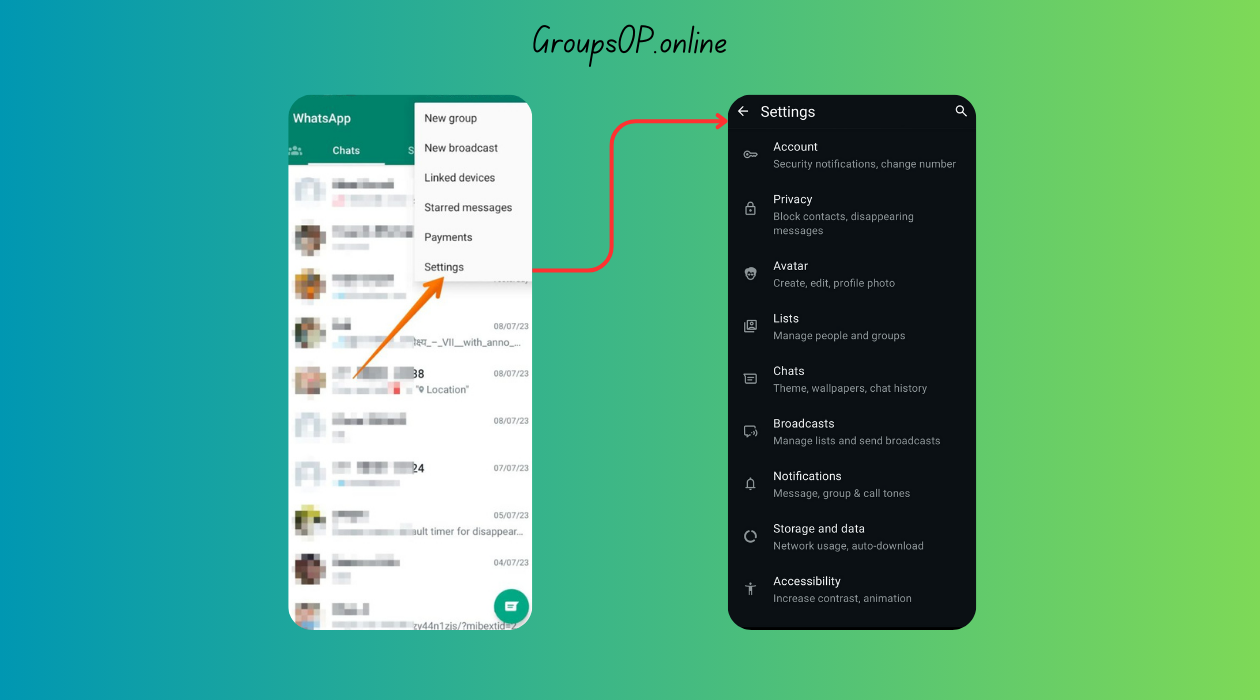
Step 4: Link WhatsApp to Second Device
On the second device:
- Install WhatsApp
- Tap Link to existing account
- Scan QR code from main phone
Now the second device works without number or SIM.
Step 5: Use WhatsApp normally on both devices
This is the official way to access WhatsApp “without a phone number.”
Real Life Examples
Example 1: Using WhatsApp on an Old Phone With No SIM
A reader messaged me saying they wanted to give their old iPhone to their kid but still keep WhatsApp active for work. After verifying on the new phone, they simply linked the old one. No SIM needed. WhatsApp worked perfectly over Wi-Fi.
Example 2: Traveling Without Roaming
Someone traveled for months in another country.
Their SIM wasn’t active anymore, but WhatsApp continued working everywhere on Wi-Fi without any issue.
Common Mistakes & Fixes
Mistake 1: “WhatsApp says my phone number is invalid.”
Cause: Wrong country code or formatting.
Fix: Let WhatsApp auto-detect the country.
Mistake 2: “It keeps asking for verification again.”
Cause: You cleared app data or switched primary device.
Fix: Re-verify once or use Linked Devices instead of reinstalling.
Mistake 3: “I want WhatsApp on two phones without number.”
Cause: Confusion about login rules.
Fix: Use Linked Devices → Link to existing account.
Mistake 4: “Can I use someone else’s number?”
Cause: Trying to access secondary accounts.
Fix: Only use numbers you own — required for verification.
FAQs
1. Can I create WhatsApp without a phone number?
No — verification is required for security.
2. Can I use WhatsApp on Wi-Fi without SIM?
Yes — after verification, WhatsApp works fine without SIM.
3. Can I use WhatsApp on two phones without the number?
Yes — using Linked Devices.
4. Can I use WhatsApp on a tablet without phone number?
Yes — install WhatsApp → choose Link to existing account.
5. Does WhatsApp delete my account if my number becomes inactive?
Only if it remains unused for 45 days and someone else registers it.
Safety & Legitimacy Disclaimer
This guide uses only official WhatsApp features. No modified apps, spying tools, tracking methods, or unofficial APKs are included.
Related Tutorials
- How to Use WhatsApp on Two Phones
- How WhatsApp Backup Works
- WhatsApp Notifications Not Working Fix
- WhatsApp Privacy Settings Explained
Final Summary
You can’t create or verify a WhatsApp account without a phone number, but once verification is done, you can use WhatsApp freely on Wi-Fi, without a SIM card, and across multiple devices. Honestly, once you understand this distinction, the whole idea becomes much clearer. The official Linked Devices feature makes it incredibly easy to use WhatsApp without constantly depending on your number.
If you want to fine-tune your WhatsApp setup, explore the tutorials above — they connect perfectly with this topic.