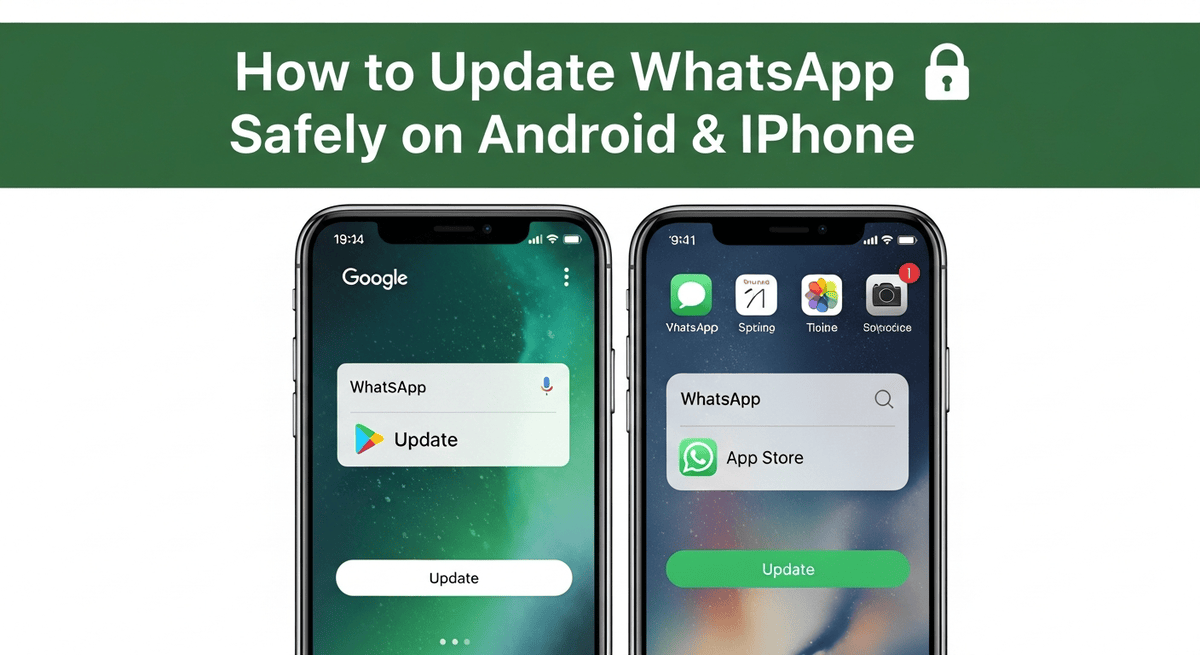
Updating WhatsApp seems like the easiest thing in the world… until the app refuses to update, or your storage runs out, or you accidentally tap on some “WhatsApp latest version APK” website that looks almost real but isn’t. And honestly, the internet is full of misleading download links, so beginners often get confused and end up making their phone less secure without even realizing it.
That’s why having a proper, simple, everyday-language guide matters. Updating WhatsApp isn’t just about getting new emojis or features — it’s about keeping your chats safe, fixing bugs, and protecting yourself from security issues that WhatsApp patches quietly in the background.
Most people I’ve helped struggle with this because WhatsApp hides the important settings in places you wouldn’t expect. And when the update fails or disappears, you’re left guessing what actually went wrong.
So let’s walk through the safest, cleanest method to update WhatsApp on both Android and iPhone, step by step, without falling for fake versions or risky downloads.
Step-by-Step Tutorial
This guide works whether your WhatsApp is asking for an update or you just want to check manually.
I’ll explain what to do, why it matters, the common mistakes, and a small real-life tip that actually works.
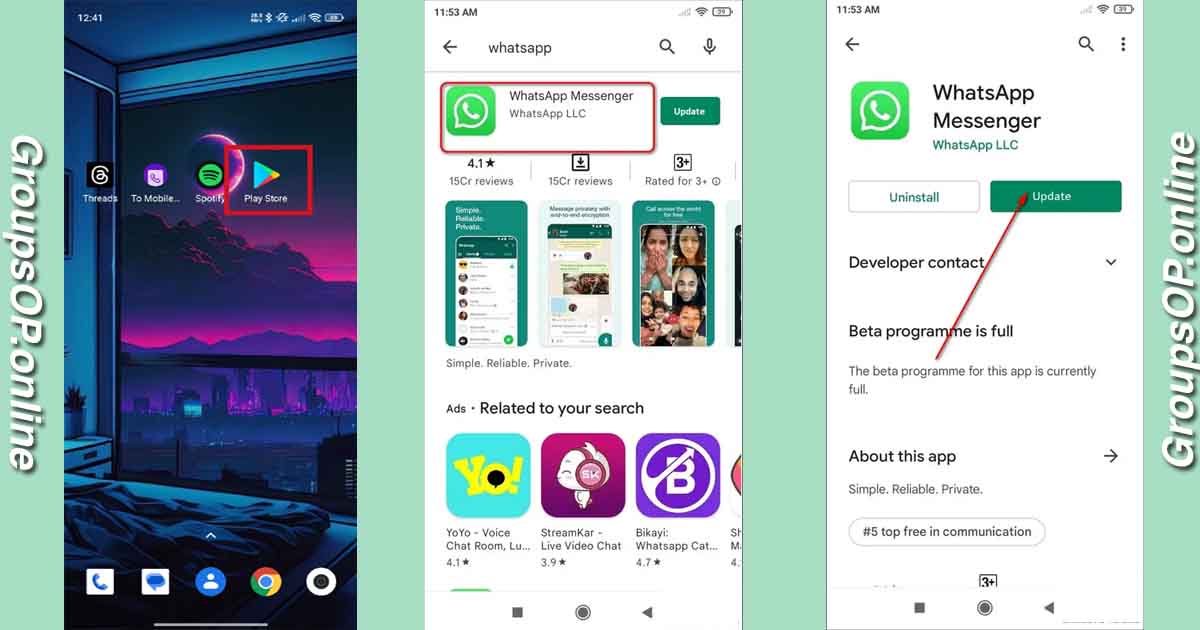
1. Open Your Device’s Official App Store
What to do:
- On Android, open Google Play Store
- On iPhone, open Apple App Store
Why it matters:
These stores verify every app you install. No fake versions, no harmful add-ons, no random websites pretending to be WhatsApp.
Common mistake:
Searching WhatsApp on Google instead of opening the store directly. That’s how users accidentally click on “download latest WhatsApp APK” sites.
Tip:
If Play Store or App Store feels slow or stuck, close it fully and reopen. This sounds basic, but trust me, it fixes the issue for many users.
2. Search for “WhatsApp Messenger” (Official Version Only)
What to do:
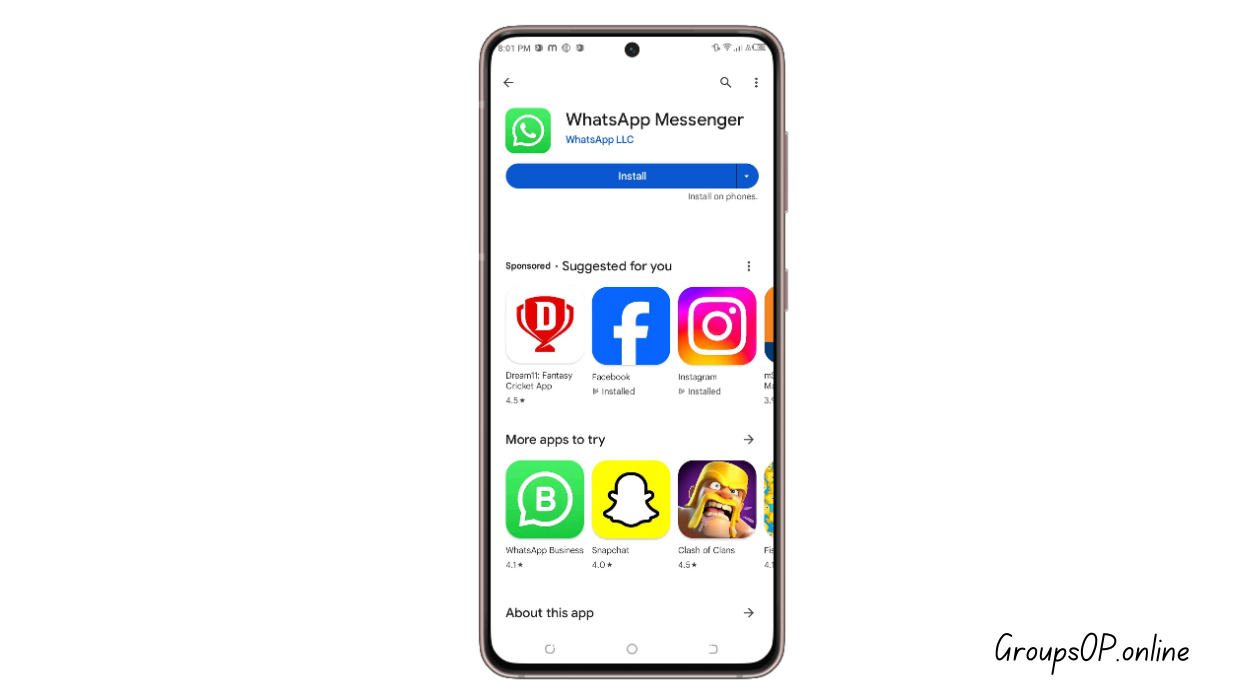
Type WhatsApp Messenger in the store search bar.
Look for WhatsApp LLC / Meta Platforms as the developer.
Why it matters:
There are dozens of apps with similar icons or names, especially on Android. Some are harmless; others are definitely not.
Common mistake:
Downloading “WhatsApp 2026 New Version” or “Chat Messenger Pro” thinking it’s the real WhatsApp.
Tip:
Always check the publisher. If it’s not Meta, don’t touch it.
3. Tap “Update” (If Available)
What to do:
If your app shows Update, tap it.
If it shows Open, then you're already on the latest version.
Why it matters:
Updates fix bugs, improve performance, and quietly patch security vulnerabilities. Many improvements never get announced — they just happen in the background.
Common mistake:
Thinking “I don’t need updates; my app works fine.”
You really do — especially for security.
Tip:
If the “Update” button disappears when you tap it, refresh the page or restart the store.
4. Enable Automatic Updates (Recommended)
What to do:
- Android: Google Play Store → Profile → Settings → Network Preferences → Auto-update apps
- iPhone: Settings → App Store → App Updates → Turn ON
Why it matters:
This protects you from forgetting to update and missing important security patches.
Common mistake:
Turning off auto-updates to “save data,” then forgetting and running a severely outdated version.
Tip:
Allow updates over Wi-Fi only if you want to avoid mobile data consumption.
5. Check Your Storage Space If the Update Fails
What to do:
If the update doesn’t install, check your storage.
- Clear unnecessary photos
- Delete old downloads
- Remove unused apps
Why it matters:
WhatsApp updates often require extra space temporarily, even if the update itself isn’t large.
Common mistake:
Focusing only on free storage inside WhatsApp instead of checking the phone’s overall storage.
Tip:
Restarting the phone can free temporary cache space and magically fix update errors.
![Phone → Storage Screen]](https://groupsop.online/public/uploads/posts/storagess.png)
6. Make Sure You’re on a Stable Internet Connection
What to do:
Switch to Wi-Fi if updates are slow or stuck.
Why it matters:
App updates are larger than normal chat data. Weak mobile networks often fail during installation.
Common mistake:
Assuming the update is broken when it’s actually just the connection.
Tip:
If Wi-Fi is unreliable, try toggling airplane mode on/off. It resets the network adapter.
7. Avoid Searching for APKs or “Latest WhatsApp Versions” Online
What to do:
Just don’t search for WhatsApp downloads outside the app store.
Why it matters:
Fake APKs are one of the most common malware entry points for new smartphone users. Some imitate the real app so well that even experienced users slip up.
Common mistake:
Clicking articles promising “new WhatsApp features” before the official update rolls out.
Tip:
If a website tells you to download WhatsApp manually, leave immediately.
8. Check WhatsApp’s In-App Version (Optional, Useful for Troubleshooting)
What to do:
Open WhatsApp → Settings → Help → App Info.
Why it matters:
This tells you which version you’re running. It helps when features are rolling out gradually.
Common mistake:
Thinking WhatsApp updates arrive for every region at the same second. They don’t. Rollouts can take days.
Tip:
If your version is behind by several releases, your store cache is likely outdated. Clear Play Store/App Store cache and check again.
Personal-Experiences
I tested these update steps on both Android and iPhone, and while the buttons appear in different places, the process is basically identical.
Here’s the tricky part: WhatsApp sometimes delays updates by region, which confuses people because they think something is wrong with their phone.
Honestly, the “Update not showing” issue happens mostly because the Play Store or App Store caches old pages in the background.
Real Examples (Two Simple, Real Scenarios)
1. Someone Thought Their Update Was Broken
A reader sent me a message saying they couldn’t update WhatsApp even though everyone else already had the new feature. They assumed the app was malfunctioning. Turns out their Play Store was cached and showing an outdated page. We cleared the store cache and — magically — the Update button appeared.
2. A User Nearly Installed a Fake Update
Another case was someone searching “WhatsApp latest update 2026” on Google. One of the top results looked polished but wasn’t official. They almost downloaded a fake APK. Luckily, they asked before installing, and we walked back to the app store instead. That small choice probably saved them from a security nightmare.
Common Mistakes & Fixes
Here are the ones I see over and over:
1. “The Update button isn’t showing.”
Cause: Store cache is outdated.
Fix: Close the store → reopen → refresh. If needed, restart the phone.
2. “WhatsApp update keeps failing.”
Cause: Low phone storage.
Fix: Clear some space and retry. Even 1GB free helps.
3. “It says my device isn’t compatible.”
Cause: Very old OS version.
Fix: Update your phone’s system software first.
4. “Update downloads but never installs.”
Cause: Weak internet or switching networks mid-download.
Fix: Stay on stable Wi-Fi until it finishes.
5. “Why does WhatsApp Web stop working after an update?”
Cause: Browser cache conflict after the app updates.
Fix: Refresh WhatsApp Web or re-link the device.
FAQs
1. Why does WhatsApp keep asking me to update?
Usually because you’re running a version with known bugs or security fixes.
2. Why isn’t the new update available for me yet?
Updates roll out gradually across countries. It’s normal to wait a few days.
3. Can I use WhatsApp without updating?
Sometimes yes, but eventually the app will stop working until you update.
4. Why isn’t my Google Drive or iCloud backup working after updating?
Often you're logged into the wrong account or storage is full.
5. What do I do if the update breaks something?
Restart the app → restart phone → check for a minor patch update.
6. Can I update WhatsApp using mobile data?
Yes, but large updates may fail on unstable connections.
7. Is updating WhatsApp safe?
Yes — as long as you do it through the official app stores only.
8. What if I accidentally installed a fake version?
Delete it immediately and run an antivirus scan. Then install the official app.
Safety & Legitimacy Disclaimer
This guide uses only official WhatsApp features. No modified apps, spying tools, tracking methods, or unofficial APKs are included.
Related Tutorials
- How to Transfer WhatsApp to a New Phone
- How WhatsApp Backup Works
- How to Fix WhatsApp Storage Issues
- WhatsApp Privacy Settings Explained
Final Summary
Updating WhatsApp safely is mostly about knowing where to tap and what to avoid. The actual steps are simple once you understand them, but the confusion usually comes from hidden settings, slow store updates, and misleading download pages online. Follow the steps above — open the official store, check for updates, enable auto-update, and avoid APKs entirely — and you’ll stay protected and up-to-date without stress.
Honestly, once you understand how this feature works, everything else in WhatsApp starts to make more sense.
If you want to keep improving your WhatsApp skills, explore the related tutorials above at your own pace.