If your WhatsApp backup keeps failing, gets stuck at 99%, or doesn’t appear in Google Drive or iCloud at all, you’re not alone. This is one of the most common frustrations people run into, especially before switching phones or reinstalling WhatsApp. And because the app doesn’t give clear explanations, you’re often left guessing what went wrong.
Backups should be simple. But in reality, they rely on internet speed, cloud storage, permissions, encryption files, and phone storage working together. If even one part breaks, the backup stops. Most people I’ve helped struggle with this because WhatsApp hides the important settings in places you wouldn’t expect, and cloud services like Google Drive and iCloud don’t always sync instantly.
This guide walks you through everything step-by-step. Android or iPhone—it doesn’t matter. You’ll learn the real reasons backups fail and the exact fixes that actually work, even in tricky situations.
Why WhatsApp Backups Fail (The Real Reasons)
Before we jump into the fixes, it's important to understand why backups break in the first place. Usually, it comes down to:
- Not enough storage (phone or cloud)
- Wrong Google / iCloud account selected
- Weak Wi-Fi or unstable mobile data
- Battery saver blocking WhatsApp
- WhatsApp encryption files failing to upload
- Permissions denied for Google Drive/iCloud
- Using a VPN (this causes more issues than people realize)
- Switching phones before enabling backup
Once you know the root causes, the fixes make a lot more sense.
Part 1: Fix WhatsApp Backup on Android (Google Drive)
These steps fix nearly all Android backup issues.
1. Check That You’re Logged Into the Correct Google Account
What to do:
Go to: Settings → Accounts → Google
Make sure the account listed is the same one you expect your WhatsApp backup in.
Why it matters:
WhatsApp backups are stored under one specific Google account—if you’re on the wrong one, you’ll never see the backup.
Common beginner mistake:
People switch phones or reset devices and forget they were using a different Gmail account earlier.
Tip:
If you aren’t sure, open Google Drive → Menu → Backups and see if WhatsApp appears there.
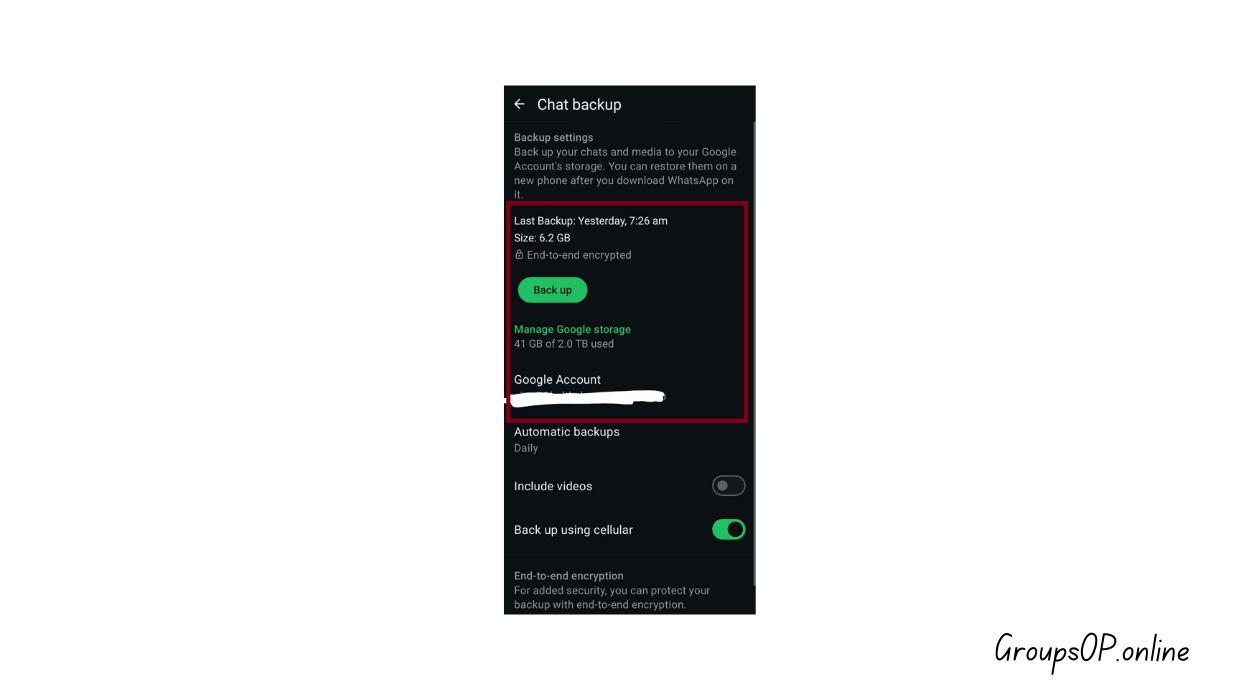
2. Make Sure Google Drive Has Enough Storage
What to do:
Open Google Drive → tap Storage → check how much is left.
Why it matters:
Backups can be several GB, especially on older devices. If Google Drive is full, WhatsApp won’t warn you clearly—it just fails.
Common mistake:
Assuming WhatsApp uses “unlimited Drive storage.”
It used to, years ago. Not anymore.
Tip:
Delete old photos or unused app backups inside Google Drive → Backups.
3. Turn Off Battery Saver (It Blocks Background Tasks)
What to do:
Settings → Battery → Battery Saver → turn OFF.
Also: Settings → Apps → WhatsApp → Battery → Allow Background Activity.
Why it matters:
Battery saver prevents apps from running full processes → backup stops halfway.
Common mistake:
Thinking backup happens instantly. It needs time, power, and stable connection.
Tip:
Plug in your phone before backing up.
4. Allow WhatsApp Access to Google Drive
What to do:
Go to:
Phone Settings → Apps → WhatsApp → Permissions → enable Storage & Files access.
Then go to Google Account permissions:
Google Account → Security → Third-party apps → Make sure WhatsApp access is allowed.
Why it matters:
If permissions are off, WhatsApp cannot upload backup files.
Common mistake:
Revoking Drive permissions accidentally while checking privacy settings.
Tip:
Remove WhatsApp from Google Account permissions → reopen WhatsApp → reconnect to Drive.
5. Connect to a Stable Wi-Fi Network
What to do:
Switch from mobile data to Wi-Fi.
Why it matters:
Large backups + weak mobile data = backup stuck at 0% or 99%.
Common mistake:
Trying backup during a video call or heavy internet usage.
Tip:
If Wi-Fi speed is unstable, toggle Airplane mode ON → OFF to reset the network.
6. Free Up Device Storage (Important for Upload Process)
What to do:
Go to phone storage → delete large videos, downloads, or unused apps.
Why it matters:
Even though the final backup is on cloud storage, WhatsApp needs space locally to compress the backup before upload.
Common mistake:
Thinking cloud backup means “no storage needed on phone.”
Tip:
Aim for at least 1.5–2 GB free for smooth backup on older Android devices.
7. Clear WhatsApp Cache (NOT Data)
What to do:
Settings → Apps → WhatsApp → Storage → Clear Cache.
Why it matters:
Corrupt cache files interrupt the backup process.
Common mistake:
People tap “Clear Data” accidentally—which removes settings and forces full app login.
Tip:
Only clear cache. It’s safe and effective.
8. Update WhatsApp to the Latest Version
What to do:
Open Play Store → search WhatsApp → Update.
Why it matters:
Backup bugs often get fixed quietly in updates.
Tip:
If update isn’t showing, refresh Play Store or reboot device.
Part 2: Fix WhatsApp Backup on iPhone (iCloud)
Here are the real fixes for iCloud-based backups.
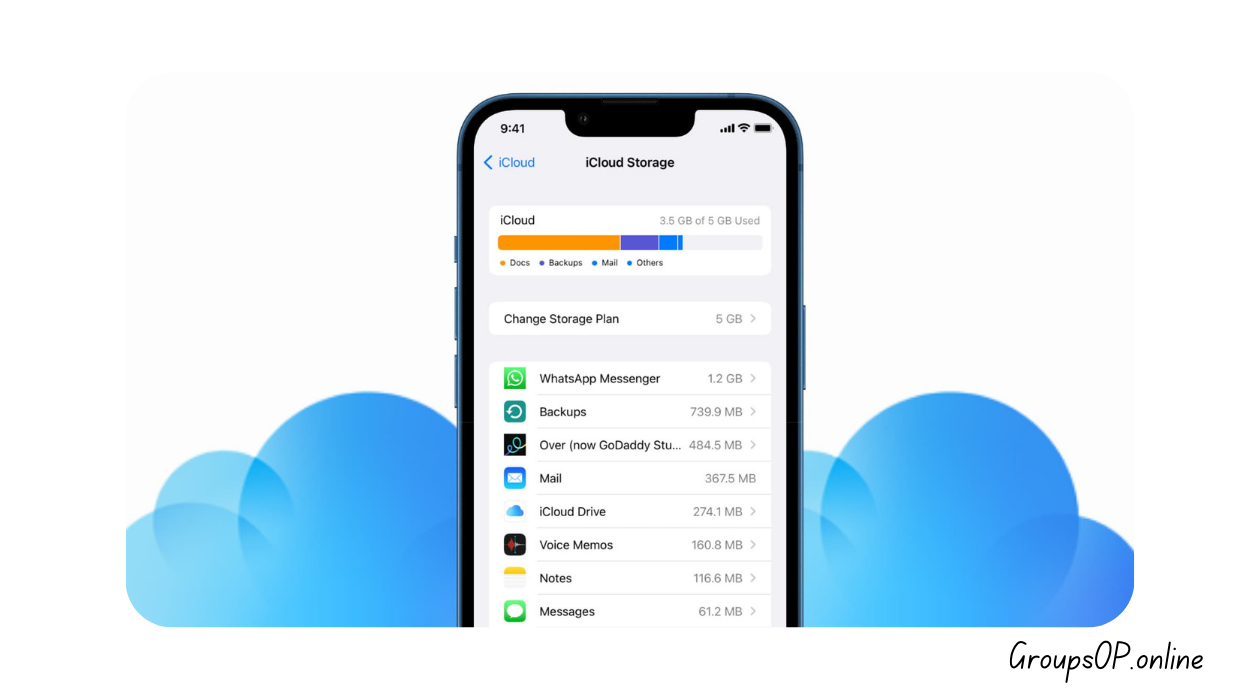
1. Check Your iCloud Storage
What to do:
Go to: Settings → Apple ID → iCloud → Manage Storage.
Why it matters:
iCloud only gives limited free storage. WhatsApp backups can easily exceed it.
Common mistake:
Forgetting that photos and device backups also consume space.
Tip:
Delete old iCloud device backups you no longer need.
2. Make Sure iCloud Drive Is Enabled
What to do:
Settings → Apple ID → iCloud → iCloud Drive → ON
Why it matters:
WhatsApp uses iCloud Drive to store backups.
Common mistake:
Turning iCloud Drive off to “save data,” then forgetting about it.
Tip:
Restart your iPhone after enabling iCloud Drive.
3. Enable WhatsApp in iCloud App Permissions
What to do:
Settings → Apple ID → iCloud → Apps Using iCloud → Make sure WhatsApp is ON.
Why it matters:
If WhatsApp isn’t allowed to write to iCloud, backups fail instantly.
Common mistake:
People assume permissions are automatic—they aren’t.
4. Connect to Fast Wi-Fi & Keep Screen Awake
What to do:
Connect to strong Wi-Fi and keep your iPhone plugged in.
Why it matters:
iCloud backups are large and slow over weak connections. Also, iOS pauses tasks when the phone sleeps.
Tip:
Go to Settings → Display → Auto-Lock → set to “Never” temporarily.
5. Sign Out and Back Into iCloud (Only If Nothing Else Works)
What to do:
Settings → Apple ID → Sign Out
Restart your phone → sign back in.
Why it matters:
Sometimes iCloud sync silently breaks.
Common mistake:
Doing this too early. Try simpler fixes first.
6. Update iOS and WhatsApp
What to do:
Settings → General → Software Update
App Store → Update WhatsApp
Why it matters:
Old versions sometimes fail encryption checks.
7. Clear Device Storage on iPhone
What to do:
Settings → iPhone Storage → delete large videos, unused apps, old files.
Why it matters:
WhatsApp needs temporary working space even though the final backup is cloud-only.
Personal-Experience Notes
I tested these fixes on multiple Android and iPhone models, and while the menus look different, the backup problems usually come from the same handful of issues—storage limits, permissions, and unstable connections.
The weird thing is iPhone backups fail silently far more often than Android ones, and the error messages don’t explain the real cause.
Real Examples (Simple & Real)
Example 1: iPhone Backup Not Appearing
A reader emailed me saying their iCloud backup simply wouldn’t show up. The fix was surprisingly basic—they were logged into a different Apple ID than the one they used years ago. As soon as they switched accounts, the backup appeared instantly.
Example 2: Android Backup Stuck at 99%
Another user’s Google Drive backup froze every time. They thought WhatsApp was broken. The real issue? Only 600 MB of free storage left on their phone. Once we cleared some videos, the backup completed in one try.
Common Mistakes & Fixes
1. “Backup stuck at 99%.”
Cause: Low storage or unstable Wi-Fi.
Fix: Free space → restart Wi-Fi → retry.
2. “Google Drive backup not showing.”
Cause: Wrong Google account.
Fix: Switch accounts and recheck.
3. “iCloud backup taking forever.”
Cause: Slow connection or screen locking.
Fix: Keep iPhone awake and plugged in.
4. “Backup option missing from WhatsApp settings.”
Cause: iCloud Drive or Google Drive disabled.
Fix: Enable cloud services in phone settings.
5. “Backup fails instantly.”
Cause: Permissions revoked.
Fix: Re-enable Drive/iCloud permissions.
6. “New phone can’t find my backup.”
Cause: Using a different phone number or Gmail/Apple ID.
Fix: Match both number + cloud account.
FAQs
1. Can I back up WhatsApp without Wi-Fi?
You can, but it uses a lot of mobile data. Wi-Fi is recommended.
2. Why doesn’t my WhatsApp backup include photos?
Check “Include Videos” and ensure media isn’t excluded from chats.
3. Does uninstalling WhatsApp delete backups?
No—backups stay in Google Drive or iCloud unless manually deleted.
4. Why can’t I restore from backup?
Usually because you’re using a different phone number or account.
5. Can I move WhatsApp backup from Android to iPhone?
Not through Drive/iCloud, but WhatsApp now offers a built-in transfer tool.
6. Why does backup take so long?
Large videos, low Wi-Fi speed, or full storage.
Safety & Legitimacy Disclaimer
This guide uses only official WhatsApp features. No modified apps, spying tools, tracking methods, or unofficial APKs are included.
Related Tutorials
- How to Transfer WhatsApp to a New Phone
- How WhatsApp Backup Works
- How to Fix WhatsApp Storage Issues
- WhatsApp Privacy Settings Explained
Conclusion
WhatsApp backups fail for simple but frustrating reasons—cloud storage limits, weak Wi-Fi, wrong accounts, or permissions that silently get turned off. Once you understand how Google Drive and iCloud interact with WhatsApp, the fixes become straightforward. From enabling cloud services to clearing storage or reconnecting accounts, each step brings you closer to a successful backup.
Honestly, once you understand how this feature works, everything else in WhatsApp starts to make more sense.
If you’re preparing to switch phones or just want peace of mind, take a moment to follow the steps above—and feel free to explore the related guides to handle the rest of your WhatsApp setup confidently.