Logging into WhatsApp sounds straightforward, but in reality, it’s one of those things that gets messy fast—especially with all the devices we use today. You’ve got WhatsApp on your phone, then WhatsApp Web, then a desktop app, and now this whole multi-device setup that works even when your phone is offline. It’s great once you understand it, but the features aren’t explained well inside the app.
And for everyday users who just want to chat or check messages at work, unclear login options can become frustrating. Some people think they “logged out” when they didn’t. Others believe WhatsApp Web stopped working because the browser is broken when it’s actually something else entirely.
Most people I’ve helped struggle with this because WhatsApp hides the important settings in places you wouldn’t expect. The login-related menus especially feel buried, so beginners rarely know where to look.
So let’s break everything down in a calm, practical way—starting from the basics and moving all the way to multi-device mode.
Step-by-Step Tutorial
This walkthrough covers logging in on mobile, desktop, web, and the newer multi-device feature.
1. Logging In on Your Mobile Phone
What to do:
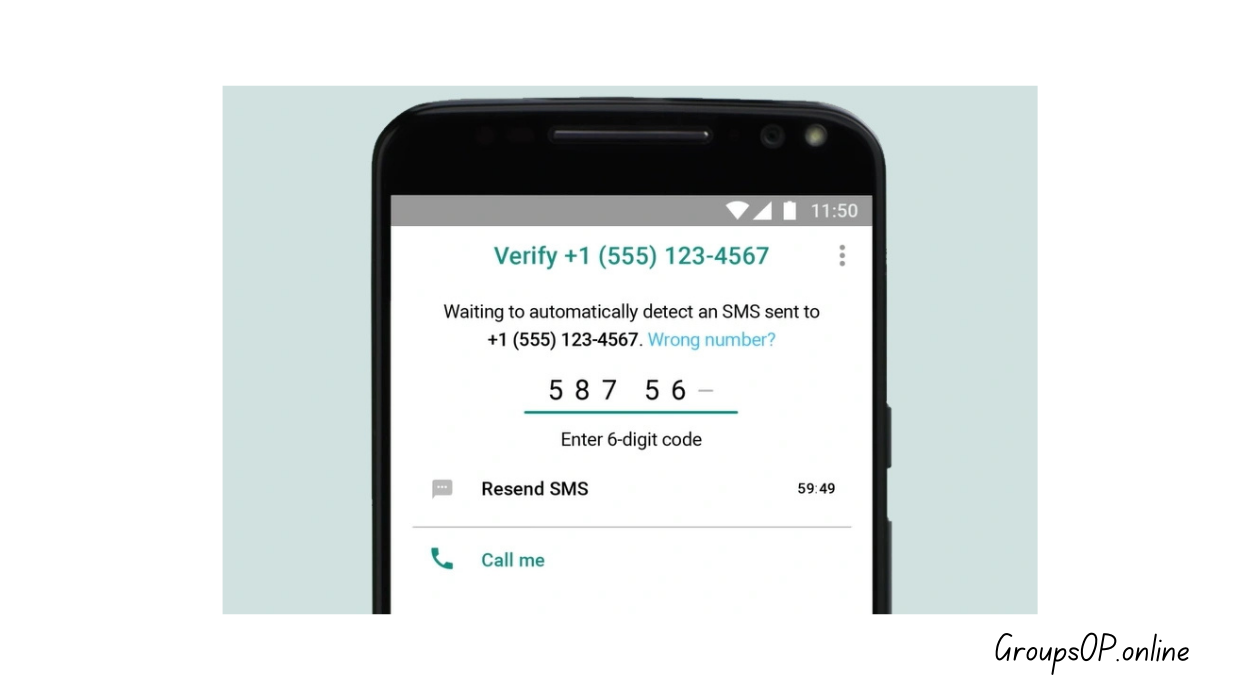
Install WhatsApp from the official store → open the app → enter your phone number → enter the 6-digit code WhatsApp sends you.
Why it matters:
Your phone number is your identity on WhatsApp. Everything—chats, calls, backup—connects to that number.
Common beginner mistake:
Typing the wrong country code or switching apps before the verification SMS arrives.
Tip:
If the SMS isn’t arriving, tap “Call me”. This solves the issue for many users.
2. Logging In on WhatsApp Web (Browser Version)
What to do:
On your computer, visit web.whatsapp.com.
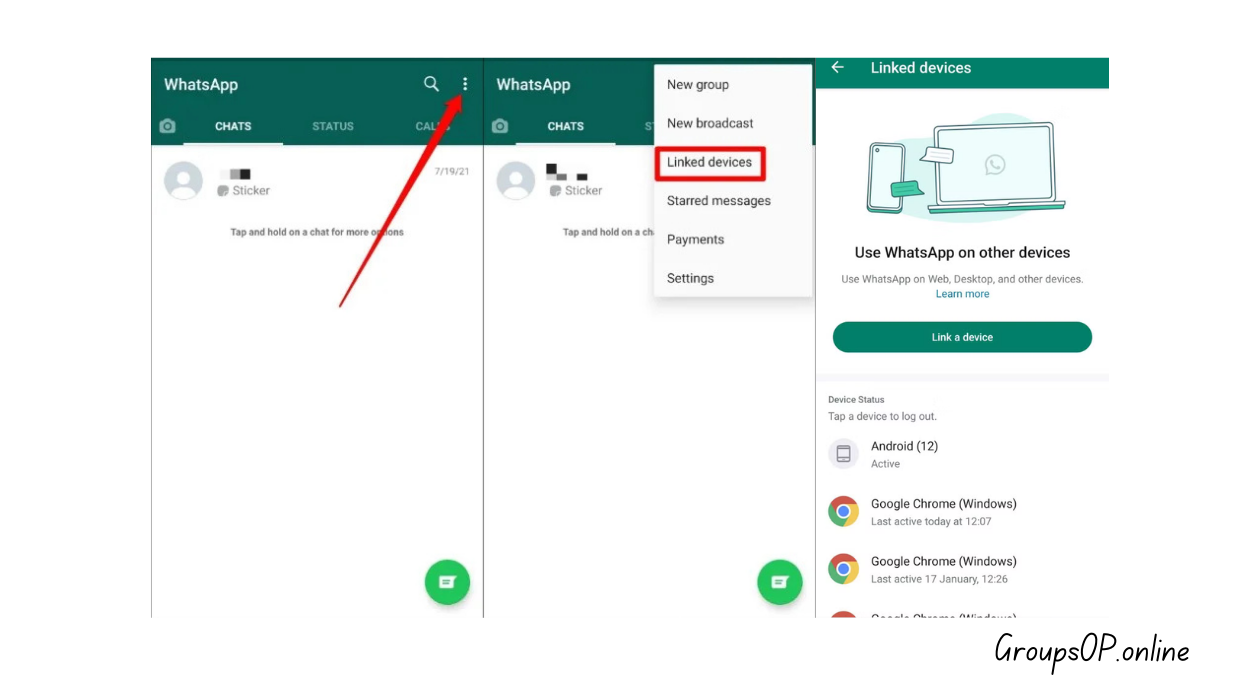
On your phone → open WhatsApp → tap Linked Devices → Link a Device → scan the QR code.
Why it matters:
This lets you use WhatsApp on a big screen. Great for work, long conversations, or sending files from your computer.
Common mistake:
Scanning the QR code too fast or with a dim phone screen. The scan fails, and users think the feature is broken.
Tip:
Brighten your screen and hold the phone steady. If the QR doesn’t load, reload the browser tab.
3. Logging In Using the WhatsApp Desktop App
What to do:
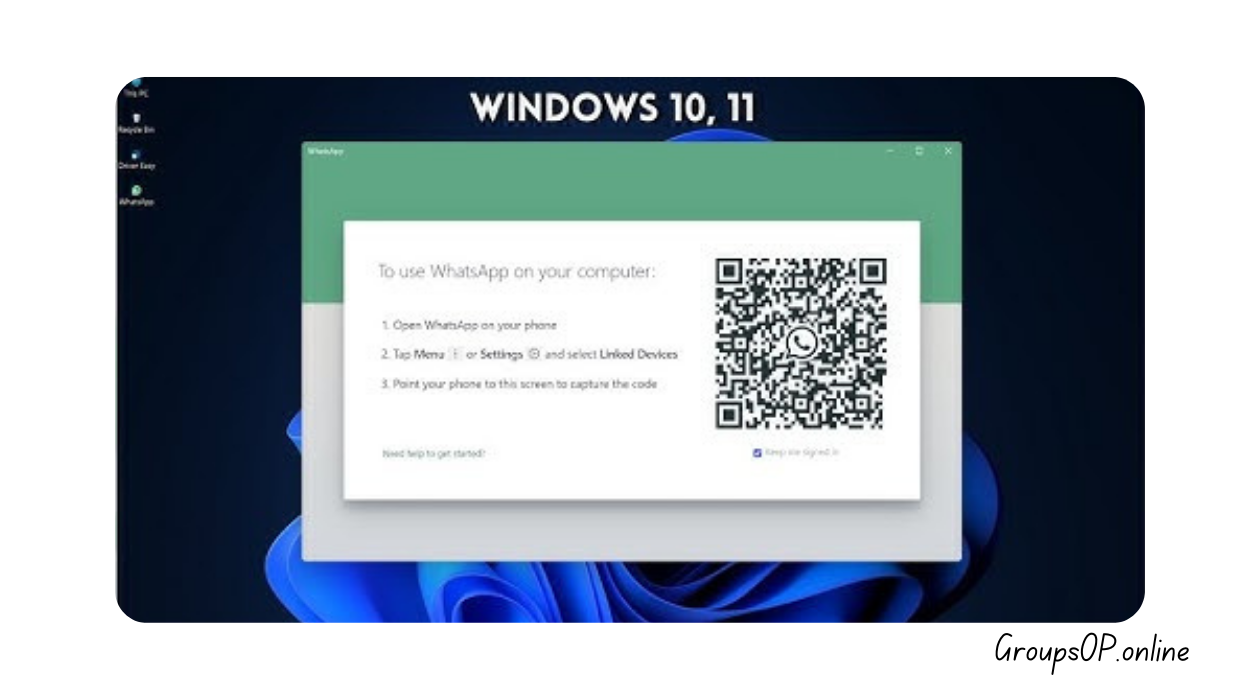
Download the official desktop app from whatsapp.com/download (for Windows or Mac).
Open the app → it will show a QR code → scan it using your phone’s Linked Devices menu.
Why it matters:
The desktop app is smoother than the browser version, especially for sending images or files.
Common beginner mistake:
Thinking the desktop app creates a separate account. It doesn’t—everything mirrors your phone.
Tip:
If the QR code keeps refreshing, it’s usually weak internet. Close and reopen the app.
4. Understanding Multi-Device Mode (Phone Isn’t Required to Stay Online)
What to do:
Open WhatsApp on your phone → Settings → Linked Devices → enable Multi-Device.
Then link your computer or tablet normally.
Why it matters:
Once activated, WhatsApp Web / Desktop keeps working even if your phone is:
- Off
- Out of battery
- Out of range
- Not connected to the internet
This is a huge upgrade from the old system.
Common mistake:
Assuming multi-device is automatic. It must be turned on manually on some devices.
Tip:
If this doesn’t show up, try closing WhatsApp and reopening it — this fixes it for many users.
5. Logging Out of Linked Devices
What to do:
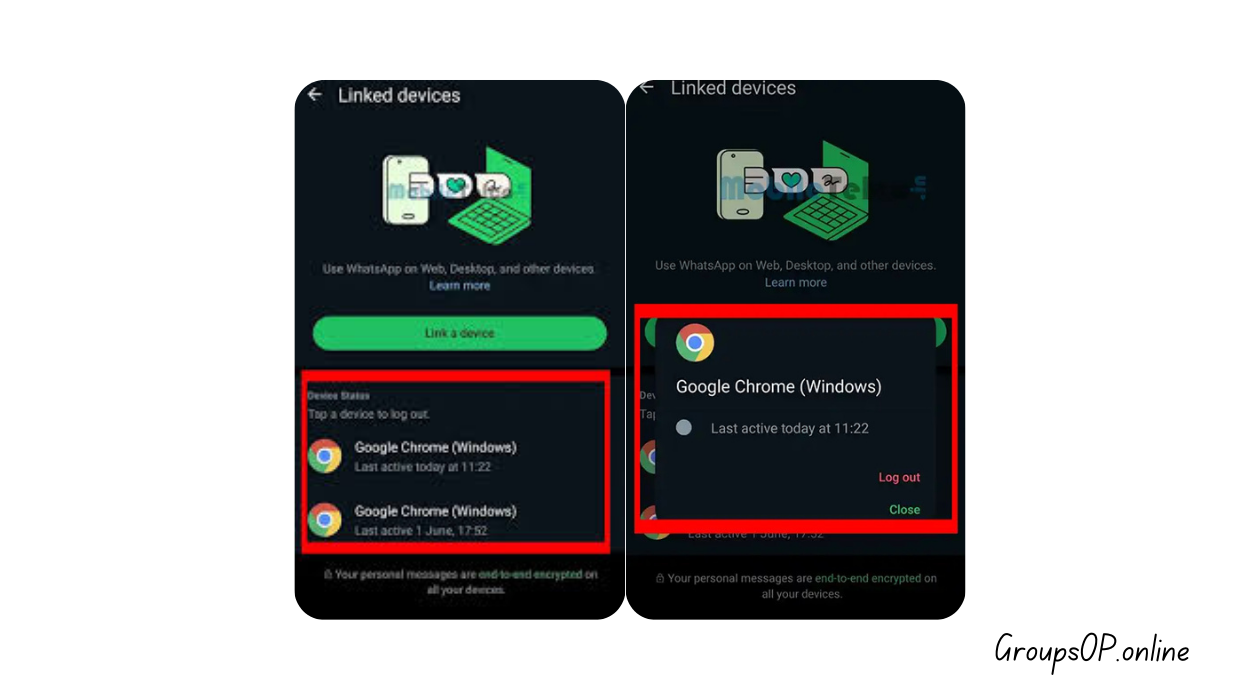
On your phone → Linked Devices → tap any device → choose Log Out.
Why it matters:
This is essential when you’ve used WhatsApp Web on a shared computer. Forgetting to log out means someone could see your messages later.
Common beginner mistake:
Assuming closing the browser tab logs you out automatically. It doesn’t.
Tip:
If you’re not sure whether you left your session open somewhere, open Linked Devices and just remove all of them. Takes 10 seconds.
6. Logging Back Into WhatsApp After Reinstalling the App
What to do:
Reinstall WhatsApp → verify with your phone number → restore your backup if available.
Why it matters:
People often panic when they reinstall the app and see a blank screen. You need to restore your chat backup separately.
Common mistake:
Restoring a backup from the wrong Google Drive / iCloud account.
Tip:
Check which account your backups are tied to before reinstalling.
7. Using WhatsApp on Multiple Phones (New Feature)
What to do:
Install WhatsApp on the secondary phone → choose “Link with existing account” → scan QR using your main phone.
Why it matters:
For years, WhatsApp only allowed one phone. Now you can have the same account on multiple devices.
Common mistake:
Trying to verify the second phone using SMS. That creates a separate account.
Tip:
Remember: second phones must be linked, not verified.
Personal-Experience Notes
I tested all of these login methods on Android and iPhone, and while the menus are placed differently, the steps are basically the same.
The weird thing is that WhatsApp hides the Linked Devices option under Settings, and most beginners never tap there unless someone specifically tells them.
Real Examples (Simple + Honest)
Example 1: A User Thought WhatsApp Web “Stopped Working”
Someone emailed me saying WhatsApp Web wouldn’t load and they thought their computer was infected. It turned out their phone battery had died. Since they hadn’t switched to multi-device mode yet, WhatsApp Web couldn’t stay logged in. Once we enabled the newer setting, the issue never happened again.
Example 2: Two-Phone Setup Confusion
Another user tried logging into WhatsApp on a second phone using their phone number. They ended up accidentally creating a fresh account. The fix was simple—uninstall on the second phone, reinstall, and choose Link to existing account instead of verifying by SMS.
Common Mistakes & Fixes
Here are the mistakes I see constantly:
1. “My QR code won’t scan.”
Cause: Dim screen or unstable camera focus.
Fix: Brighten the screen → move phone slightly back → try again.
2. “WhatsApp Web keeps logging me out.”
Cause: Session expiration or clearing browser cookies.
Fix: Re-scan the QR code. Yeah, this one happens a lot…
3. “Desktop app says phone offline even though it’s not.”
Cause: Multi-device mode not enabled.
Fix: Enable Multi-Device under Linked Devices.
4. “I restored WhatsApp but my chats are missing.”
Cause: Wrong Google Drive / iCloud account selected.
Fix: Log into the correct cloud account and reinstall.
5. “My second phone wants SMS verification.”
Cause: Trying to register instead of linking.
Fix: Tap Link Account instead of entering a phone number.
6. “Linked devices show ‘paused’.”
Cause: Phone hasn’t connected to the internet for too long.
Fix: Open WhatsApp on your main phone → reconnect internet.
7. “Why can’t I log in without a phone number?”
Cause: WhatsApp requires a verified mobile number.
Fix: Use the main device for SMS verification first.
FAQs
1. Can I log into WhatsApp without my phone?
Only after enabling multi-device mode. Initial login always requires your phone.
2. Why does WhatsApp Web keep asking me to scan again?
Sessions expire automatically for security.
3. How many devices can I link?
Up to four linked devices plus your main phone.
4. Can I use WhatsApp on two phones?
Yes — but only through “Link to existing account.”
5. What do I do if the QR code isn’t loading on my computer?
Refresh the page and check Wi-Fi. Sometimes the browser just needs a reload.
6. Does my phone need to stay connected for WhatsApp Web?
Not if multi-device is enabled. Otherwise, yes.
7. Does logging in on desktop create a second account?
No. Everything mirrors your phone account.
8. Why does WhatsApp ask me to verify again when reinstalling?
For security reasons. Reinstallation always requires verification.
Safety & Legitimacy Disclaimer
This guide uses only official WhatsApp features. No modified apps, spying tools, tracking methods, or unofficial APKs are included.
Related Tutorials
- How to Transfer WhatsApp to a New Phone
- How WhatsApp Backup Works
- How to Fix WhatsApp Storage Issues
- WhatsApp Privacy Settings Explained
Conclusion
Understanding WhatsApp login options becomes much easier once you see how all the pieces fit together. The phone login, desktop login, web version, and multi-device mode all serve different purposes, but they work smoothly once you know which button does what. The step-by-step instructions above walk you through each method without overcomplicating things.
Honestly, once you understand how this feature works, everything else in WhatsApp starts to make more sense.
If you want to keep learning at your own pace, check out the related tutorials above—they’ll help you avoid the common issues most users run into.