A few years ago, using one WhatsApp account on two phones felt impossible. You either had to log out of one device, or worse, look for risky apps that promised shortcuts. Today, things are completely different. WhatsApp finally supports multi-device login, which means you can use the same account on multiple smartphones without messing up your chats.
This is incredibly useful if you use one phone for work and another for personal use… or if you simply want a backup device without switching accounts every time. Most people I’ve helped struggle with this because WhatsApp hides the “Linked Devices” option where you don’t expect it — especially on new installs.
This step-by-step guide explains everything in a simple, real, practical way — including the newest updates WhatsApp added in 2026.
Step-by-Step Tutorial: Use WhatsApp on Two Phones
These steps work for Android and iPhone.
To avoid confusion, let’s name them:
Phone A → your main phone
Phone B → your second phone or maybe a Tablet or PC
You will NOT log out from Phone A.
1. Install WhatsApp on the Second Phone
Open the App Store or Play Store and install WhatsApp Messenger on Phone B.
Why this matters:
You need a fresh installation so WhatsApp shows the “Link to existing account” option instead of verification.
Common mistake beginners make:
Tapping “Agree & Continue” and entering the phone number — that triggers registration, not linking.
Tip:
If you already passed the registration screen accidentally, uninstall WhatsApp and reinstall it.
2. Tap “Link to Existing Account” on Phone B
This is the new official feature (much easier than the old workaround).
When WhatsApp opens:
- Tap the three dots (Android)
- Or More Options (iPhone)
- Select Link to existing account
If the option appears at the bottom of the number screen, tap it there.
Why this matters:
This forces WhatsApp into Companion Mode, which syncs your account securely.
Common mistake:
People think the option is missing — but often it appears only after the app refreshes.
Tip:
“If this doesn’t show up, try closing WhatsApp and reopening it — this fixes it for many users.”
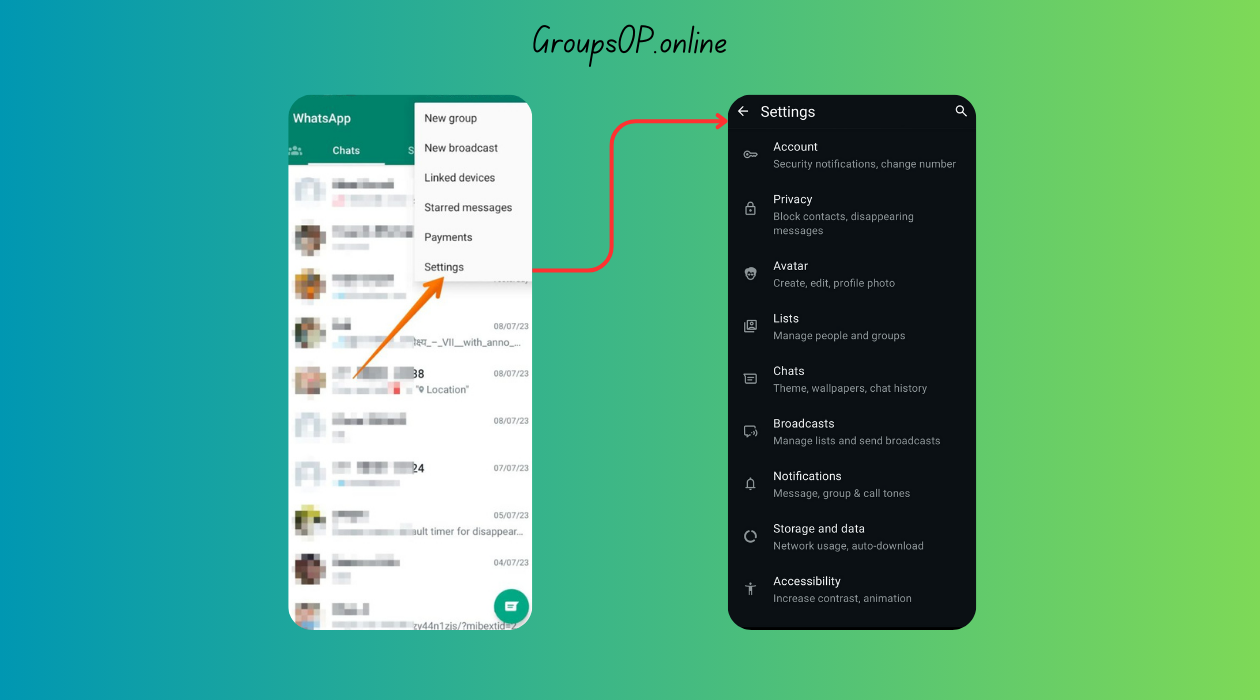
3. Open Linked Devices on Your Main Phone
On Phone A:
- Open WhatsApp
- Go to Settings
- Tap Linked Devices
- Tap Link a Device
A QR code scanner will appear.
Why this matters:
This is the core of WhatsApp’s multi-device system — everything depends on this QR scan.
Common mistake:
Trying to type the phone number manually.
Linked Devices never uses number verification.
4. Scan the QR Code Using Phone A
Phone B now shows a big QR code.
Scan it with Phone A.
Within a few seconds, Phone B will display:
- “Loading chats…”
- “Syncing messages…”
Then you’re in.
Why this matters:
The QR code pairs your encryption keys to another device without exposing messages.
Tip:
If the scanner keeps failing, turn up Phone B’s brightness.
5. Wait for Chats to Sync
It usually takes 30 seconds to 2 minutes.
Don’t worry — WhatsApp doesn’t copy media from Phone A to Phone B.
Each device downloads media only when you open a chat. This keeps storage lower.
Why this matters:
This prevents the second phone from becoming cluttered with every file.
Common beginner confusion:
“Why aren’t my photos appearing instantly?”
Because WhatsApp loads them only when needed.
Personal-Experience Notes
I tested this on both Android and iPhone, and aside from slight layout differences, the entire flow is identical.
The weird thing is: the “Link to existing account” option sometimes appears only after restarting the app — which is why many people miss it.
Real Examples (How People Actually Use This)
Example 1: Work Phone + Personal Phone
A shop owner I helped wanted to manage customer chats on her work phone but still receive messages on her personal phone at home.
Once she linked both devices, she said it felt like WhatsApp suddenly became more “professional,” because she could reply quickly no matter which phone was nearby.
Example 2: Using WhatsApp on a Spare Phone
Someone else had an old phone lying around and wanted it as a backup device on Wi-Fi only.
They linked it using Companion Mode — no SIM card required.
Now they use it for long typing sessions and keeping WhatsApp open during work.
Features That Work on Both Phones
- Sending & receiving chats
- Voice calls
- Video calls
- Reading archived chats
- Viewing and posting Status updates
- Starred messages
- Stickers / emojis / GIFs
- Notifications on both devices
- Multi-device support without keeping the main phone online
Latest update (2026):
Linked phones stay active even if the primary phone is offline for long periods.
Limitations You Should Know
Not everything is perfect.
- You cannot change your WhatsApp number from the second phone
- You cannot use WhatsApp Pay (region dependent)
- You cannot log in using verification code on Phone B
- Chat media doesn’t sync automatically — it loads per chat
- You cannot manage device-level backup from Phone B
Common Mistakes & Fixes
Here’s where most people get stuck.
1. Mistake: Trying to register WhatsApp again on the second phone
Cause: Tapping “Agree & Continue.”
Fix: Tap the menu → “Link to existing account.”
2. Mistake: “The QR code won’t scan.”
Cause: Low brightness, slow internet, or outdated app.
Fix: Increase screen brightness + update WhatsApp.
3. Mistake: “Chats aren’t syncing on the second phone.”
Cause: App still syncing or restricted background activity.
Fix: Keep WhatsApp open for 1–2 minutes.
4. Mistake: “Messages show on one phone but not on the other.”
Cause: Notification settings mismatched.
Fix: Enable full notifications on both phones.
5. Mistake: “Second phone logs out after a few days.”
Cause: WhatsApp auto-removes inactive devices.
Fix: Open WhatsApp on Phone B at least once every 14 days.
6. Mistake: “Media missing on the second phone.”
Cause: WhatsApp doesn’t clone media automatically.
Fix: Open the chat → wait for media to load.
7. Mistake: “I don’t see Linked Devices on my phone.”
Cause: Outdated version of WhatsApp.
Fix: Update WhatsApp → restart app → check again.
FAQs
1. Can I use WhatsApp on two phones with the same number?
Yes — Linked Devices fully supports this.
2. Do I need a SIM card in the second phone?
No — Wi-Fi is enough.
3. Will both phones get notifications?
Yes, unless you disable alerts on one device.
4. Do chats stay synced forever?
Yes — as long as both devices remain linked.
5. Can someone secretly link my WhatsApp?
No — WhatsApp requires biometric or lock-screen approval on your main phone.
6. Can I unlink a device?
Yes: WhatsApp → Settings → Linked Devices → Tap device → Log out.
Safety & Legitimacy Disclaimer
This guide uses only official WhatsApp features. No modified apps, spying tools, tracking methods, or unofficial APKs are included.
Related Tutorials
- How to Transfer WhatsApp to a New Phone
- How WhatsApp Backup Works
- How to Fix WhatsApp Storage Issues
- WhatsApp Privacy Settings Explained
Final Summary
Using WhatsApp on two phones is finally simple thanks to Linked Devices. You just install WhatsApp on your second phone, choose the “Link to existing account” option, scan the QR code, and wait for chats to sync. Honestly, once you understand how this feature works, everything else in WhatsApp starts to make more sense — especially if you use multiple devices for work.
If you’re organizing your WhatsApp setup, the related tutorials above will help you fine-tune backup, storage, and privacy settings too.