WhatsApp Web is supposed to feel effortless—open your browser, scan the QR code, and everything on your phone should appear instantly. But sometimes the messages don’t load, chats show blank screens, images never appear, or WhatsApp Web keeps spinning forever. At that point, it feels less like a convenience and more like a puzzle you didn’t sign up for.
The truth is, WhatsApp Web depends on several moving parts working together. Your phone’s internet, the browser cache, background permissions, multi-device settings, and even battery saver can quietly break the sync process. And because the browser doesn’t explain what’s wrong, users end up refreshing the tab over and over wondering if something is wrong with their account.
Most people I’ve helped struggle with this because WhatsApp hides important sync-related settings inside submenus you rarely open. And when messages or media don’t load, it’s almost never for the reason people assume.
Let’s walk through the real causes and the fixes that actually work—step by step, without robotic explanations.
Why WhatsApp Web Fails to Sync (Real Causes)
Here’s what’s really going on when WhatsApp Web doesn't load messages or media from my own expriences:
- Your phone’s internet is unstable
- Browser cache is corrupted
- Battery saver restricts background sync on your phone
- Multi-device mode not enabled
- Date/time mismatch
- QR session expired
- VPN or firewall blocking WhatsApp
- Network with restrictions (office Wi-Fi, hotel networks)
- WhatsApp Web browser tab timed out
Now let’s fix every one of these.
Step-by-Step Fixes for WhatsApp Web Sync Issues
These fixes are written in a simple, human tone so anyone can follow them.
1. Make Sure Your Phone Is Connected to the Internet
What to do:
Even with multi-device mode, WhatsApp Web sometimes needs your phone active. Check if your phone has stable internet (Wi-Fi or mobile data).
Why this matters:
Weak phone internet is the #1 reason WhatsApp Web fails to load recent messages.
Common mistake:
People assume the problem is on the computer.
In reality, WhatsApp Web still depends on the phone for certain updates.
Tip:
Switch your phone to airplane mode for 5 seconds → turn it off → refresh WhatsApp Web.
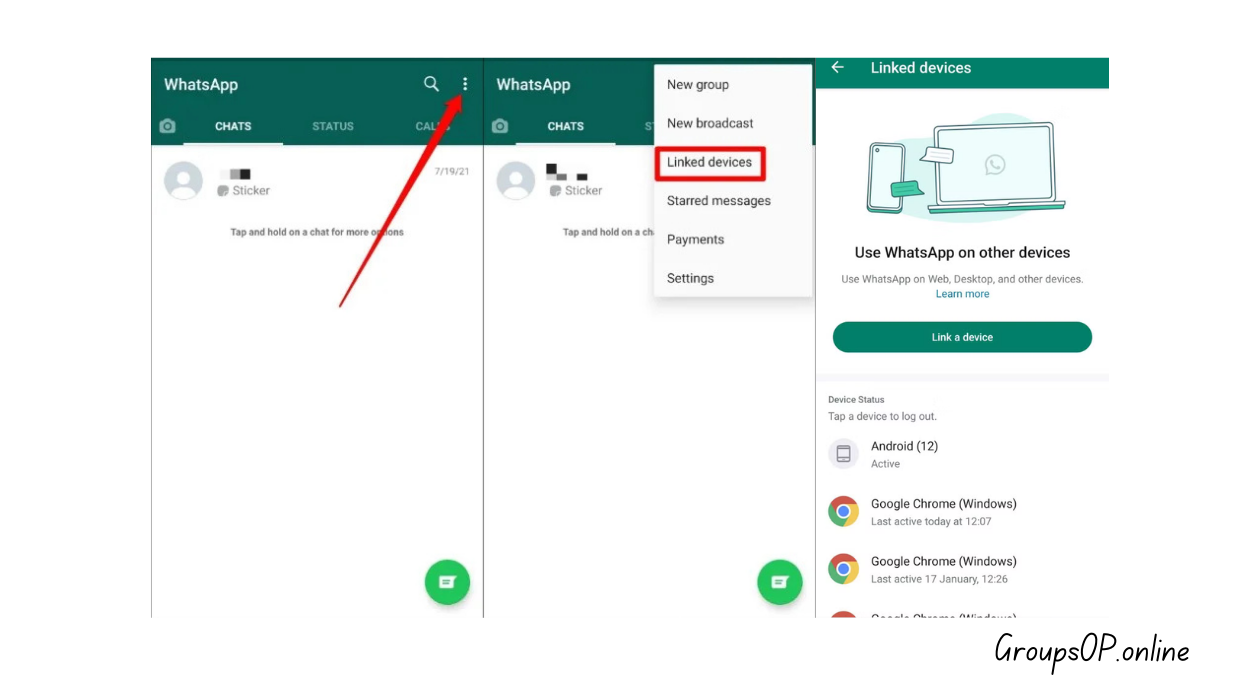
2. Enable Multi-Device Mode (If Not Already)
What to do:
On your phone → WhatsApp → Settings → Linked Devices → enable multi-device.
Why it matters:
Without multi-device enabled, WhatsApp Web needs your phone online 100% of the time. If your phone sleeps, WhatsApp Web stops syncing.
Common mistake:
Users think multi-device is automatic—it isn’t.
Tip:
If multi-device doesn’t show up, close and reopen WhatsApp. This refreshes hidden menu items.
3. Refresh the QR Login Session
What to do:
On your PC → click the menu in WhatsApp Web → Log Out → scan again.
Why it works:
Sessions expire silently, especially after browser updates or clearing cookies.
Common mistake:
Refreshing the page instead of re-scanning the code.
Tip:
If QR code isn’t loading, disable browser extensions temporarily.
4. Fix Your Computer’s Date & Time Settings
What to do:
Set your PC to automatic date/time.
Why this matters:
This sounds silly, but WhatsApp Web refuses to sync if your system clock differs from WhatsApp’s server time.
Common mistake:
People adjusting the time manually for videos or tasks and forgetting about it.
Tip:
Restart browser after fixing time settings.
5. Clear Browser Cache & Cookies
What to do:
Open browser settings → Clear browsing data → Cached images/files → Cookies for WhatsApp Web.
Why it matters:
A corrupted cache is one of the most common causes of WhatsApp Web sync failures.
Common mistake:
Clearing only cookies but not cached files.
Tip:
After clearing, fully close the browser and reopen it.
6. Turn Off Battery Saver on Phone
What to do:
iPhone: Settings → Battery → Low Power Mode → Off
Android: Settings → Battery → Battery Saver → Off
Why it matters:
Battery saver restricts WhatsApp’s background sync, meaning new messages never reach WhatsApp Web.
Common mistake:
People think the problem is browser-related when the phone is silently blocking background tasks.
Tip:
Plug in your phone while using WhatsApp Web.
7. Disable VPNs or Proxies on Phone & PC
What to do:
Turn off VPNs temporarily on both devices.
Why it matters:
VPNs reroute traffic, and some VPN servers block or slow down WhatsApp media.
Common mistake:
Using workplace VPNs, which often block messaging services.
Tip:
If WhatsApp Web works on mobile hotspot but not Wi-Fi, your network is blocking it.
8. Try a Different Browser
What to do:
Test WhatsApp Web in Chrome, Edge, Firefox, or Brave.
Why it matters:
Some browsers don’t handle service workers (used by WhatsApp Web) consistently.
Common mistake:
Assuming WhatsApp Web is down, when the browser is simply outdated.
Tip:
Chrome and Edge tend to work best.
9. Re-Link Your Device Using Linked Devices Settings
What to do:
On phone → WhatsApp → Linked Devices → tap the active session → Log Out → scan fresh QR code.
Why this matters:
Sometimes the session file becomes corrupted. Re-linking clears the issue immediately.
Tip:
If you see multiple active sessions, remove all of them.
10. Check if Media Auto-Download Is Disabled
What to do:
On phone → Settings → Storage and Data → Media Auto-Download.
Why it matters:
WhatsApp Web can’t load media that your phone hasn’t downloaded yet.
Common mistake:
Expecting images to appear instantly on PC even though the phone hasn’t downloaded them.
Tip:
Force open the actual chat on your phone—media will download and sync to Web.
11. Restart Both Devices
What to do:
Restart your phone and PC.
Why it works:
This resets network conditions, clears background app issues, and forces WhatsApp Web to reload everything from scratch.
Tip:
Restart your phone first, then your PC.
Personal-Experiences
I’ve tested WhatsApp Web problems on Chrome, Edge, iPhone, and all kinds of Android phones — basically anything that has a screen and a battery.
And the strange part? About half of the “WhatsApp Web not loading messages” issues were actually caused by the phone going into energy-saving mode… not the browser.
The first time I figured this out, I spent ages refreshing the page, restarting my laptop, even blaming my Wi-Fi. Then I looked at my phone and saw the tiny battery icon whispering, “Bro… I’m tired.”
Another thing I’ve noticed: a lot of people don’t realize that media only loads on WhatsApp Web after the phone has downloaded it. This surprises so many users.
I’ve had people tell me, “My WhatsApp Web is broken, it won’t show my photos!”
Then I check their phone, and the images are still loading like it’s 2008.
They look at me like I just revealed a government secret.
Two Real Examples
Example 1: Messages Not Loading at Work
A reader told me WhatsApp Web worked at home but not at their office. Turned out their company firewall blocked WhatsApp’s data domain. They switched to mobile hotspot and everything synced instantly.
Example 2: Media Would Not Load on PC
Another user spent hours trying to fix “image not loading” errors on Web. The cause? Their phone’s storage was full, so WhatsApp wasn’t downloading new photos at all. Once they cleared space, the media synced everywhere.
Common Mistakes & Fixes
1. “WhatsApp Web chat shows blank screen.”
Cause: Browser cache corruption.
Fix: Clear cache + restart browser.
2. “Media not loading on WhatsApp Web.”
Cause: Phone hasn’t downloaded the media yet.
Fix: Open the chat on your phone → let media download.
3. “Messages only load when phone is awake.”
Cause: Battery saver blocking background tasks.
Fix: Turn off battery saver.
4. “Older messages don’t appear on Web.”
Cause: Phone disconnected mid-sync.
Fix: Re-link device.
5. “WhatsApp Web stuck at ‘Connecting…’.”
Cause: Wi-Fi issue or VPN.
Fix: Restart router → turn off VPN.
6. “QR code won’t scan.”
Cause: Low camera brightness or reflection.
Fix: Increase PC screen brightness.
7. “WhatsApp Web loads slowly only on one browser.”
Cause: Outdated service workers.
Fix: Use Chrome or update your browser.
FAQs
1. Why is WhatsApp Web not syncing even with multi-device mode on?
Sometimes your phone still needs to be connected for initial message loading.
2. Why don’t images appear on WhatsApp Web?
Your phone didn’t download them yet. Open the chat on your phone.
3. Can WhatsApp Web work without my phone?
Yes, after initial setup—but not for everything. Media still depends on the phone.
4. Why does WhatsApp Web keep disconnecting?
Probably unstable Wi-Fi or a restrictive network.
5. Does clearing WhatsApp Web cache delete chats?
No, chats stay stored on your phone.
6. Why does WhatsApp Web load old messages but not new ones?
Phone lost connection temporarily.
7. Can office Wi-Fi block WhatsApp Web?
Yes, many workplaces block messaging platforms.
Safety & Legitimacy Disclaimer
This guide uses only official WhatsApp features. No modified apps, spying tools, tracking methods, or unofficial APKs are included.
Related Tutorials
- How WhatsApp Backup Works
- WhatsApp Restore Stuck at 99% — Fixes
- How to Transfer WhatsApp to a New Phone
- How to Fix WhatsApp Storage Issues
Final Summary
WhatsApp Web sync issues look complicated at first, but they usually come down to simple things: unstable phone internet, browser cache problems, battery saver blocking background tasks, or outdated sessions. Fixing them is straightforward once you understand how WhatsApp handles messages and media behind the scenes.
Honestly, once you get the hang of how WhatsApp Web syncs with your phone, everything else becomes much easier.
If you’re still adjusting your setup or switching devices soon, the related guides above will help you avoid the typical headaches.