WhatsApp Status is one of those features almost everyone uses but very few people actually understand fully. It’s quick, simple, and honestly quite fun — you post a photo, video, link, or text, and it disappears after 24 hours. Easy, right? But once you dig a bit deeper, you realize there are several hidden controls that decide who sees your Status, who doesn’t, and how much information you’re sharing without realizing it.
Most people I’ve helped struggle with this because WhatsApp hides the important Status privacy settings in places you wouldn’t expect. And when you don’t adjust them, your Status might reach people you didn’t intend to share it with.
If you’ve ever wondered how Status works, who can view it, or how to control the privacy settings correctly, this guide walks through everything in a simple, human way — based on real testing, not guesswork.
1. How WhatsApp Status Works (Simple Breakdown)
WhatsApp Status lets you share disappearing updates:
- Photos (Now added new option to select multiple images for single status using Layouts)
- Videos (up to 90 seconds / 1 minute, 30 seconds)
- Text updates
- Links
- GIFs
You can post multiple updates at once, and they all disappear automatically after 24 hours.
Who sees your Status?
It depends entirely on your Status Privacy settings, which we will configure step-by-step in a moment.
Where Status appears:
A separate Status tab for your viewers.
For you, it appears under “My Status”.
2. Step-by-Step Tutorial: How to Use and Control WhatsApp Status
Below is a clean walkthrough, written in a natural, non-robotic way.
Each step includes why it matters, a common mistake, and a small helpful tip.
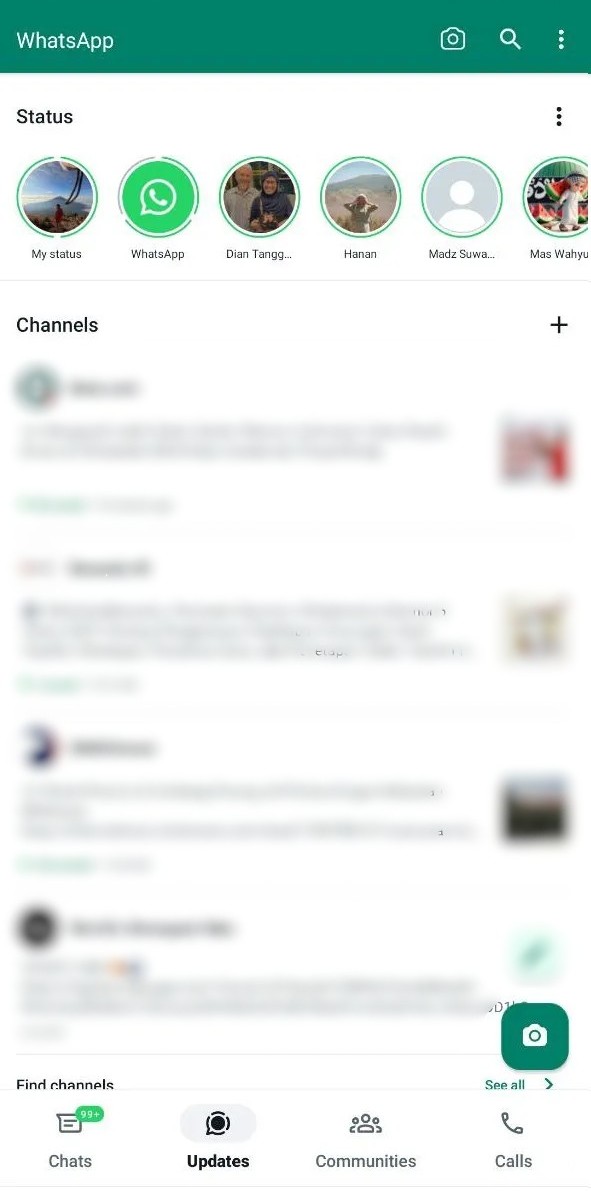
Step 1: Open the Status Section
Open WhatsApp → Tap Status (Now shown as Updates) at the bottom or top (depends on device).
Why this matters:
Status is separate from chats, so you need to start here before making any updates.
Common mistake:
People assume the “Camera” icon is the same thing — it’s not. Camera sends to chats, not to Status.
Tip:
If the Status tab looks missing, close WhatsApp and reopen it.
Step 2: Post Your Status (Photo, Video, Text)
You’ll see the camera icon and the pencil icon.
- Camera icon → photo or video
- Pencil icon → text update
Why it matters:
WhatsApp treats text Status differently — they often load faster for viewers.
Common mistake:
Posting long videos. WhatsApp cuts videos over 30 seconds, which confuses many new users.
Tip:
Trim videos inside WhatsApp before posting to avoid upload errors.
Step 3: Choose Who Can View Your Status
Now the real privacy part begins.
Tap Status → 3 dots → Status Privacy
(or: Settings → Privacy → Status)
You will see three options:
1. My Contacts
Everyone saved in your contacts can see your Status.
2. My Contacts Except…
You select who should NOT see your Status.
3. Only Share With…
You select ONLY the people who should see your Status.
Why this matters:
This single setting decides who receives your updates.
Common mistake:
Many people leave this on “My Contacts” even when they don’t want coworkers, clients, or old contacts to see personal updates.
Tip:
If Status Privacy doesn’t appear instantly, close and reopen WhatsApp — this refreshes the menu.
![WhatsApp → Settings → Privacy → Status]](https://groupsop.online/public/uploads/posts/out-sts_sttings.png)
Step 4: Review Who Viewed Your Status
Open My Status → tap your update → swipe up.
You’ll see:
- List of viewers
- View count
- View time
Why this matters:
It helps you check if Status Privacy is working the way you intended.
Common mistake:
Assuming everyone on WhatsApp can see your Status.
Only people allowed by your privacy settings can view it.
Tip:
If no one views your Status, check whether “Read Receipts” are turned off — this affects view counts.
Step 5: Delete a Status Before 24 Hours
Tap My Status → choose the update → Delete.
Why this matters:
If you accidentally post something, this is your escape button.
Common mistake:
Thinking deletion removes the Status from everyone’s phone immediately.
It disappears for most viewers instantly, but some screens may show it until they refresh the app.
Tip:
Delete quickly for best results.
Step 6: Mute Someone Else’s Status (Optional)
Long-press a contact’s Status → Mute
Why this matters:
It keeps your Status feed clean.
Common mistake:
People mute someone and forget they did — later wondering why that person’s updates “stopped.”
Tip:
Muted statuses move to a separate section — you can unmute anytime.
4. Real Examples (Simple, Realistic Scenarios)
Scenario 1: Sharing Personal Updates Without Sharing Too Much
A reader once told me they posted a family photo, only to realize later that it was visible to clients and coworkers.
They didn’t know about the “My Contacts Except” option.
Once they used it, their Status became personal again — seen only by the people they intended.
Scenario 2: Status Not Showing Views
Another user thought no one was viewing their Status, but the issue was simple:
They had turned off Read Receipts months earlier and forgot about it.
Once they turned it back on, the viewer list appeared again.
5. Common Mistakes & Fixes
Here are the mistakes beginners make most often — explained in a real, simple tone.
Mistake 1: “Everyone can see my Status.”
Cause:
Status Privacy still set to “My Contacts.”
Fix:
Go to Settings → Privacy → Status → choose a narrower option.
Mistake 2: “My Status views show zero.”
Cause:
Read Receipts are off.
Fix:
Turn on Settings → Privacy → Read Receipts.
Mistake 3: “My Status didn’t upload properly.”
Cause:
Weak internet or large file.
Fix:
Compress video or upload on Wi-Fi.
Mistake 4: “I muted someone by accident.”
Cause:
Long pressing too quickly.
Fix:
Scroll to the bottom → Muted Updates → unmute.
Mistake 5: “I can't find Status Privacy settings.”
Cause:
User checking the Status tab instead of main settings.
Fix:
Go to Settings → Privacy → Status.
(If missing, restart the app.)
Mistake 6: “Someone still saw my Status even after excluding them.”
Cause:
Privacy changes apply only to new Status posts.
Fix:
Delete the old Status and post again.
Safety & Legitimacy Disclaimer
This guide uses only official WhatsApp features. No modified apps, spying tools, tracking methods, or unofficial APKs are included.
Related Tutorials
- How to Transfer WhatsApp to a New Phone
- How WhatsApp Backup Works
- How to Fix WhatsApp Storage Issues
- WhatsApp Privacy Settings Explained
Final Summary
WhatsApp Status is simple on the surface, but it works best when you understand its privacy settings and how sharing works. Once you control who can see your updates, review viewer lists, delete unwanted posts, and manage muted statuses, the whole feature feels much more predictable and comfortable. Honestly, once you understand how this feature works, everything else in WhatsApp starts to make more sense.
If you're adjusting your privacy settings or exploring WhatsApp features more deeply, the related tutorials above can guide you step-by-step.
FAQs
1. Can someone tell if I viewed their WhatsApp Status?
Yes — if read receipts are ON.
2. Can I hide my Status from just one person?
Yes — use “My Contacts Except…”
3. Does WhatsApp notify someone when I hide my Status from them?
No — it’s completely invisible.
4. Why does someone’s Status appear and disappear?
They might delete it early, or your internet refreshed the feed.
5. Can I post links in my Status?
Yes — WhatsApp supports clickable links.
6. Do I need mobile data to view Status updates?
Yes. Status requires an internet connection.
7. Can I stop someone from seeing my Status without blocking them?
Yes — adjust Status Privacy.