If your phone keeps showing “Storage Almost Full,” there’s a good chance WhatsApp is one of the main reasons. It’s not because the app itself is huge—it’s usually the photos, videos, voice notes, memes, status auto-downloads, and group forwards slowly piling up in the background. It happens so quietly that people don’t even notice until everything feels slow or the camera refuses to record.
Understanding WhatsApp storage isn’t just about deleting stuff. It’s about knowing where WhatsApp keeps things, why it uses so much space, and how to clean it without losing important chats. Most people I’ve helped struggle with this because WhatsApp hides the important storage tools in places you wouldn’t expect, especially on Android.
So let’s break it all down in a simple, human way—no tech jargon, no confusing menus—just clear steps and real explanations.
How WhatsApp Actually Uses Your Phone Storage
WhatsApp doesn’t store everything in one place. Instead, it spreads data across different folders and caches, and that’s what makes cleaning tricky.
1. The App Itself
The base WhatsApp app is small—around 200 MB to 300 MB. This includes:
- Chat database
- Settings
- Basic cached data
This part isn’t the problem for most people.
2. Received Media (The Real Storage Hog)
Every time someone sends you:
- Photos
- Videos
- Stickers
- Documents
- GIFs
- Voice notes
WhatsApp downloads them to your phone’s internal storage.
Now… the tricky part:
Unless you turn off auto-download, everything gets saved—even in groups you barely check.
Large videos and endless memes are usually what fill phones fastest.
3. WhatsApp’s “Chat Database”
This is the file that stores:
- Messages
- Links
- Reactions
- Metadata
It grows slowly but gets big if you have very long conversations or giant groups.
4. Backups (Not Stored Inside WhatsApp App Space)
Important detail:
WhatsApp backups do not fill your internal storage.
- Android → Backups go to Google Drive
- iPhone → Backups go to iCloud
But temporary backup files do use local storage during the backup process. If you see backup failures, low storage is the number one cause.
5. Status Cache
When you view someone’s WhatsApp Status, the content is stored temporarily so you don’t need to download it again.
These can pile up without you realizing it.
Step-by-Step: How to Clean WhatsApp Storage Safely
Here’s where we get practical. These are steps real users follow to free space without accidentally deleting important chats.
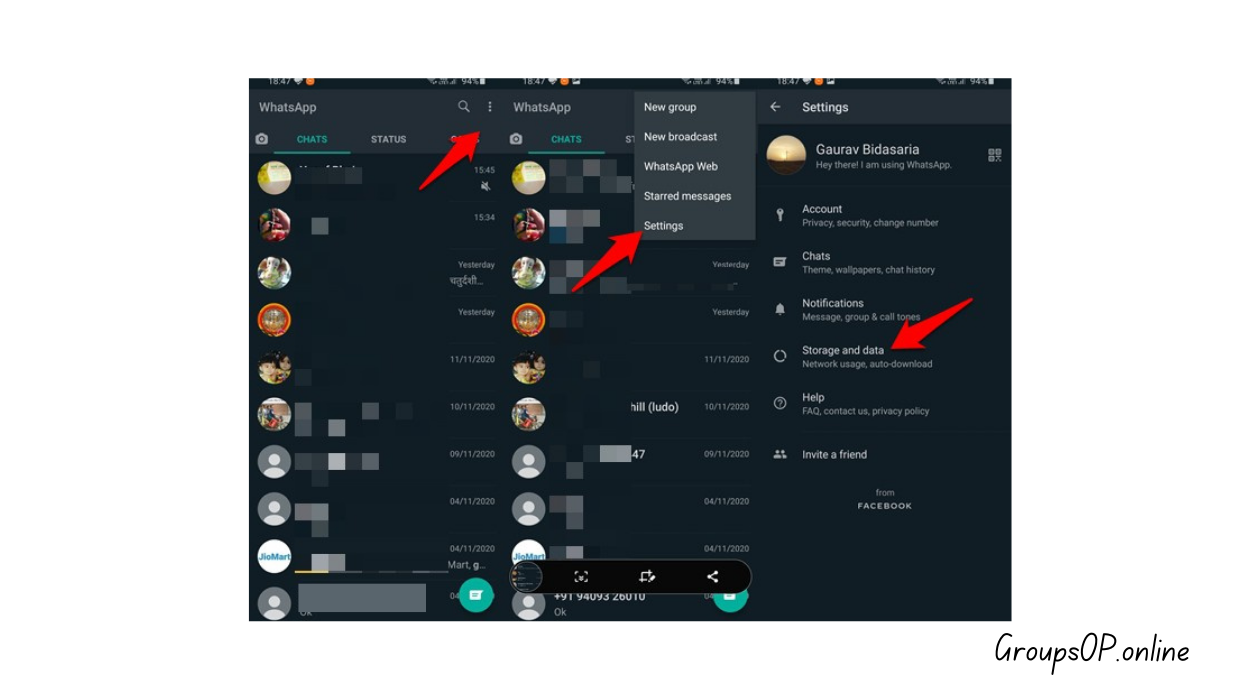
1. Open WhatsApp Storage Manager
What to do:
WhatsApp → Settings → Storage and Data → Manage Storage
This screen shows:
- How much space WhatsApp uses
- Which chats consume the most space
- Large files you can delete
Why it matters:
This is the only place where WhatsApp neatly organizes your storage usage. Without this, you’re guessing.
Common mistake:
People delete the wrong chat because it “looked large” without checking what’s inside.
Tip:
If the storage screen doesn’t load, close WhatsApp and reopen it—it often refreshes the data.
2. Clean “Large Files” First
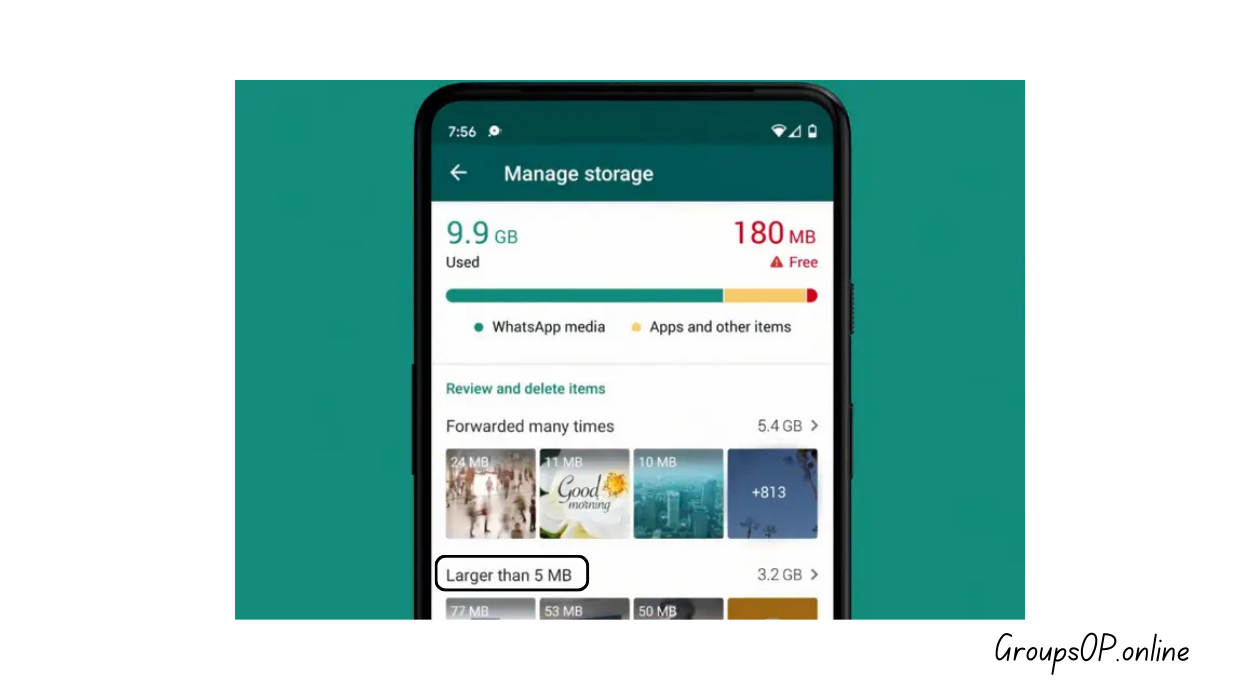
WhatsApp automatically groups files larger than 5 MB.
What to do:
Manage Storage → Larger than 5 MB → select → delete.
Why it matters:
You can usually free hundreds of MB (sometimes gigabytes) with this one step alone.
Common mistake:
Deleting everything too quickly. Sometimes there are important videos in there.
Tip:
Use the preview to check what you're deleting. Take 10 extra seconds—it’s worth it.
3. Sort Chats by Storage Usage
What to do:
Scroll to “Chats” → WhatsApp automatically sorts chats by largest to smallest.
Why it matters:
You get a clear picture of which conversations are filling your phone. Often it’s:
- A school group
- A family group with daily videos
- One friend who sends memes all day
Common mistake:
People think it’s the chat with the most messages.
Actually, it’s usually the chat with the most videos.
Tip:
Tap a chat → “Manage Messages” → delete only videos or GIFs if you want to keep the text messages.
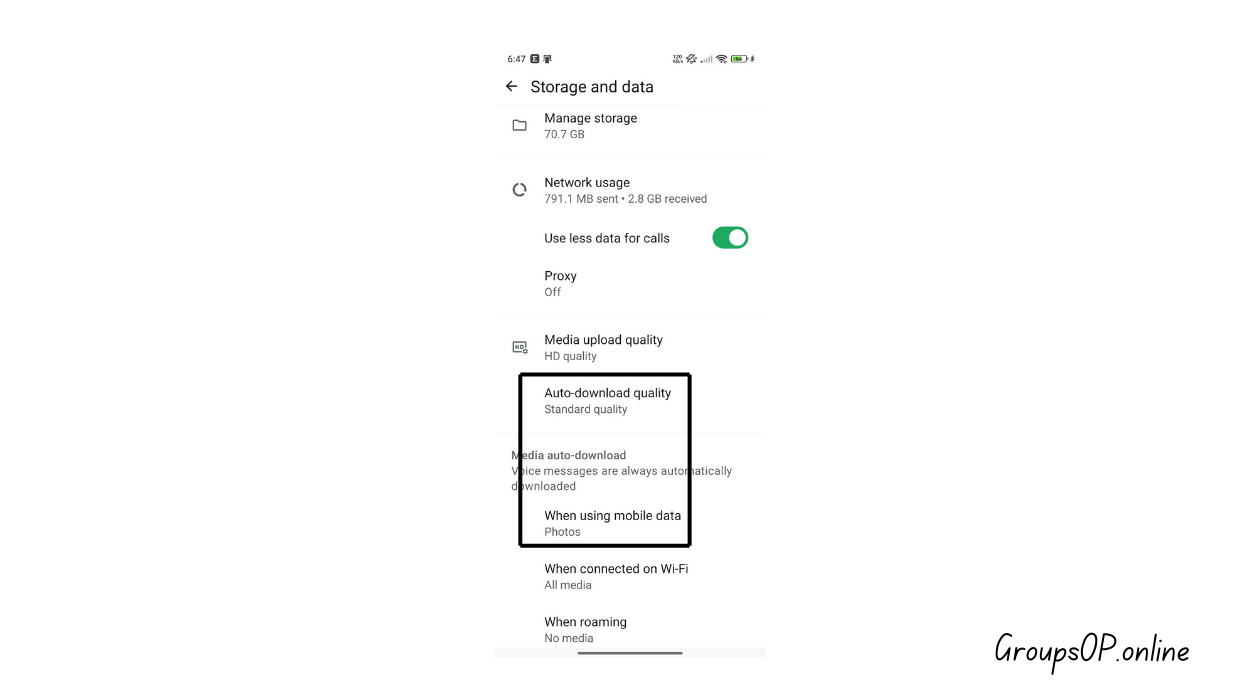
4. Disable Auto-Download (This Prevents Future Storage Problems)
What to do:
Settings → Storage and Data → Media Auto-Download (When using mobile data) → Turn off unnecessary categories.
Why it matters:
This single change stops your phone from quietly filling itself.
Common mistake:
Turning everything off without understanding the tradeoffs. Then people wonder why photos don’t appear.
Tip:
Here’s a balanced setup many people use:
- Photos → ON
- Audio → OFF
- Videos → OFF
- Documents → OFF
Special Tip: Set Auto-download quality to Standard quality to save storage.
5. Delete Files Inside Individual Chats
What to do:
Open any chat → tap the contact name → Media, Links, and Docs.
Here you can:
- Browse all photos
- Select multiple files
- Delete in bulk
Why it matters:
This is the only place to clean specific media while keeping the rest of the conversation.
Common mistake:
Deleting photos from your phone gallery instead of WhatsApp.
Those two aren’t always linked.
Tip:
WhatsApp’s “forwarded many times” videos are usually the biggest culprits.
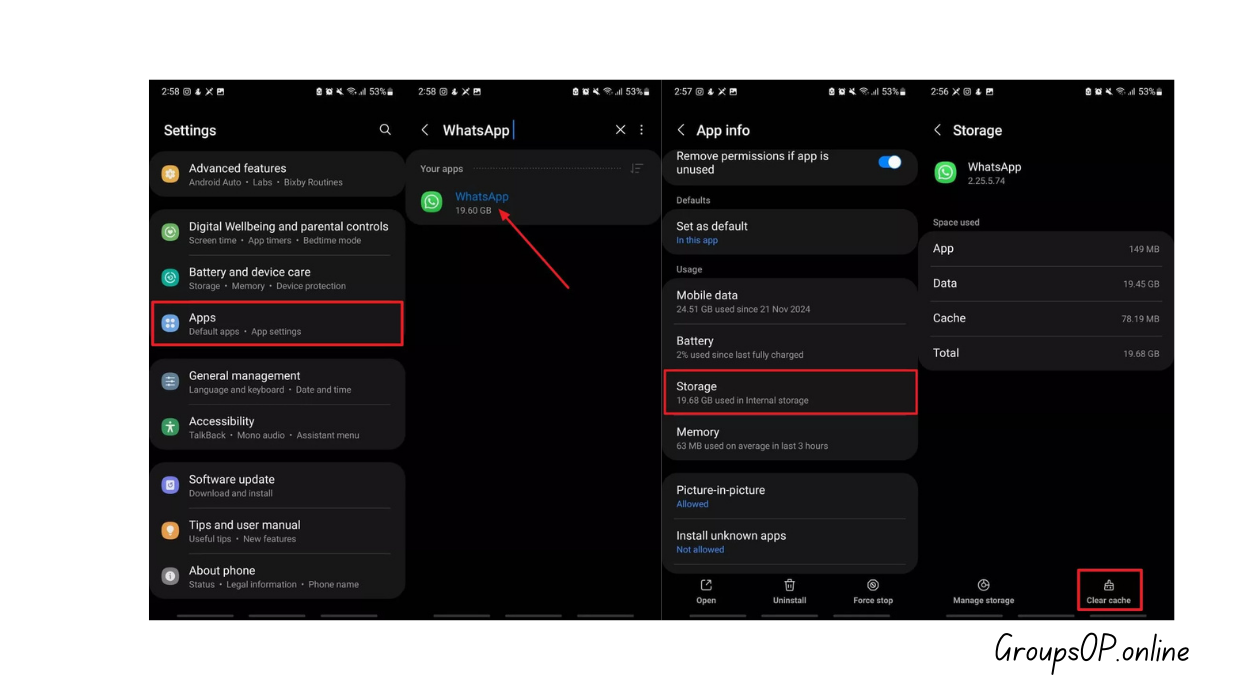
6. Clear WhatsApp Cache (Only on Android)
What to do:
Phone Settings → Apps → WhatsApp → Storage → Clear Cache.
Why it matters:
Cache files grow over time and can reach hundreds of MB.
Common mistake:
Pressing “Clear Data” instead of “Clear Cache.”
“Clear Data” logs you out and erases settings.
Tip:
Clearing cache is safe. The app rebuilds it automatically.
7. Manage WhatsApp Folder (Advanced Android Users Only)
What to do:
Using a file manager → WhatsApp → Media → manually delete old folders like:
- WhatsApp Video
- WhatsApp Images
- WhatsApp Voice Notes
- WhatsApp Animated Gifs
Why it matters:
Sometimes deleted WhatsApp files linger in system folders.
Common mistake:
Deleting the “Databases” folder — never touch it.
Tip:
If you're unsure, stick to the built-in WhatsApp Storage Manager.
8. Free Up Space Before Backing Up
If your phone is low on storage, WhatsApp backup may fail.
What to do:
Clean large videos first → retry backup.
Why it matters:
WhatsApp compresses everything during backup, which requires temporary storage.
Common mistake:
Trying backup again and again without freeing space.
Tip:
Clear at least 1–2 GB before attempting a full backup.
How WhatsApp Storage Differs on Android vs iPhone
Android
- Media stored in visible folders
- Cache can be cleared manually
- You can browse content using file managers
iPhone
- WhatsApp stores everything inside its app sandbox
- No file manager access
- You must use WhatsApp’s internal storage tools
The weird thing is…
Even though iPhone hides everything, it often handles storage more efficiently than low-end Android devices. Still, you’ll need to check Manage Storage regularly.
Practical Examples
Example 1: A Mother With a Full Phone
A woman messaged me saying her phone kept freezing. She thought it was a hardware problem. Turns out she had two family groups where every birthday video, festival clip, and random joke had auto-downloaded for years. We removed 7GB in less than ten minutes just by deleting “Larger than 5 MB” files.
Example 2: Student With Backup Errors
A student couldn’t back up chats to Google Drive. They thought something was wrong with WhatsApp, but the issue was simple—they had only 400 MB free on the device. After deleting old forwarded videos, the backup completed instantly.
Common Mistakes & Fixes
1. “I cleaned WhatsApp but my phone is still full.”
Cause: Other apps also consuming space.
Fix: Check overall storage settings, not just WhatsApp.
2. “I deleted media but it’s still showing in my gallery.”
Cause: Gallery saved a copy.
Fix: Delete from the gallery separately.
3. “Why did my chats disappear after clearing data?”
Cause: Clearing App Data (Android).
Fix: Only clear cache, not data.
4. “WhatsApp uses too much storage even after deleting files.”
Cause: Old databases or leftover files.
Fix: Restart device → clean again through Manage Storage.
5. “My iPhone shows WhatsApp taking 20GB but I can’t find the files.”
Cause: App sandboxing.
Fix: Use Manage Storage → delete videos, GIFs, and large items.
6. “Auto-download keeps filling my phone.”
Cause: Default settings.
Fix: Turn off auto-download for videos.
7. “Backup takes too long.”
Cause: Too many large videos.
Fix: Delete unnecessary videos before starting backup.
FAQs
1. Why does WhatsApp take so much space?
Mostly because of media files, not the app itself.
2. Does deleting chats free storage?
Only if the chat contained large files.
3. Will clearing cache delete my messages?
No. Clearing cache is safe.
4. Why do I see duplicate media in my gallery?
Some gallery apps create their own copies.
5. How often should I clean WhatsApp storage?
Once a month is usually enough.
6. Should I turn off auto-download?
Turn it off for videos at least — they fill space fastest.
7. Does backup use phone storage?
Only temporarily. Final backup goes to cloud storage.
Disclaimer
This guide uses only official WhatsApp features. No modified apps, spying tools, tracking methods, or unofficial APKs are included.
Related Tutorials
- How to Transfer WhatsApp to a New Phone
- How WhatsApp Backup Works
- How to Fix WhatsApp Storage Issues
- WhatsApp Privacy Settings Explained
Summary
WhatsApp storage fills up slowly, silently, and steadily—mostly because of photos, videos, and auto-downloaded media. Once you know how WhatsApp stores files and how to clean them safely, managing storage becomes much easier. The steps above walk you through using the built-in Storage Manager, removing large files, adjusting auto-download settings, and cleaning up device-level storage.
Honestly, once you understand how this works, keeping WhatsApp tidy becomes a simple habit rather than a stressful chore.
If you want to keep your device running smoothly, explore the related guides above — they’ll help you stay ahead of storage issues long-term.