Learning WhatsApp isn’t hard, but it does feel confusing when you're trying to understand every feature at once. The app looks simple, almost too simple, so most people assume everything is self-explanatory. Then they open the settings menu and suddenly nothing feels obvious anymore — chats, privacy, storage, notifications… it’s a lot.
This guide matters because real users don’t need theory. They need someone to walk them through things gently, without jargon, and explain why each part actually matters. Not the polished “perfect” version of WhatsApp tutorials you usually see, but something more down-to-earth.
Most people I’ve helped struggle with this because WhatsApp hides the important settings in places you wouldn’t expect. So let’s break everything down in a way that feels calm, practical, and actually useful.
Step-by-Step Tutorial
Below is a beginner-friendly walkthrough covering chats, media, calls, and the settings that hold everything together.
1. Opening WhatsApp and Understanding the Home Tabs
What to do:
Launch WhatsApp. Spend a moment looking at the tabs or icons at the bottom or top (depends on whether you’re on Android or iPhone). You’ll usually see Chats, Status, and Calls.
Why it matters:
This tiny orientation step saves you from tapping around blindly later. These tabs are where you’ll spend 99% of your time.
Common beginner mistake:
Confusing “Status” with “Chats” and accidentally posting a private photo as a public status.
Tip:
If the layout looks weird or not like screenshots online, close WhatsApp and reopen it — this fixes it for many users.
2. Starting Your First Chat
What to do:
Tap the New Chat icon → choose someone from your contact list → type your message → press Send.
Why it matters:
Chats are the heart of WhatsApp. Everything else (calls, sharing files, groups) builds on this basic action.
Common mistake beginners make:
Trying to message a person whose number is saved without the correct country code. They simply won’t appear.
Tip:
If the contact list doesn’t refresh, open your phone’s Contacts app, make sure the number is saved correctly, then reopen WhatsApp.
3. Sending Photos, Videos, and Documents
What to do:
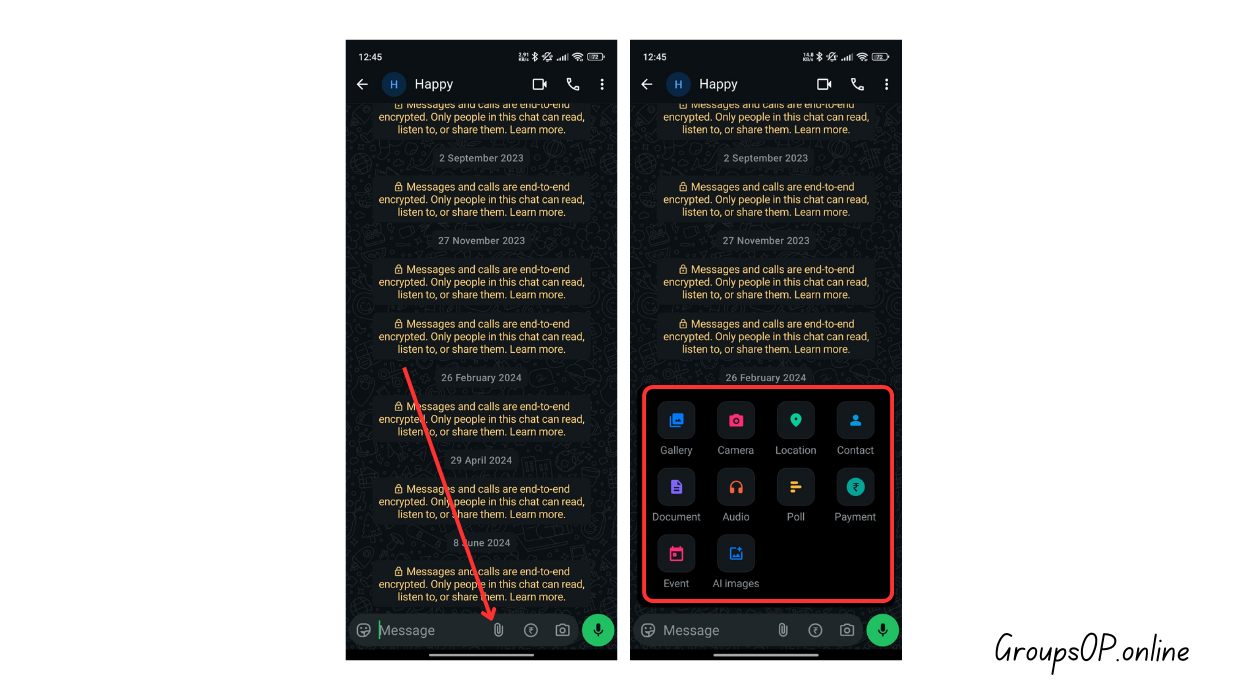
Inside a chat, tap the paperclip or “+” button → pick what you want to send:
- Photos
- Videos
- Documents (PDFs, reports, ID scans)
- Location
- Contacts
Why it matters:
WhatsApp is a daily tool for sharing everything from school notes to travel tickets.
Common beginner mistake:
Accidentally sending low-quality images because WhatsApp compresses photos by default.
Tip:
If clarity matters, send the photo as a Document instead of “Gallery.”
4. Using Voice Messages
What to do:
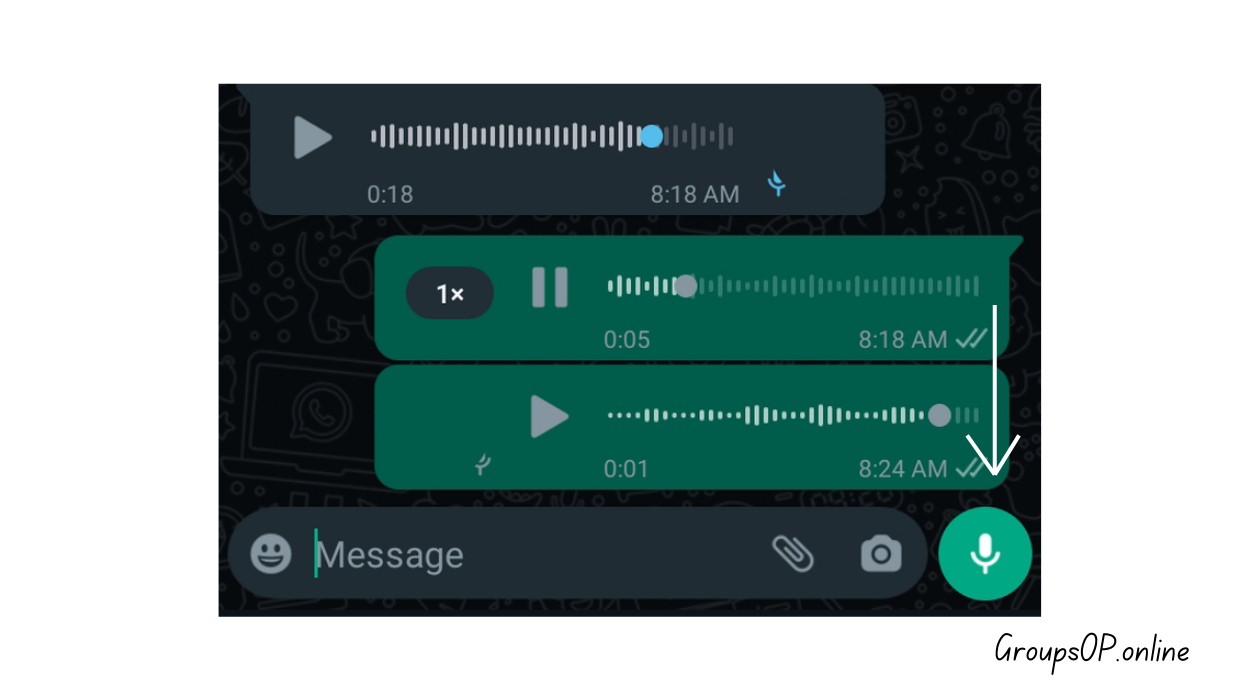
Press and hold the microphone button → speak → release to send.
If you want hands-free recording, swipe up while recording.
Why it matters:
Voice messages save time when you're explaining something long or emotional.
Common mistake:
Speaking too far from the mic, so the message sounds faint.
Tip:
If you mess up the recording, swipe left before releasing to cancel.
5. Making Voice and Video Calls
What to do:
Open any chat → tap the phone icon for a voice call or the camera icon for a video call.
Why it matters:
WhatsApp calls use your internet connection, not your phone balance. Great for international calls.
Common beginner mistake:
Calling someone over weak mobile data and thinking the app quality is bad. It’s usually just the internet strength.
Tip:
Switching to Wi-Fi or even moving closer to your router fixes lag instantly.
6. Creating and Managing Group Chats
What to do:
Chats → New Group → pick members → name the group → create.
Why it matters:
Groups are how families coordinate, how work teams communicate, how students share notes — it’s basically a community hub.
Common mistake:
Not muting active groups, leading to endless notifications.
Tip:
Mute the group for 8 hours, 1 week, or always. You won’t miss anything; you just get peace.
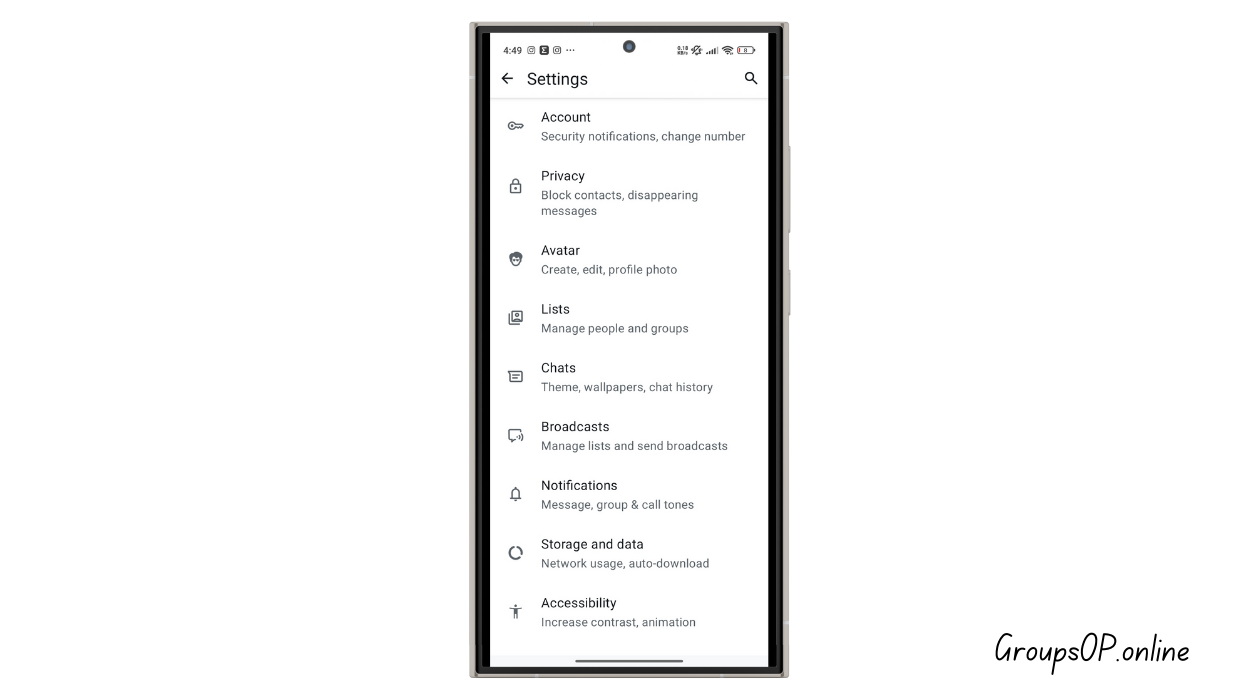
7. Exploring the Settings Menu (The Part Most Beginners Ignore)
What to do:
Tap Settings (usually bottom right on iPhone and top-right menu on Android).
Here you’ll find:
- Account
- Privacy
- Chats
- Notifications
- Storage & Data
- Linked Devices
Why it matters:
These settings control your privacy, message backup, chat behavior, and call functions. Ignoring them almost always leads to problems later.
Common beginner mistake:
Leaving everything on default. WhatsApp assumes you know what each setting does — most people don’t.
Tip:
If something doesn’t show up, try closing WhatsApp and reopening it — this fixes it for many users.
8. Adjusting Privacy Settings
What to do:
Settings → Privacy.
You can change visibility for:
- Profile photo
- Last seen
- Online status
- Read receipts
- Status updates visibility
- Who can add you to groups
Why it matters:
Privacy settings determine who sees your information and how much strangers can access.
Common mistake:
Leaving settings on “Everyone.” This exposes too much info.
Tip:
“My Contacts” is a safer default for most users.
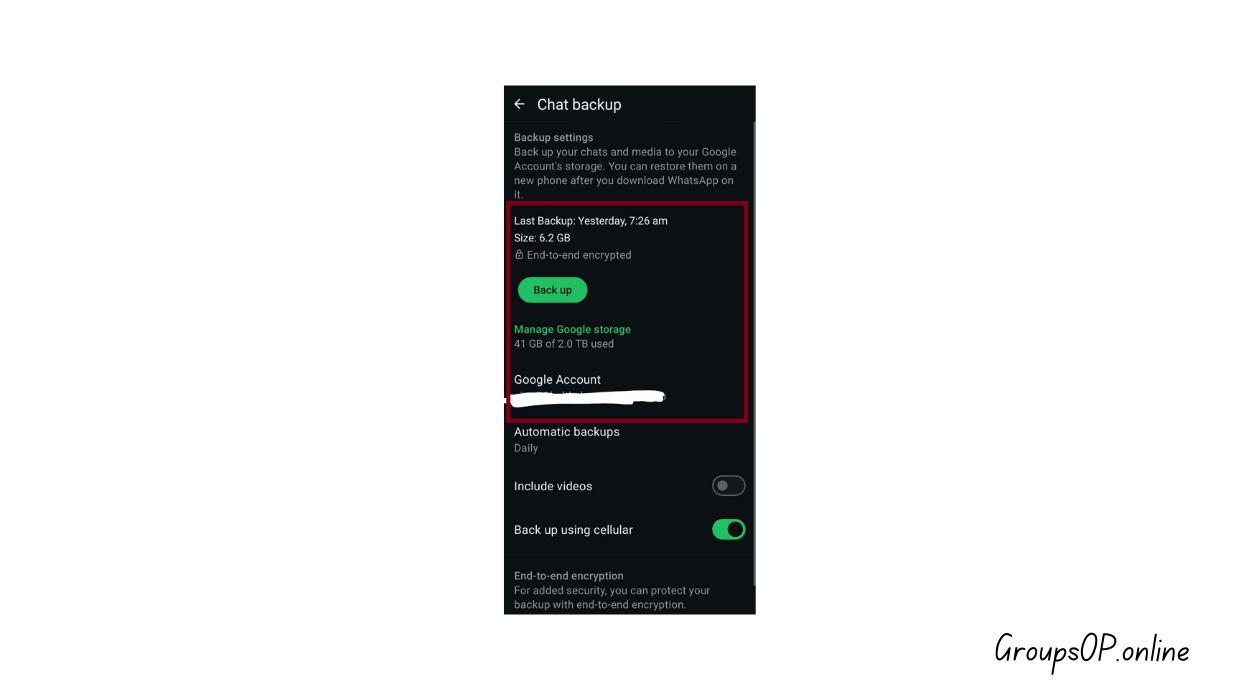
9. Turning On Chat Backup
What to do:
Settings → Chats → Chat Backup → choose Google Drive (Android) or iCloud (iPhone).
Enable automatic backups.
Why it matters:
Backups protect you from losing important conversations when you switch phones or reinstall WhatsApp.
Common beginner mistake:
Assuming WhatsApp backs up automatically by default. It doesn’t.
Tip:
Weekly automated backup is enough for most people.
10. Using Linked Devices (WhatsApp on Computer)
What to do:
Settings → Linked Devices → Link a Device → scan the QR code at web.whatsapp.com.
Why it matters:
Typing on a full keyboard is easier, and sharing files from your laptop becomes quick.
Common mistake:
Thinking WhatsApp Web only works if the phone is plugged in or open. It just needs internet.
Tip:
If the QR code doesn’t scan, brighten your phone screen.
Personal-Experience Notes
I tested these steps on both Android and iPhone, and even though the buttons are in different corners, the process is basically identical.
The weird thing is WhatsApp hides some important controls behind small menus that beginners rarely tap.
Honestly, this step — checking the Settings submenu — is the one most people miss.
Examples
Example 1: Backup Confusion on iPhone
A reader wrote to me saying their WhatsApp backup “vanished.” They swore it existed. After a little digging, the issue turned out simple — they were logged into a different Apple ID than the one used to store the old backup. Once they switched accounts, everything showed up instantly.
Example 2: New Phone, Missing Chats
Another common scenario: someone upgrades to a new Android phone but forgets to check their backup settings beforehand. They set up WhatsApp on the new device, only to find an empty chat list. No data was ever backed up. They weren’t doing anything wrong — WhatsApp just keeps auto-backup turned off until you enable it.
Common Mistakes & Fixes
Here are a few that come up again and again.
1. “Why don’t my contacts appear?”
Cause: Numbers saved without proper country code.
Fix: Add +1, +91, etc., then refresh WhatsApp.
2. “Images look blurry when I send them.”
Cause: WhatsApp reduces image size to save data.
Fix: Send the image as a Document.
3. “Notifications aren’t showing.”
Cause: Battery optimization blocking WhatsApp.
Fix: Allow background activity in phone settings. Yeah, this one happens a lot…
4. “WhatsApp Web logs out randomly.”
Cause: Internet drop or session expiry.
Fix: Re-scan the QR code. Most people don’t realize the session times out automatically.
5. “Backup stuck at 99%.”
Cause: Weak Wi-Fi or insufficient cloud storage.
Fix: Restart Wi-Fi → free storage → retry.
FAQs
1. Why isn’t my Google Drive backup showing up?
You're likely logged into the wrong Google account.
2. Can I use WhatsApp without mobile data?
Yes — Wi-Fi works perfectly.
3. What do I do if the verification SMS never arrives?
Restart your phone and try “Call Me.”
4. Can I message someone in another country?
Absolutely. Just include the correct country code.
5. Why are videos taking so long to upload?
Usually slow internet. Try moving closer to your router.
6. Can I use WhatsApp on a tablet?
Yes, through Linked Devices.
7. Are WhatsApp messages private?
They’re end-to-end encrypted. Only you and the recipient can read them.
8. Why does WhatsApp ask me to verify again?
If you reinstall the app or switch devices, you must verify again for security.
Related Tutorials
- How to Transfer WhatsApp to a New Phone
- How WhatsApp Backup Works
- How to Fix WhatsApp Storage Issues
- WhatsApp Privacy Settings Explained
Final Summary
Many new WhatsApp users feel overwhelmed because the app doesn’t explain its features clearly. Once you know how chats, media sharing, calls, and settings work, the whole experience becomes smoother. The steps above walk you through everything from basic messaging to advanced settings, without making things complicated. Troubleshooting becomes easier too when you understand why certain things happen.
Honestly, once you understand how this feature works, everything else in WhatsApp starts to make more sense.
If you want to keep learning at a steady pace, the related tutorials above are a good next step.