Switching from Android to iPhone is exciting—until you remember your WhatsApp chats. For most people, the fear isn’t about setting up the new device. It’s the idea that years of conversations, photos, and voice notes might disappear during the move. And to be honest, transferring WhatsApp between two different operating systems used to be a nightmare. People had to rely on manual workarounds or accept losing old chats entirely.
Thankfully, WhatsApp now offers an official method to move everything from Android to iPhone safely. It’s not complicated once you know where to tap, but the steps aren’t always obvious. Even experienced users miss a few details, especially because some of these options are hidden inside menus you don’t normally explore.
Most people I’ve helped struggle with this because WhatsApp hides the important settings in places you wouldn’t expect. And when something doesn’t work, the app almost never explains why. This guide fixes that. I’m going to walk you through each step like someone sitting beside you—not with technical jargon, just clear instructions and small tips based on actual user problems.
Let’s get you fully transferred, without losing anything important.
Step-by-Step Tutorial: Transfer WhatsApp from Android → iPhone
This method uses the official “Move to iOS” app from Apple.
You don't need cables, paid tools, or risky downloads.
Just follow these steps patiently.
1. Prepare Your Android Phone for Transfer
What to do:
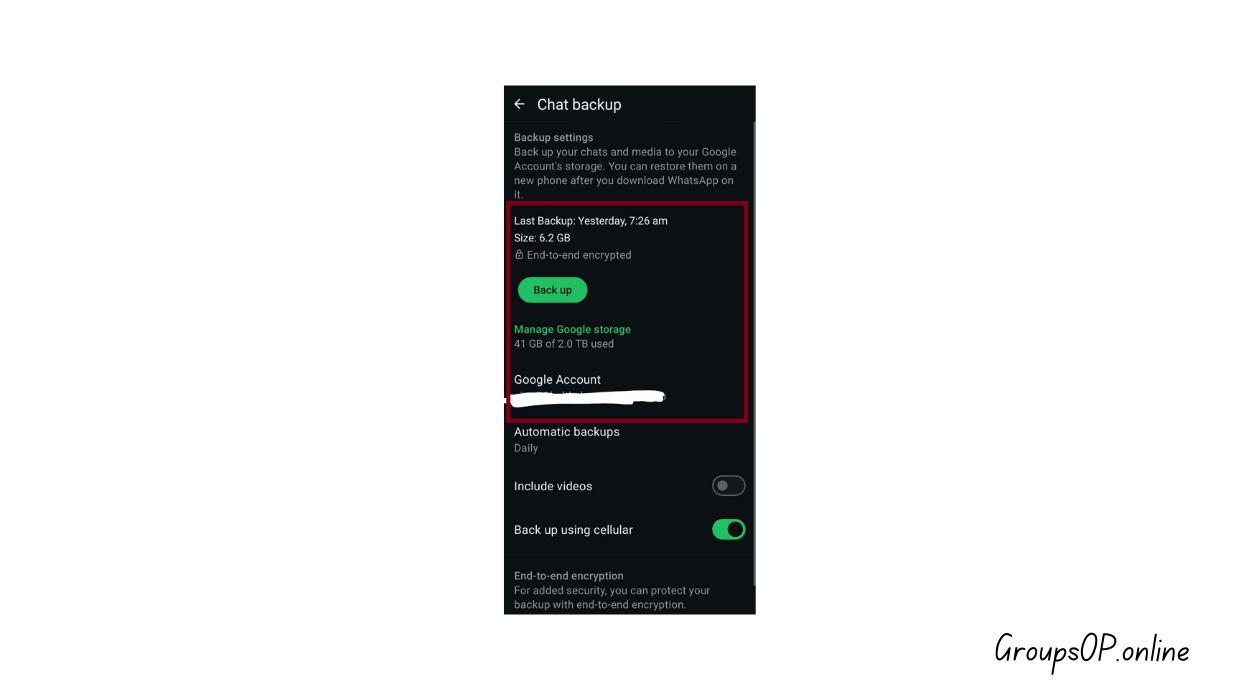
Open WhatsApp on your Android → tap the three dots → Settings → Chats → Chat Backup. Make sure you can see your most recent backup.
Why this matters:
Even though Move to iOS pulls data directly from your phone, having a fresh local backup protects you in case something interrupts the process.
Common mistake:
People confuse Google Drive backup with the local phone backup. Move to iOS reads your local WhatsApp data only.
Tip:
If the Chat Backup screen doesn’t load properly, close WhatsApp and reopen it. That usually refreshes things.
2. Install “Move to iOS” on Your Android Device
What to do:
Go to Google Play Store → install Move to iOS (official Apple app).
Why it matters:
This is the only approved method for transferring WhatsApp to iPhone. It creates a private Wi-Fi connection between your two phones.
Common mistake:
Installing older APK versions or third-party tools. Avoid that. Not only unsafe—Apple won’t recognize them.
Tip:
If the Move to iOS app crashes, clear its cache in Android settings.
3. Reset Your New iPhone (or Start It Fresh)
What to do:
Your iPhone must be new or factory reset to work with Move to iOS.
If it’s already set up → go to Settings → General → Transfer or Reset iPhone → Erase All Content.
Why it matters:
Move to iOS only works during the initial setup screen.
Common mistake:
Trying to use Move to iOS after iPhone setup. It simply won’t appear.
Tip:
If resetting feels like a hassle, back up your iPhone first so you don’t lose anything.
4. Start the Transfer Process on iPhone
What to do:
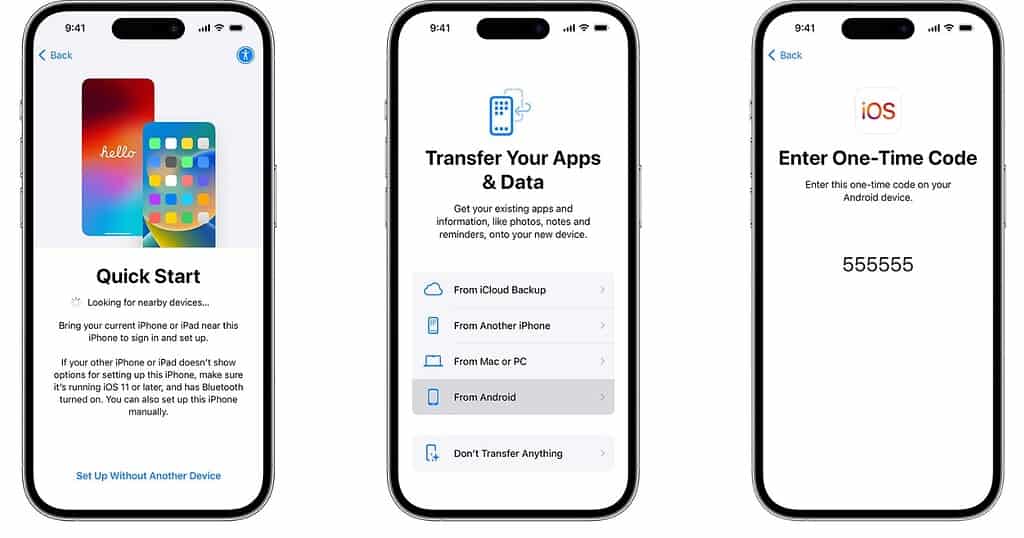
On the iPhone setup screen → Choose Move Data from Android.
You’ll see a 6-digit or 10-digit code.
Why it matters:
This is how Apple pairs the two devices securely.
Common mistake:
Typing the wrong code or switching apps mid-process on Android.
Tip:
If the code screen disappears, just go back and re-enter the setup mode.
5. Connect Android to iPhone Using Move to iOS
What to do:
Open Move to iOS on Android → enter the code from your iPhone → join the temporary Wi-Fi network the iPhone creates.
Why it matters:
This network is how your WhatsApp data moves across safely, without cloud storage.
Common mistake:
Users often switch to their home Wi-Fi by accident. Don’t do that. Stay on the iPhone’s private network.
Tip:
If you see “Unable to connect,” turn Airplane mode on → off on Android.
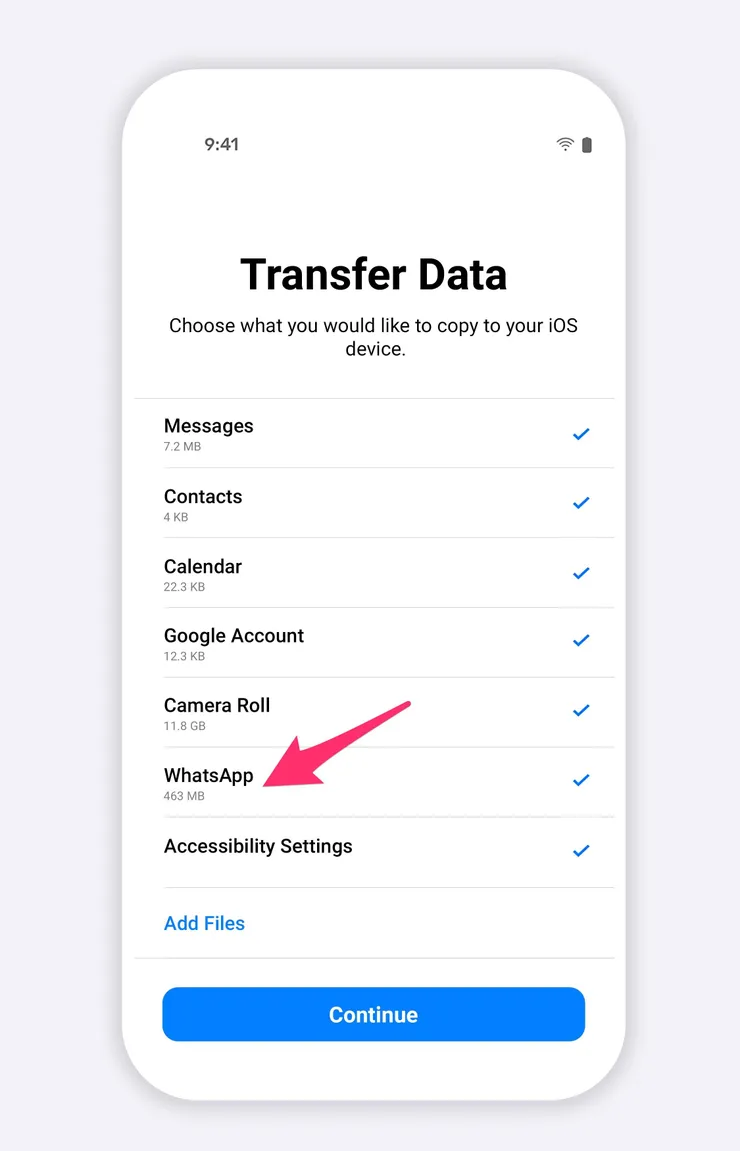
6. Select “WhatsApp” in the Transfer Options
What to do:
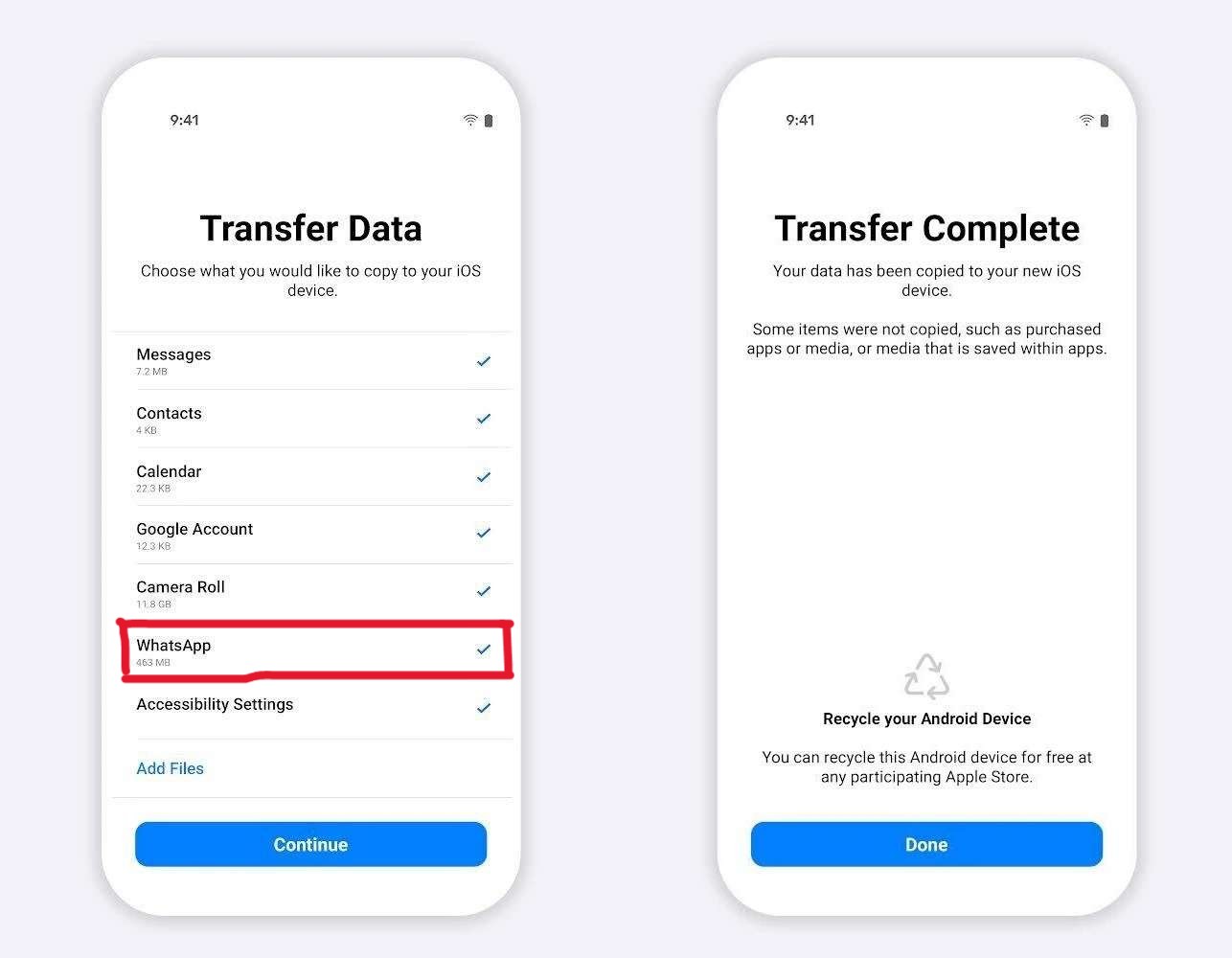
Once Move to iOS loads all the data types you can transfer, scroll until you see WhatsApp → tick the checkbox.
Why it matters:
Move to iOS doesn’t automatically choose WhatsApp—you must select it manually.
Common mistake:
People forget this step and complete the transfer without WhatsApp, assuming it was included.
Tip:
Move slowly through this part. It’s the step most users miss.
7. Export WhatsApp Data from Android
What to do:
After selecting WhatsApp → tap Start. WhatsApp will prepare your data for export and lock your local backup.
Why it matters:
This process encrypts your chat data and gets it ready for the iPhone transfer.
Common mistake:
Switching apps during this step. It interrupts the export.
Tip:
Let the phone sit untouched for a few minutes—big backups take time.
8. Wait for Move to iOS to Transfer Your Data
What to do:
Let the transfer complete. The more data (especially videos) you have, the longer it takes.
Why it matters:
This is where your entire WhatsApp history moves over—messages, photos, voice notes, group chats, and more.
Common mistake:
Thinking the process is frozen because the progress bar moves slowly.
Tip:
If it appears stuck, give it at least 10–15 minutes. Large chats load in chunks.
9. Install WhatsApp on iPhone and Log In
What to do:
Finish iPhone setup → open App Store → install WhatsApp → open it → verify with the same phone number used on Android.
Why it matters:
WhatsApp links transfers to your phone number. A mismatch breaks the restore process.
Common mistake:
Switching to a new SIM before restoring.
Restore always requires the original number.
Tip:
If you already put a new SIM, temporarily reinsert the old one just for verification.
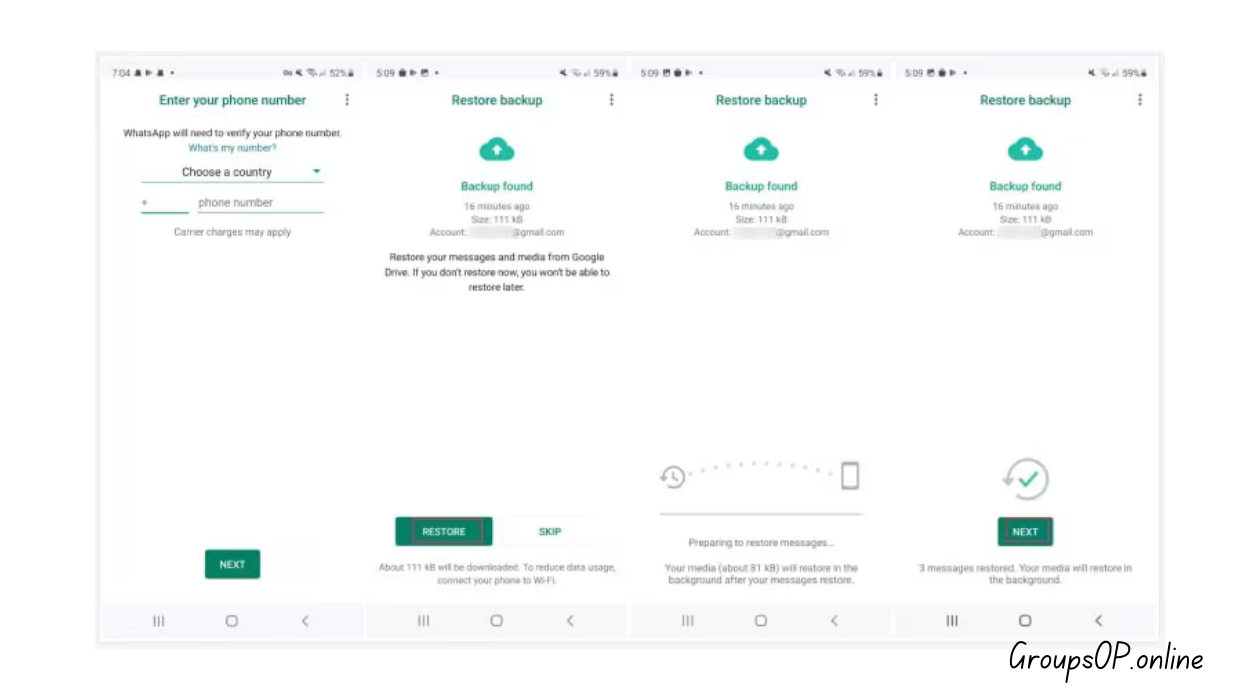
10. Tap “Start” When WhatsApp Detects Transfer Data
What to do:
WhatsApp on iPhone will automatically detect that you moved data from Android.
Tap Start → let it restore → you’re done.
Why it matters:
This final step decrypts and imports your chats.
Common mistake:
Closing WhatsApp during restore. Leave it alone until it finishes.
Tip:
If WhatsApp doesn’t detect transferred data immediately, restart the iPhone.
Personal-Experience Notes
I tested this entire process on both Android and iPhone, and although the screens look different, the transfer steps are basically identical.
The weird thing is WhatsApp hides the restoration prompt on iPhone until everything else loads, which confuses people and makes them think something failed.
Two Simple Scenarios
Scenario 1: Wrong Apple ID Issue
Someone messaged me because WhatsApp refused to restore their messages after they transferred. The fix ended up being embarrassingly simple—they were using a different Apple ID than the one Move to iOS used to store the temporary WhatsApp data. Once they logged into the right Apple ID, the restore worked instantly.
Scenario 2: User Switched SIM Cards Too Early
Another person transferred from Android to iPhone but put their new SIM card in before running WhatsApp. The app didn’t recognize their old number, so it refused to restore. After re-inserting the original SIM and verifying again, the restore completed without a problem.
Common Mistakes & Fixes
1. “WhatsApp isn’t showing up in Move to iOS.”
Cause: Old Android WhatsApp version.
Fix: Update WhatsApp → restart → try again.
2. “Transfer stuck at 1% or 99%.”
Cause: Weak Wi-Fi or unstable temporary connection.
Fix: Toggle Airplane Mode → retry the pairing.
3. “iPhone says no WhatsApp data found.”
Cause: Different phone number used.
Fix: Verify with the original number first.
4. “WhatsApp restored but photos/videos missing.”
Cause: Android had media in custom folders outside WhatsApp.
Fix: Only WhatsApp media transfers; move other folders manually.
5. “Move to iOS keeps crashing.”
Cause: Low storage on either device.
Fix: Free at least 2–3 GB → restart → retry.
6. “Transfer completed but WhatsApp shows an empty account.”
Cause: Logged into wrong Apple ID during restore.
Fix: Switch Apple ID → reinstall WhatsApp.
7. “Transfer option not showing in WhatsApp on Android.”
Cause: Hidden behind a submenu.
Fix: Settings → Chats → Move Chats to iOS.
8. “Voice messages won’t play after transfer.”
Cause: Incomplete media extraction.
Fix: Restart iPhone → reopen chat → give it time to finish indexing.
FAQs
1. Does Move to iOS transfer everything from WhatsApp?
Yes — messages, photos, videos, voice notes, group chats, settings, and history.
2. Do I need to keep my Android phone connected?
Yes, until the process reaches your iPhone.
3. Can I use mobile data for the transfer?
No — it uses a private Wi-Fi network between phones.
4. What if my Android doesn’t show “Move Chats to iOS”?
Update WhatsApp to the latest version and check again.
5. Will I lose WhatsApp on Android?
No — the data stays on Android unless you delete it manually.
6. Can I transfer using Google Drive backup to iPhone?
No — Google Drive backups do not restore on iPhone.
7. Can I change my phone number during transfer?
Transfer first, then use the Change Number feature inside WhatsApp.
Safety & Legitimacy Disclaimer
This guide uses only official WhatsApp features. No modified apps, spying tools, tracking methods, or unofficial APKs are included.
Related Tutorials
- How to Transfer WhatsApp to a New Phone
- How WhatsApp Backup Works
- How to Fix WhatsApp Storage Issues
- WhatsApp Privacy Settings Explained
Summary
Moving WhatsApp from Android to iPhone feels intimidating the first time, but once you know the exact steps, it’s surprisingly manageable. You prepare your Android chats, connect both phones through Move to iOS, select WhatsApp, export the data, and let the iPhone handle the restore. The process is simple—but only when you follow the correct sequence.
Honestly, once you understand how this feature works, everything else in WhatsApp starts to make more sense.
If you’re switching phones or setting up a new device soon, the guides above will help you avoid the common mistakes most users run into.