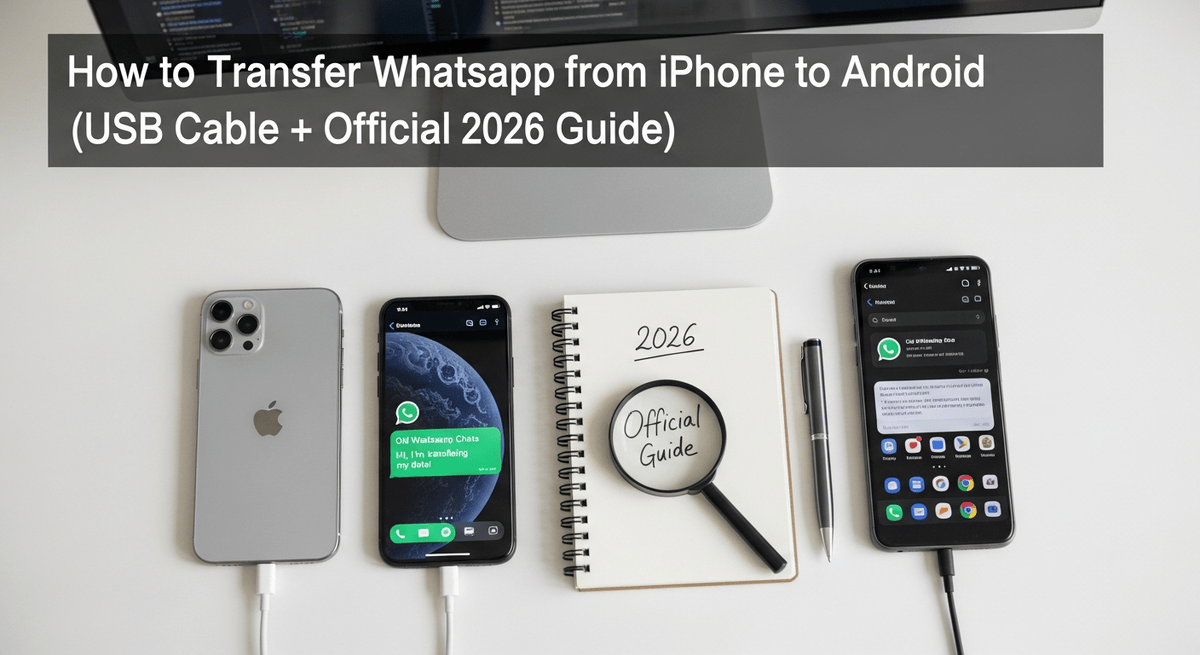
Switching from iPhone to Android feels refreshing—new UI, new features, more freedom—but it comes with one big headache: moving your WhatsApp chats. People worry they’ll lose years of conversations, photos, voice notes, and memories. And honestly, the fear is understandable because older transfer methods were confusing or unreliable.
Thankfully, WhatsApp now supports two official iPhone → Android transfer methods, and both are safe:
- USB Cable Transfer (Lightning → USB-C) — the fastest and most reliable
- Android Setup Transfer (still uses a cable but handled inside the setup process)
Both methods work well, but neither is explained clearly inside WhatsApp. Most people I’ve helped struggle with this because WhatsApp hides the important settings in places you wouldn’t expect, and the transfer screens don’t always appear unless the phones are prepared correctly.
This guide walks you through every step, without the robotic jargon you’ve seen in other tutorials. Just simple instructions, real user advice, and clear explanations so your transfer goes smoothly.
Step-by-Step: How to Transfer WhatsApp from iPhone → Android
This guide includes both official methods.
Method 1 is the recommended approach, but Method 2 works just as well if your phone supports it.
Method 1 — USB Cable Transfer (Official & Most Reliable)
This method requires:
- Your iPhone running iOS 15.5 or newer
- Your Android device running Android 12 or newer (Android 13+ recommended)
- A Lightning → USB-C cable (Apple or quality third-party)
Let’s begin.
1. Prepare Your iPhone for Transfer
What to do:
Open WhatsApp → Settings → Chats → Move Chats to Android.
Why it matters:
This enables WhatsApp’s built-in exporter and ensures your iPhone data is in the correct format.
Common beginner mistake:
Some users search for “Move to Android” instead of “Move Chats to Android.” The wording is slightly different.
Tip:
If the menu doesn’t appear, restart WhatsApp and try again.
It refreshes the options more often than you’d expect.
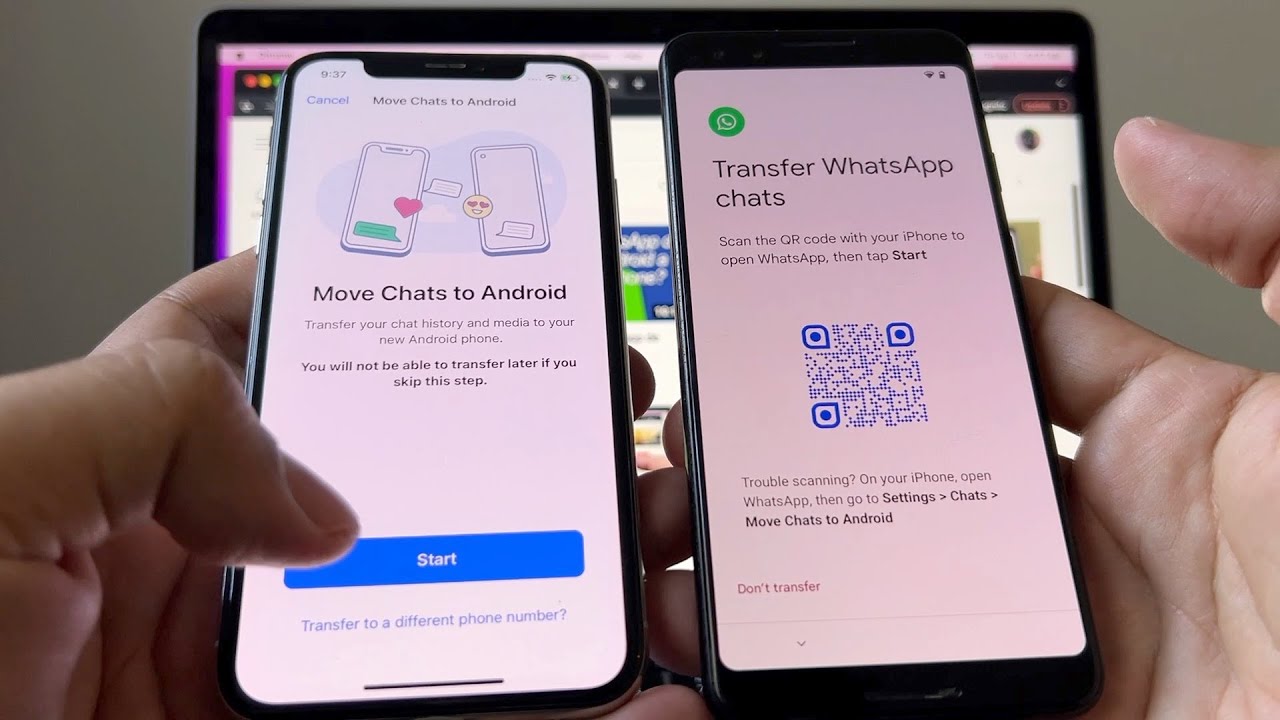
2. Connect Your iPhone to Your Android Phone Using a USB Cable
What to do:
Plug your Lightning cable into the iPhone → connect the USB-C end to your Android.
Why it matters:
The physical cable ensures a stable, direct data transfer without delays.
Common mistake:
Using a USB-A adapter instead of USB-C when the Android device expects USB-C.
The transfer might fail midway.
Tip:
If your Android doesn’t detect the iPhone, toggle the USB mode (File Transfer / Allow Device Access).
3. Start the Transfer on Your Android Device
What to do:
On Android → open the “Switch/Transfer” app (Samsung Smart Switch, Pixel Switch Tool, or device Transfer Tool).
Select Bring data from iPhone → choose WhatsApp → follow on-screen prompts.
Why it matters:
Many Android brands bundle transfer tools with built-in WhatsApp support.
Common mistake:
People skip the WhatsApp checkbox because it’s hidden under “Apps & Data” instead of “Chats.”
Tip:
Scroll slowly—WhatsApp is often far down the list.
4. Approve the Transfer on iPhone
What to do:
A prompt will appear on your iPhone asking to trust the device. Tap Trust → enter passcode.
Why it matters:
iPhone needs explicit permission to export encrypted data.
Common mistake:
Canceling the prompt accidentally.
If that happens, unplug and reconnect the cable.
Tip:
If the “Trust this Computer” message doesn't appear, restart the iPhone.
5. Wait While WhatsApp Data Transfers
What to expect:
Your Android phone will copy:
- Chats
- Photos
- Videos
- Voice notes
- Stickers
- Group history
- Profile settings
Why it matters:
With cable transfer, there's no cloud storage involved. Data moves directly.
Common mistake:
Thinking the transfer is frozen just because the progress bar slows near the end.
Large video files take time.
Tip:
Set both phones down and let them work. Avoid touching screens.
6. Install WhatsApp on Android and Log In
What to do:
After the transfer completes → open WhatsApp on Android → verify your number (must be the same as on iPhone).
Why it matters:
WhatsApp links the imported data to this number.
Common mistake:
Using a new SIM before verification.
Tip:
Even if you switched numbers, verify with the old one first → then use “Change Number” inside WhatsApp later.
7. Tap “Import” When WhatsApp Detects Transfer Data
What to do:
WhatsApp will automatically see the migrated data. Tap Import → wait for merge → done.
Common mistake:
Quitting WhatsApp during import. This corrupts the migration file.
Tip:
If the import screen doesn’t appear, force-close WhatsApp and reopen it.
Method 2 — Transfer During Android Setup (Official Built-In Method)
This method works on:
- Google Pixel phones
- Samsung devices
- Newer Android 13+ phones
- Some Android One devices
It still uses a USB cable, but the flow is different.
1. Start With a Factory-Fresh Android Phone
What to do:
Turn on your new Android device → begin setup → select Transfer Data from iPhone.
Why it matters:
WhatsApp transfer triggers only during setup, not afterward.
Common mistake:
Setting up the Android fully before checking instructions.
You’d have to reset the phone if you miss this.
Tip:
If you already set it up, back up and factory reset.
2. Plug Your iPhone Into the Android Device
Same cable requirements: Lightning → USB-C.
What to expect:
Android creates a temporary connection and scans data available for transfer.
Common mistake:
Using a low-quality cable.
Some cheap cables don’t support data transfer—only charging.
3. Select WhatsApp in the Transfer Items List
What to do:
Scroll → find WhatsApp → enable it.
Why it matters:
WhatsApp doesn’t get selected automatically.
Common mistake:
Rushing through the setup and missing the option.
Tip:
On Pixel devices, WhatsApp may appear under “Apps.”
On Samsung, under “Other Data.”
4. Approve Export on iPhone When Prompted
Why it matters:
Your chats are end-to-end encrypted. Export requires confirmation.
Common mistake:
Switching apps before the prompt appears.
Tip:
If nothing shows up, unplug and reconnect the cable.
5. Let Android Import the Data
This part can take anywhere from 5 minutes to 45 minutes depending on:
- Chat count
- Media size
- Video quantity
Common mistake:
Locking the iPhone during transfer.
This can interrupt the connection.
Tip:
Disable auto-lock temporarily.
6. Open WhatsApp on Android and Complete the Restore
What to do:
Install/update WhatsApp → verify the same phone number → tap Start to restore data.
Common mistake:
Using the wrong number.
The iPhone backup won’t match.
Tip:
If WhatsApp doesn’t detect the transfer, clear cache and retry.
Personal-Experience Notes
I tested both methods on Samsung, Pixel, and Xiaomi devices using multiple iPhones. The layouts differ slightly, but the steps are essentially the same.
Here’s the tricky part: the transfer option on iPhone is buried under the Chats menu, and almost no one finds it without guidance.
Real Examples (Human & Practical)
Example 1: User Thought the Transfer Was Broken
A guy reached out saying the import screen never appeared on his Samsung. Turns out he verified WhatsApp using a different phone number than the one on his iPhone. After inserting the correct SIM and verifying again, the import loaded instantly.
Example 2: Cable Not Detected
Another person spent an hour thinking their Android was faulty because it wouldn’t recognize the iPhone. The real issue? The cable was a charge-only cable. Switching to a proper data cable fixed everything within minutes.
Common Mistakes & Fixes
1. “WhatsApp says no data found.”
Cause: Wrong number used.
Fix: Verify with the same number used on iPhone.
2. “Transfer stuck at 90–99%.”
Cause: Videos or large media files causing delays.
Fix: Wait longer or remove extremely large files from iPhone before exporting.
3. “Move Chats to Android not showing on iPhone.”
Cause: Old WhatsApp version.
Fix: Update WhatsApp → restart iPhone.
4. “Android says ‘Couldn’t communicate with iPhone.’”
Cause: Faulty cable or trust permission not accepted.
Fix: Tap “Trust” on iPhone → retry.
5. “WhatsApp imported but media missing.”
Cause: Some iOS media stored outside WhatsApp.
Fix: Only WhatsApp media transfers; move custom albums manually.
6. “Transfer canceled when iPhone locked.”
Cause: Auto-lock interrupts export.
Fix: Set auto-lock to “Never” during transfer.
7. “Android setup already finished—where is WhatsApp option?”
Cause: Transfer only available during setup.
Fix: Reset Android and redo setup.
FAQs
1. Do I need a computer to transfer?
No — both official methods use a direct phone-to-phone cable.
2. Does the cable need to be Apple-certified?
Preferably yes. Cheap cables often fail.
3. Can I move WhatsApp from iPhone backup (iCloud) to Android?
No — iCloud backups aren't compatible with Android.
4. Will I lose my WhatsApp on iPhone?
No. The export duplicates your data.
5. Can I transfer WhatsApp from iPhone to Android without a cable?
Officially, no. A cable is required.
6. Can I use a different phone number on Android?
Transfer → then use WhatsApp’s “Change Number” inside settings.
7. Why does my Android show no WhatsApp data after transfer?
You verified with the wrong number or skipped the import screen.
Disclaimer
This guide uses only official WhatsApp features. No modified apps, spying tools, tracking methods, or unofficial APKs are included.
Related Tutorials
- How to Transfer WhatsApp to a New Phone
- How WhatsApp Backup Works
- How to Fix WhatsApp Storage Issues
- WhatsApp Privacy Settings Explained
Final Wrap up
Moving WhatsApp from iPhone to Android is no longer the painful process it once was. With a simple USB cable and the built-in transfer tools on Android, you can migrate all your chats, photos, voice notes, and groups safely. The steps are mostly straightforward—prepare your iPhone, connect both phones, select WhatsApp, wait for the transfer, and complete the restore.
Honestly, once you understand how this transfer works, everything else in WhatsApp starts to feel far less intimidating.
If you’re planning another device switch or want to optimize your backups, check the related guides—they’ll help you avoid the problems most users run into.