
If you’re new to WhatsApp, it can feel like everyone else already knows how to use it and somehow you just missed the memo. The app looks simple enough when you first open it, but the important stuff — the settings, backups, privacy controls — those are tucked away where beginners rarely look. And when you don’t understand those parts, things go wrong later: lost chats, messages not syncing, weird notifications, and so on.
That’s exactly why a beginner guide like this matters. Millions of people rely on WhatsApp every single day to talk to their family, share work files, plan events, or even manage small businesses. When the basics aren’t clear, the whole experience becomes frustrating instead of helpful.
Most people I’ve helped struggle with this because WhatsApp hides the important settings in places you wouldn’t expect. And honestly, unless someone sits down and explains things in simple language, it’s easy to miss the features that actually matter.
So this guide breaks everything down calmly — no jargon, no rushed steps, no assumptions. Just real explanations that make WhatsApp feel less overwhelming and more like the powerful communication tool it’s supposed to be.
Step-by-Step Tutorial (Beginner Friendly)
Let’s go through WhatsApp the way a real person would learn it — slowly, clearly, and with honest notes about mistakes beginners usually make.
1. Install WhatsApp from the Official Store
What to do:
Open the Google Play Store (Android) or Apple App Store (iPhone). Search for “WhatsApp Messenger” and install the official app made by Meta.
Why it matters:
This avoids unsafe versions and ensures you always get updates. WhatsApp depends on security patches, so the official source is the only smart choice.
Common beginner mistake:
Thinking WhatsApp from a random website is “the same thing.” It’s not. Stick to the store.
Tip:
If installation gets stuck, reboot your phone. It sounds silly, but it fixes this issue more often than you’d expect.

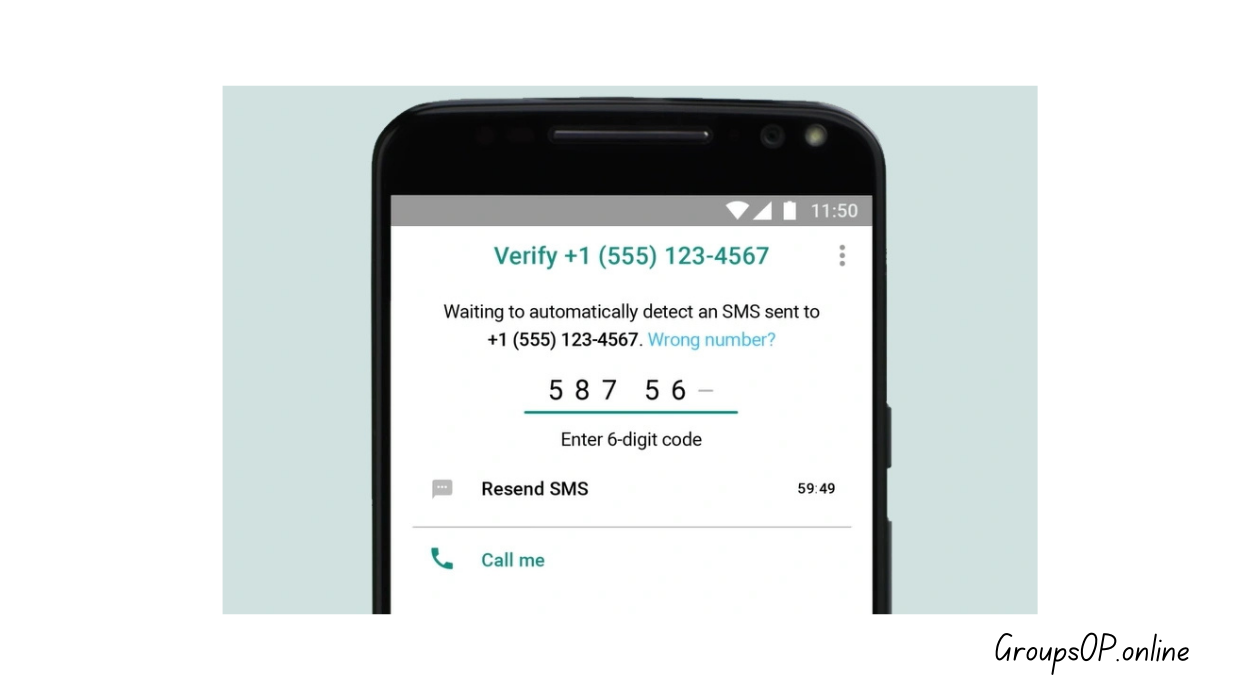
2. Verify Your Phone Number
What to do:
Open WhatsApp → enter your phone number → wait for the SMS code → type the 6 digits into the app.
Why it matters:
Your phone number becomes your identity on WhatsApp. No number = no account.
Common mistake:
Typing the wrong country code or expecting the code to arrive on Wi-Fi without mobile signal.
Tip:
If the SMS never arrives, use the “Call Me” option. The automated call gives you the same code.
3. Create Your Profile
What to do:
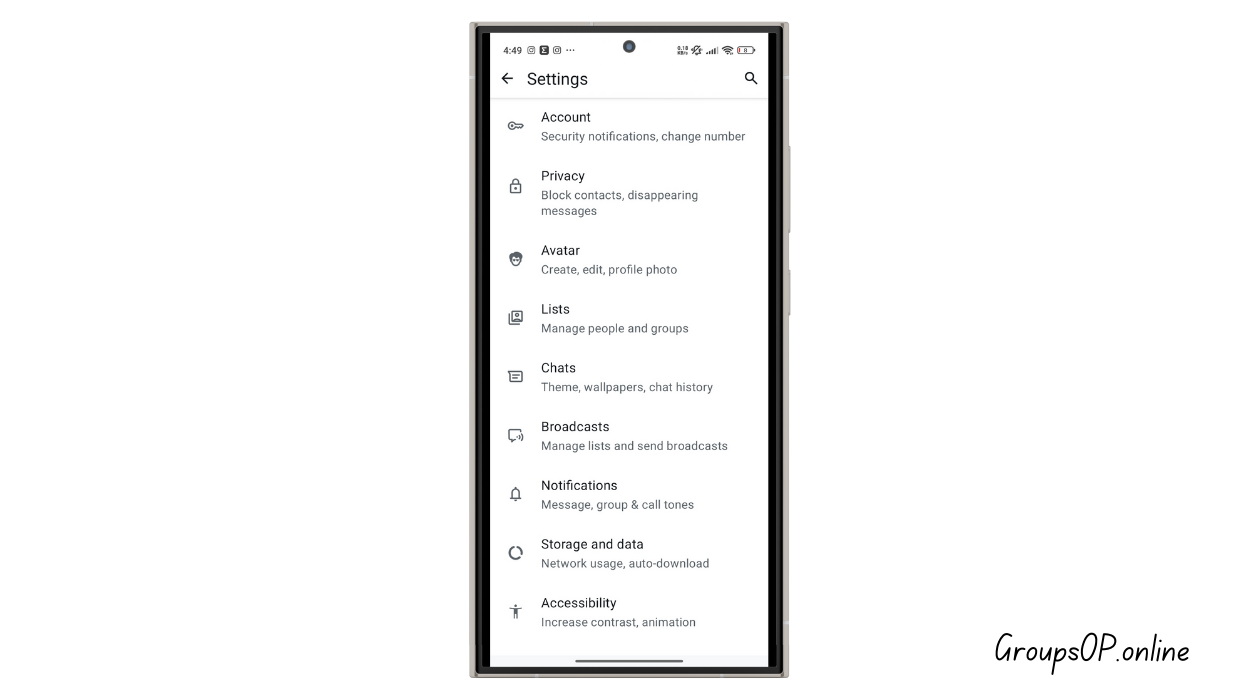
Add your display name and profile photo. Go to Settings → tap your name → add details.
Why it matters:
People recognize you better in chats and groups when you have a clear name/photo.
Common beginner mistake:
Leaving the name blank or entering a nickname nobody recognizes.
Tip:
Use a simple headshot if possible. It helps in large family groups.
4. Understand the Home Layout
What to do:
Spend 30 seconds exploring the three tabs — Chats, Status, Calls.
Why it matters:
Once you know what each section does, using the app becomes way less confusing.
Common mistake:
Accidentally posting personal photos on “Status” thinking it sends them privately.
Tip:
If something looks unfamiliar, just tap it once. Nothing breaks.
5. Start Your First Chat
What to do:
Tap the “New Chat” icon → choose a contact → type a message → hit send.
Why it matters:
Messaging is the core feature. Everything else is optional.
Common beginner mistake:
Trying to message someone who hasn’t saved your number. They won’t appear in your list.
Tip:
Refresh your contact list if names don’t show up. Closing and reopening WhatsApp helps.
6. Send Photos, Videos, and Documents
What to do:
Inside a chat → tap the paperclip or “+” icon → choose Gallery, Camera, Document, etc.
Why it matters:
People use WhatsApp to share everything — receipts, ID proofs, school notes, travel tickets.
Common mistake:
Selecting “Gallery” for documents that need clear quality. WhatsApp compresses images by default.
Tip:
Send photos as “Document” if clarity matters. It preserves the original quality.
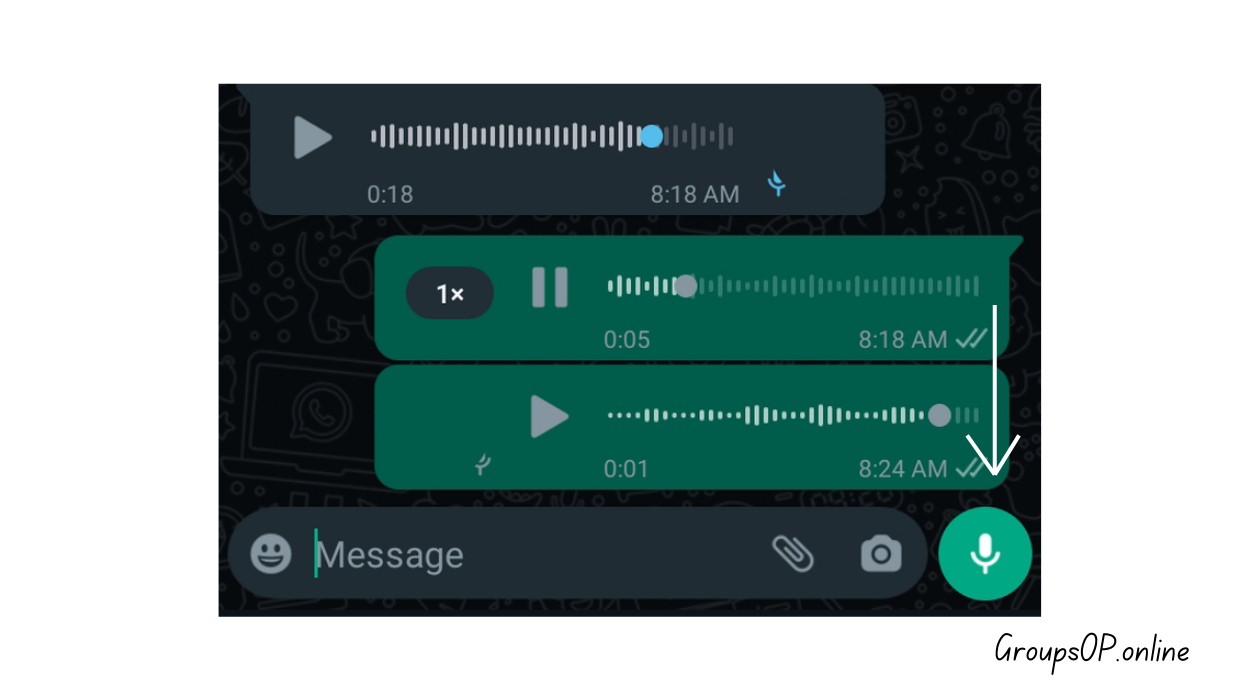
7. Try Voice Messages
What to do:
Press and hold the microphone icon → speak → release to send.
Why it matters:
Great for long explanations when typing feels like a chore.
Common mistake:
Recording with the phone too far away. The audio becomes hard to hear.
Tip:
Swipe up to lock recording so you can speak hands-free.
8. Make Voice or Video Calls
What to do:
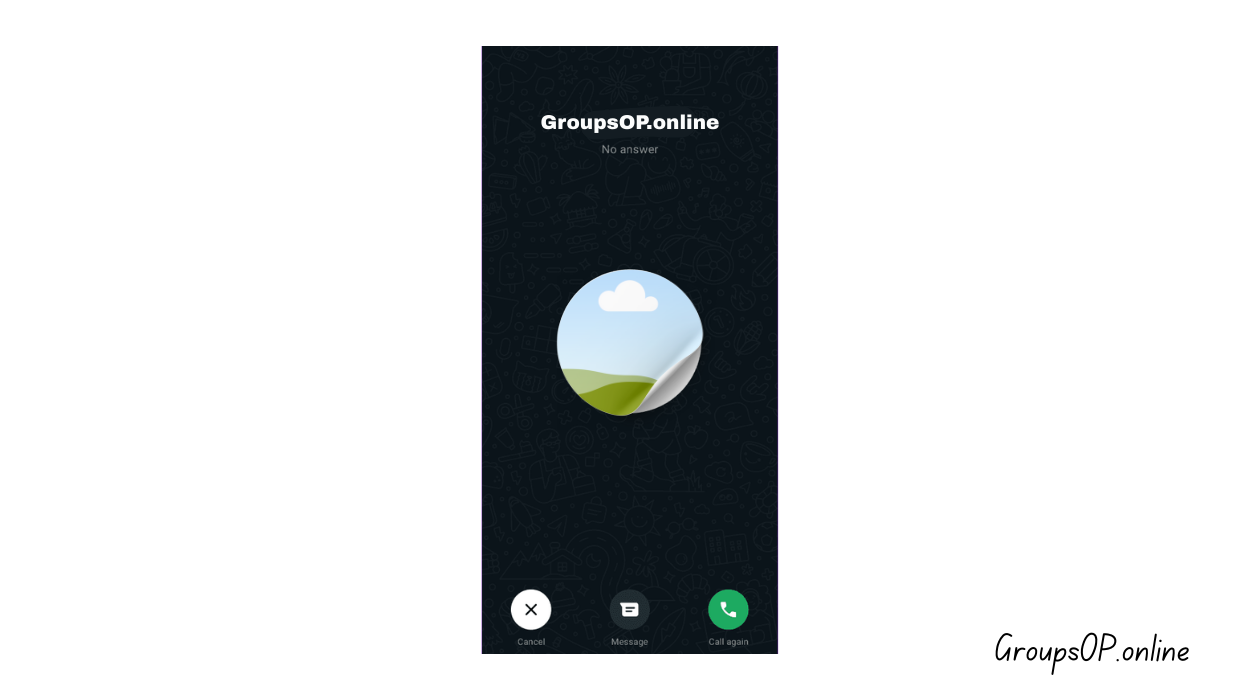
Tap the phone or camera icon inside any chat.
Why it matters:
These calls work through the internet, not your phone plan — perfect for international conversations.
Common mistake:
Calling on weak mobile data and thinking WhatsApp’s call quality is bad.
Tip:
If the call lags, switch to Wi-Fi. It makes a huge difference.
9. Create a Group Chat
What to do:
Chats → New Group → select people → set a group name → done.
Why it matters:
Families, projects, work teams — groups keep everyone in one place.
Common mistake:
Forgetting to change the group’s notification settings. Big groups can be noisy.
Tip:
Mute the group for 8 hours, a week, or forever. You can still check messages anytime.
10. Adjust Privacy Settings (Very Important)
What to do:
Settings → Privacy → control who can see your info.
You can change visibility for:
- Last Seen
- Profile Photo
- Status
- Read Receipts
- Who can add you to groups
Why it matters:
You control what strangers and acquaintances can see about you.
Common mistake:
Leaving everything set to “Everyone.”
Tip:
“My Contacts” is a balanced option for most people.
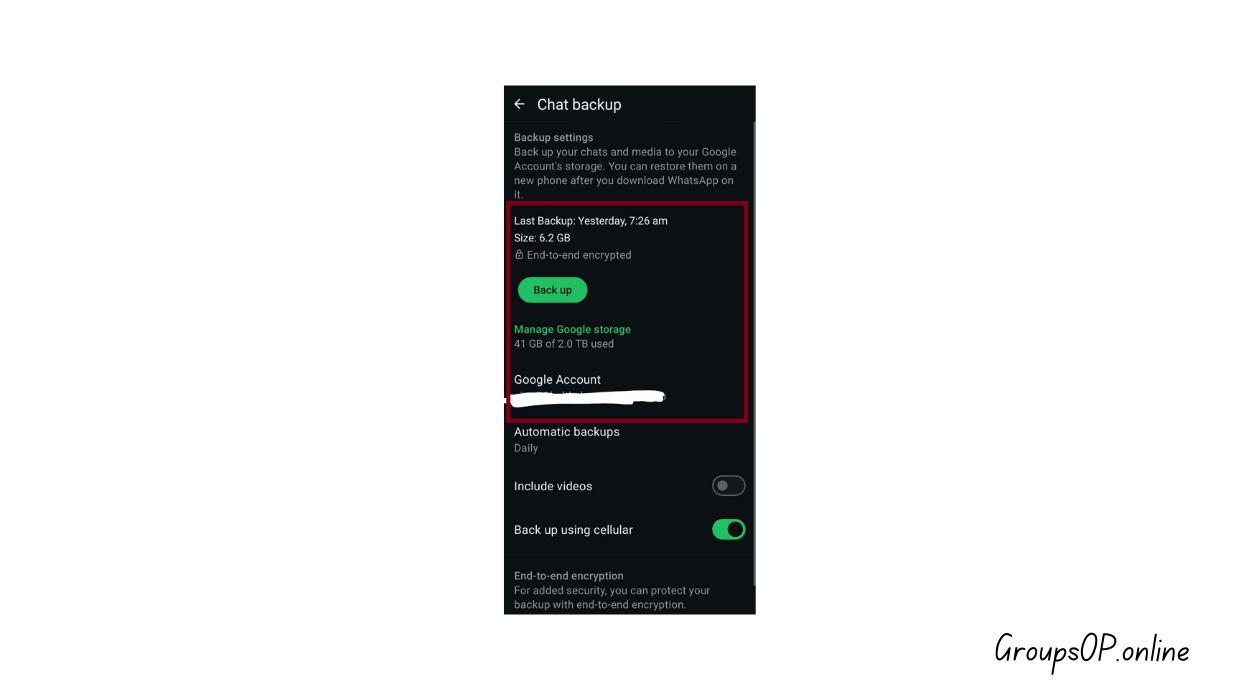
11. Turn On Chat Backup
What to do:
Settings → Chats → Chat Backup → choose Google Drive (Android) or iCloud (iPhone).
Why it matters:
Backups save your messages if you switch phones or reinstall WhatsApp.
Common mistake:
Relying only on local backup. It doesn’t move with you.
Tip:
Set automatic weekly backups. It’s enough for most users.
12. Use WhatsApp on Your Computer
What to do:
Go to web.whatsapp.com on your computer → open WhatsApp on your phone → Linked Devices → scan QR code.
Why it matters:
Typing gets easier. Sharing files from your laptop becomes instant.
Common mistake:
Thinking WhatsApp Web needs your phone plugged in. It just needs a stable connection.
Tip:
If the QR code doesn’t scan instantly, brighten your phone screen.
Personal-Experience Notes
I tested this on both Android and iPhone, and the layout looks slightly different, but the steps are the same.
This option confuses people because it’s buried under a submenu that most users never open.
Real Examples (Simple, Real-World Scenarios)
1. Backup Problem on iPhone
A reader emailed me last month because their WhatsApp backup refused to load. They thought something was wrong with WhatsApp, but the issue was surprisingly simple — they were logged into a different Apple ID than the one used to store the backup. Once they switched accounts, everything restored within minutes.
2. Switching Phones Without Backup
Another common situation: someone buys a new phone and installs WhatsApp without checking their backup settings. When they log in, all chats are gone. After walking them through the backup menu, they realized auto-backup was off the whole time. Turning it on would’ve saved days of messages.
Common Mistakes & Fixes
1. “My contacts don’t show up.”
Cause: Numbers saved without country code.
Fix: Add +91, +1, or the correct code and refresh WhatsApp.
2. “WhatsApp isn’t sending notifications.”
Cause: Battery optimization restricting the app.
Fix: Allow WhatsApp to run in the background.
3. “Images look blurry when I send them.”
Cause: Automatic compression.
Fix: Send as “Document” to preserve original quality.
4. “Verification SMS never arrives.”
Cause: Poor network or wrong number.
Fix: Choose “Call Me” — it works most of the time.
5. “WhatsApp storage is full.”
Cause: Auto-download settings turned on.
Fix: Disable automatic downloads for photos and videos.
6. “Group messages are overwhelming.”
Cause: Notifications not configured.
Fix: Mute group → check manually when needed.
7. “Backup stuck at 99%.”
Cause: Weak Wi-Fi or low storage.
Fix: Restart Wi-Fi → free space → try again.
Frequently Asked Questions
1. Why isn’t my Google Drive backup showing up?
Usually you’re logged into the wrong Google account. Switch to the one used for backups.
2. Can I use WhatsApp without mobile data?
Yes, Wi-Fi works perfectly. WhatsApp just needs any internet connection.
3. What do I do if the verification SMS doesn’t arrive?
Restart your phone, check your number, then try the “Call Me” option.
4. Can I message someone in another country?
Of course. Just save their number with the correct country code.
5. Why is WhatsApp Web asking me to rescan?
Sessions expire for security reasons. Just scan again.
6. Can I use WhatsApp without a SIM card?
Yes, but only after verifying the number once on a device with a SIM.
7. Are WhatsApp messages private?
Yes, they’re end-to-end encrypted. Only you and the contact can read them.
8. Why do PDFs or photos take long to send?
Slow internet. Try sending when you’re on a stronger connection.
Safety & Legitimacy Disclaimer
This guide uses only official WhatsApp features. No modified apps, spying tools, tracking methods, or unofficial APKs are included.
Related Tutorials
How to Transfer WhatsApp to a New Phone
How WhatsApp Backup Works
How to Fix WhatsApp Storage Issues
WhatsApp Privacy Settings Explained
Final Summary
New WhatsApp users often feel lost because the app doesn’t explain much. Important settings are tucked away, and if you set things up wrong, you can easily lose chats or expose more info than you meant to. By understanding how to install the app, verify your number, manage privacy settings, and enable backups, the whole experience becomes smoother and more reliable. The steps aren’t complicated — they’re just not obvious until someone points them out.
Honestly, once you understand how this feature works, everything else in WhatsApp starts to make more sense.
If you want to keep improving your WhatsApp skills, check out the related tutorials above. They’ll help you avoid the common problems people face later on.