If your WhatsApp backup suddenly becomes huge, slow, or keeps failing, you’re definitely not alone. Many Android and iPhone users run into this problem because WhatsApp stores almost everything — photos, videos, voice notes, forwarded files, and chat history — inside one big backup. Over time, this backup can grow to several gigabytes, which makes uploads slow and restores even slower.
Most people I’ve helped struggle with this because WhatsApp never clearly explains what is inside the backup or why it gets so large. So they keep backing up everything, including memes, screenshots, and random forwards that don’t matter, while the important messages get buried.
This guide explains how to safely reduce your WhatsApp backup size without losing the media that actually matters — step by step.
1. Why WhatsApp Backup Size Gets Too Large
WhatsApp backups grow big mainly because of:
- Videos (biggest culprit)
- High-resolution photos
- Large voice notes
- Chat attachments
- Repeated forwards
- Old conversations you never deleted
- WhatsApp automatically backing up everything
Even a single group that shares 40–50 videos daily can bloat your backup by a few gigabytes in a month.
Personal observation:
Almost everyone underestimates how much storage WhatsApp uses until their backup hits 5–10 GB and starts failing on Google Drive or iCloud.
2. Check Your WhatsApp Storage Usage First
Before reducing anything, you need to see what’s taking up space.
Steps:
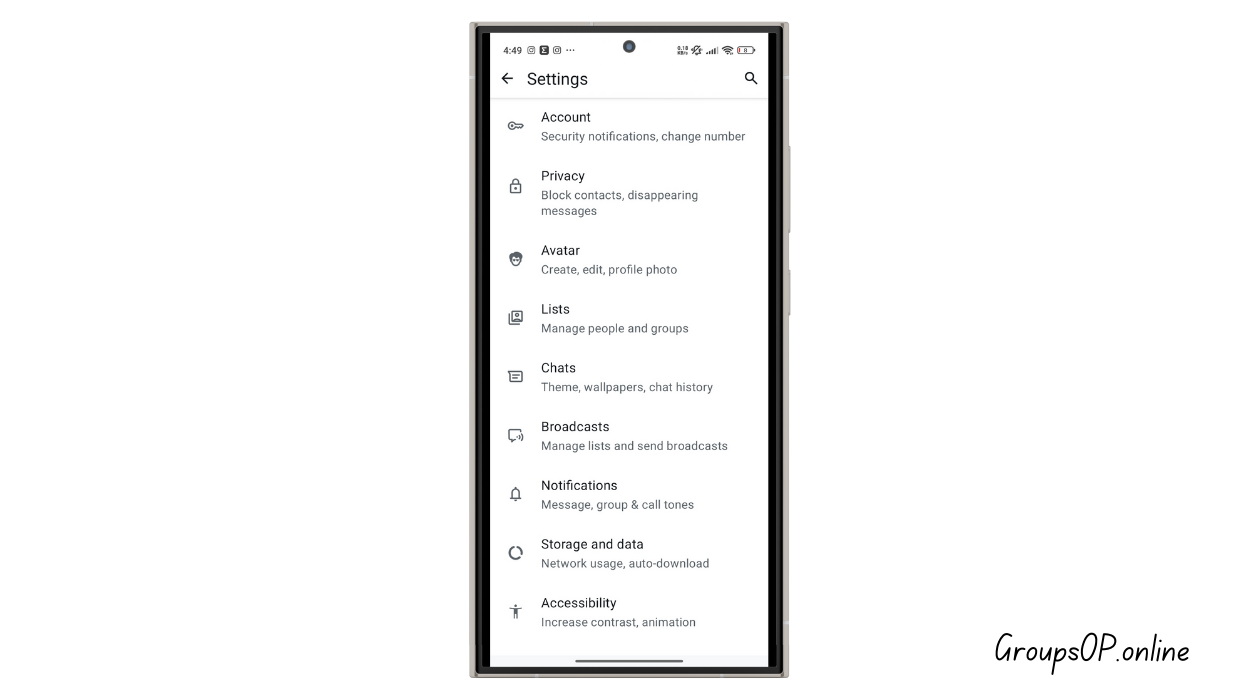
- Open WhatsApp
- Go to Settings
- Tap Storage and Data
- Tap Manage Storage
You’ll see three sections:
- Media sent multiple times (forwarded junk)
- Large files
- Chats sorted by size
Why this matters:
It shows the real reason your whatsapp backup size large issue is happening.
Tip:
If this menu doesn’t load correctly, close WhatsApp and reopen it.
3. Reduce Backup Size Safely (Without Losing Important Media)
Let’s go through each method in a practical way.
A. Remove Large Files You Don’t Need
Inside Manage Storage, tap Large Files.
You’ll probably see:
- Long videos
- Screen recordings
- Forwarded clips
- Unnecessary documents
Delete anything you don’t want backed up.
Why this matters:
Videos usually take up 80% of the backup size.
Common mistake:
Deleting media from chats but forgetting to clear “Media in Storage,” which is separate.
B. Clean Up Groups That Share Too Much Media
Go into Manage Storage → Chats
You’ll see chats sorted by size.
Tap the biggest ones — usually:
- Family groups
- Friends groups
- School/college groups
- Work groups with frequent file sharing
Delete:
- Videos
- Large audio files
- Documents
- Repeated images
Keep only what matters.
Tip:
If you don’t want to open the chat, use “Select items” directly from the storage screen.
C. Turn Off Video Backup (Huge Difference)
This is one of the safest ways to reduce backup size instantly.
Android:
- WhatsApp → Settings
- Chats
- Chat Backup
- Turn off Include Videos
iPhone:
- WhatsApp → Settings
- Chats
- Chat Backup
- Turn off Include Videos
Why this works:
Videos are the #1 reason backup sizes explode.
Personal experience:
I’ve seen people reduce backup size from 8 GB to 1.5 GB just by disabling video backup.
D. Export Important Media Before Deleting
If you want to keep certain memories or files:
- Open the chat
- Tap name → Media, Links & Docs
- Save the important photos or videos to your gallery
- THEN delete the remaining media from WhatsApp
Why this matters:
You reduce the WhatsApp backup without losing precious photos/videos.
E. Delete “Multiple Forwarded” Junk
WhatsApp automatically shows media that has been forwarded many times.
These are usually:
- Memes
- Reels
- Viral videos
- Good morning pictures (yes, those too 😅)
Deleting these instantly frees space.
F. Clear WhatsApp Call & Voice Note Bloat
Inside large chats:
- Go to Media
- Select Voice Notes
- Delete ones you don’t need
Voice notes build up quickly and users rarely notice.
4. Reduce iCloud or Google Drive Backup Size (Very Important)
Cleaning WhatsApp locally isn't enough — you must reduce cloud backup size.
A. For Android (Google Drive)
- Go to drive.google.com
- Click Settings → Manage Apps
- Find WhatsApp
- Check backup size
- If needed, delete old backups
Warning:
Deleting an old backup deletes ALL previous chat backups — only do this if you plan to back up fresh.
B. For iPhone (iCloud)
- Go to Settings
- Tap your name → iCloud
- Tap Manage Storage
- Tap WhatsApp
- Review size
Tip:
Make sure “Include Videos” is turned off before backing up again.
5. Separate Important Chats From Junk Chats
Many people keep everything mixed together — important client/work/media mixed with random forwards.
Better method:
- Archive or mute noisy groups
- Keep personal and work chats separate
- Save separate backups of important chats using Export Chat
Why it matters:
Exported chats don’t affect backup size.
Use the “Keep Messages” Filter (iPhone Only)
iPhone has a hidden feature that deletes older messages automatically.
Go to:
Settings → General → iPhone Storage → WhatsApp → Offload Unused Apps (optional)
or
WhatsApp Settings → Chats → Keep Messages (30 days / 1 year / Forever)
Why it helps:
If your chat history goes back 6–10 years, it bloats the backup significantly.
Check if Auto-Download Is Filling Storage
Open WhatsApp → Settings → Storage and Data → Media Auto-Download
Turn OFF:
- Photos (optional)
- Videos
- Documents
- Audio
Why this matters:
Stopping automatic downloads prevents future backup bloat.
Real Examples (Simple & Practical)
Example 1: Backup Reduced from 9 GB to 2 GB
A reader once emailed me because their Google Drive backup kept failing.
Turns out they were auto-saving every video from three active groups.
We disabled video backup and cleaned large forwarded files — backup dropped instantly.
Example 2: iPhone Backup Stuck at 99%
Another user had a 12 GB iCloud backup stuck for weeks.
They turned off “Include Videos,” cleaned large chats, and the next backup was under 2.5 GB — solved overnight.
Common Mistakes & Fixes
Mistake 1: Deleting Chats Without Exporting Important Media
Cause: Rushing to reduce backup size.
Fix: Export important chats first.
Mistake 2: Trying to back up everything (including junk)
Cause: Assuming backups require “everything.”
Fix: Turn off video backup + delete unnecessary media.
Mistake 3: Clearing app data instead of clearing media
Cause: Misunderstanding the Android storage screen.
Fix: Clear WhatsApp media — not app data.
Mistake 4: Forgetting to clean Google Drive or iCloud
Cause: Backup size remains large even after cleaning WhatsApp.
Fix: Remove the old backup, then back up fresh.
Mistake 5: Not checking “Large Files” section
Cause: Most people only delete photos.
Fix: Delete all oversized clips too.
FAQs
1. Why is my WhatsApp backup size so large?
Mostly videos, large files, or long chat histories.
2. Does turning off “Include Videos” reduce backup size?
Yes — dramatically.
3. Can I delete WhatsApp backup from Google Drive or iCloud?
Yes, but only if you plan to create a fresh backup.
4. Will clearing WhatsApp cache delete chats?
No — it only clears temporary files.
5. Why does backup get stuck when it’s too large?
Cloud storage limits, weak internet, or oversized videos.
6. How often should I clean WhatsApp storage?
Once a month is ideal.
Safety & Legitimacy Disclaimer
This guide uses only official WhatsApp features. No modified apps, spying tools, tracking methods, or unofficial APKs are included.
Related Tutorials
- How to Transfer WhatsApp to a New Phone
- How WhatsApp Backup Works
- How to Fix WhatsApp Storage Issues
- WhatsApp Privacy Settings Explained
Final Summary
Your WhatsApp backup becomes too large when videos, forwarded media, and old chats stack up over time. By cleaning large files, disabling video backup, exporting important media separately, managing group content, and refreshing cloud backups, you can reduce the size safely without losing what matters. Honestly, once you understand how media affects backup size, keeping it under control becomes surprisingly easy.
Explore the related tutorials if you want to optimize the rest of your WhatsApp setup.