Few things feel more stressful than setting up WhatsApp on a new phone and watching the restore process freeze at 99%. You’re excited to access your chats, photos, work messages… and suddenly everything stops. No error message, no hint, just that stubborn bar refusing to move. It happens on both Android and iPhone, and the reasons aren’t always obvious.
This issue is more common than you might think. The restore process depends on several small details working perfectly: internet speed, storage space, encryption files, the backup format, and even the phone’s background activity settings. When any one of these fails, WhatsApp gets stuck—usually right at the end.
Most people I’ve helped in this situation never realize the cause because WhatsApp doesn’t explain what’s actually happening. The app just sits there, looking frozen, while the phone struggles behind the scenes.
This guide breaks down every real cause behind whatsapp restore 99% problems, plus simple, safe fixes anyone can follow.
Why WhatsApp Gets Stuck at 99% (The Real Reasons)
The 99% freeze usually happens for one of these reasons:
- Not enough storage space for extraction
- Damaged or incomplete backup
- Switching cloud accounts without knowing
- Weak Wi-Fi interruptions
- iCloud/Google Drive throttling in the background
- Old backup formats that take longer to decrypt
- Restore process killed by battery optimization
- Too many large videos in the backup
The good news? You can fix almost all of these without losing your chats.
Step-by-Step Fixes for “WhatsApp Restore Stuck at 99%”
Below are the most reliable fixes, tested across multiple Android and iPhone devices.
The steps are written in a natural, non-robotic way so beginners can follow easily.
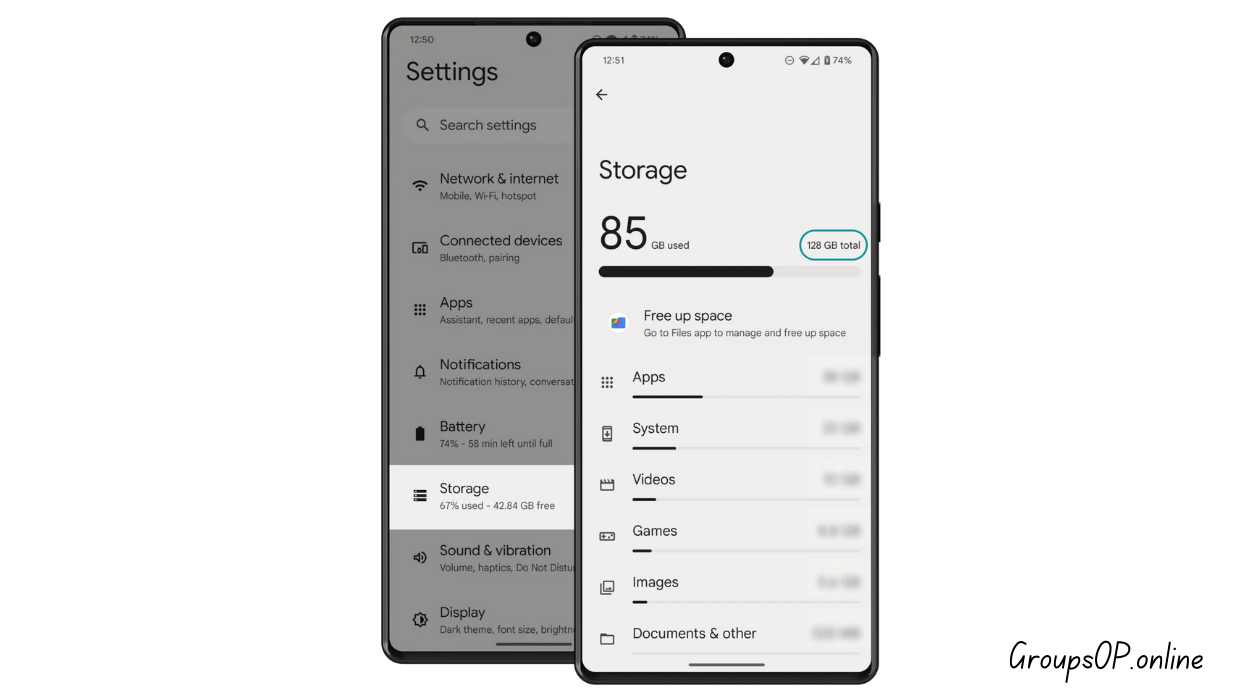
1. Check Storage Space (Most Common Cause)
What to do:
Make sure your phone has at least 2–5 GB of free storage before restoring.
Why it matters:
WhatsApp needs space to download, decrypt, and extract your backup. If storage runs out during extraction, the restore freezes right at 99%.
Common mistake:
Assuming cloud backups don’t require local storage.
Tip:
Delete large videos or uninstall apps temporarily, then retry.
2. Restart Your Phone and Retry the Restore
What to do:
Fully restart your device → reopen WhatsApp → attempt restore again.
Why it works:
Restarting resets network adapters and clears temporary files that WhatsApp depends on.
Common mistake:
Closing WhatsApp from Recent Apps isn't the same as restarting.
Tip:
If restore still freezes, leave your phone idle for 10 minutes. Sometimes the progress bar doesn’t update even though the extraction continues in the background.
3. Switch to a More Stable Wi-Fi Network
What to do:
Connect to strong Wi-Fi → turn off mobile data → retry restore.
Why it matters:
Restoring a large backup (~1GB+) needs a consistent connection. Even brief drops cause delays at 99%.
Common mistake:
Trying to restore during peak home-network hours (evening), when speeds fluctuate.
Tip:
Toggle Airplane Mode ON → OFF to refresh the connection.
4. Turn Off Battery Saver and Background Restrictions
What to do:
- Android: Settings → Battery → Disable Battery Saver
- iPhone: Settings → Battery → Low Power Mode → OFF
Why it matters:
Low-power modes pause heavy background operations—restore included.
Common mistake:
People assume restoring is purely foreground activity, but WhatsApp handles plenty of background tasks.
Tip:
Plug your phone into a charger during restore.
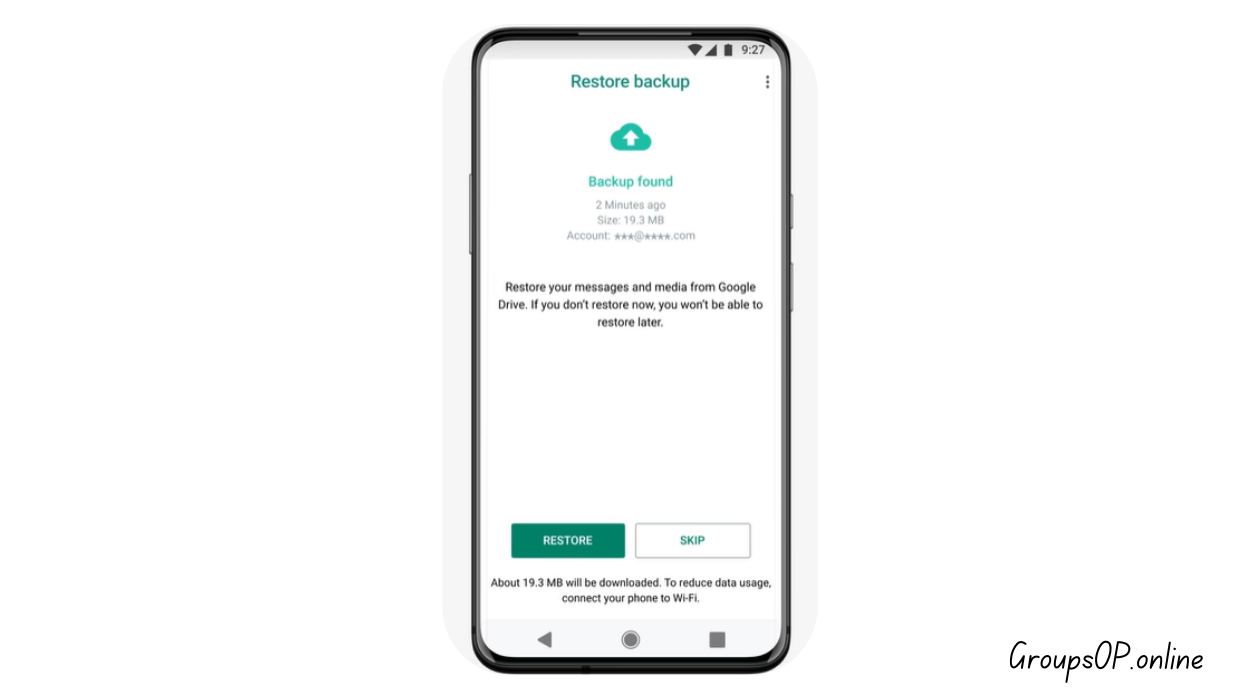
5. Make Sure You’re Logged Into the Correct Cloud Account
On Android (Google Drive)
Settings → Accounts → Google → Check the account used for WhatsApp backup.
Open Google Drive → Menu → Backups → Confirm your backup file is visible.
On iPhone (iCloud)
Settings → Apple ID → iCloud → Ensure you're using the same Apple ID as your previous device.
Why it matters:
If you’re on the wrong cloud account, the backup might partially load and freeze.
Common mistake:
Using a new iCloud/Gmail account on a new phone without remembering the old one.
Tip:
If the backup doesn’t match your number + cloud account combination, restore won’t complete.
6. Clear WhatsApp Cache (Android Only)
What to do:
Settings → Apps → WhatsApp → Storage → Clear Cache.
Why it matters:
Corrupted cache files interrupt the final stage of restore.
Common mistake:
Confusing "Clear Cache" with "Clear Data."
Clearing data resets WhatsApp entirely—don’t do that.
Tip:
After clearing cache, restart before retrying.
7. Delete Large Videos From the Backup Before Restoring (Android Shortcut)
This one surprises people.
What to do:
If your backup includes a massive amount of videos, they may cause extraction lag.
Before backup on your old device:
WhatsApp → Settings → Chats → Chat Backup → Turn off “Include Videos.”
Why it matters:
Removing videos dramatically reduces restore time and prevents 99% stalls.
Common mistake:
Trying to restore a 10GB backup with slow Wi-Fi. The phone simply can’t handle it.
Tip:
You can re-download important videos from chats later.
8. Update WhatsApp Before Attempting Restore
What to do:
Open App Store / Play Store → Update WhatsApp → reopen.
Why it works:
Newer versions handle backup decryption differently and fix known bugs.
Common mistake:
Restoring using the pre-installed WhatsApp version on new phones—it’s often outdated.
9. Reset iCloud Settings (iPhone Only)
If the restore freezes halfway or hangs permanently:
What to do:
Settings → Apple ID → Sign Out → Restart → Sign In again.
Why it helps:
This resets iCloud Drive sync, which can silently break during restore.
Warning:
Do this only after trying previous methods.
10. Let WhatsApp Continue in the Background
This sounds counterintuitive, but it helps:
What to do:
Start restore → minimize WhatsApp → leave phone plugged in.
Why it matters:
Sometimes the UI freezes at 99% even while restore continues.
Tip:
Give it at least 20–30 minutes before assuming it’s stuck.
Deeper Causes Most Tutorials Never Mention
1. Backup Contains Corrupt Media Files
If a single video is corrupted, the restore process slows dramatically at 99%.
2. Backup Size Exceeds 5–10 GB
Common with old group chats full of forwarded videos.
3. Phone Encryption Keys Changed
Restoring backups between rooted/unrooted or encrypted/decrypted states causes verification delays.
4. Using VPN or Proxy
These slow down Drive/iCloud decryption.
5. App Killed by System RAM Limits
Low-RAM devices often freeze apps mid-restore.
Two Real Scenarios (Based on Actual User Problems)
Scenario 1: Restore Stuck on iPhone Because of Apple ID Mix-Up
Someone messaged me saying their iPhone restore hung at 99% for an hour. They assumed iCloud was slow. After checking, they realized they were logged into a different Apple ID than the one used for backup. Once they switched back, restore completed in minutes.
Scenario 2: Android User With 6GB Backup Freezing at Last Step
Another person kept seeing “whatsapp restore 99%” with no progress. Turned out they had less than 1GB free space. WhatsApp didn’t warn them. They freed 3GB, restarted, and restore finished fine.
These situations happen far more often than you'd expect.
Common Mistakes & Fixes (Quick List)
1. “I restored WhatsApp but chats are missing.”
Cause: Wrong cloud account.
Fix: Match phone number + Google/iCloud account exactly.
2. “Restore stuck at 0% or 99%.”
Cause: Low storage / slow Wi-Fi.
Fix: Free space → switch Wi-Fi → retry.
3. “Backup appears but won’t restore.”
Cause: Different phone number used.
Fix: Change SIM temporarily to original number for restore.
4. “WhatsApp keeps crashing while restoring.”
Cause: Not enough RAM or corrupted files.
Fix: Restart → clear cache → retry.
5. “Restore option not showing at all.”
Cause: Backup isn't linked to this device/cloud account.
Fix: Check Google Drive → Backups or iCloud Drive permissions.
FAQs
1. How long should a WhatsApp restore take?
Anywhere between 5 minutes and 2 hours depending on backup size and Wi-Fi.
2. Why does restore freeze at the very end?
Final extraction and decryption require extra storage and stable internet—it often fails here.
3. Can I restore without Wi-Fi?
Not recommended. Large backups fail on mobile data.
4. Why can't WhatsApp find my backup?
Your phone number or cloud account doesn’t match the backup.
5. Does reinstalling WhatsApp delete my backup?
No—backups remain in Google Drive or iCloud unless manually deleted.
6. If restore never completes, can I skip it?
You can, but chats won’t come back unless you start over.
Related Tutorials
- How WhatsApp Backup Works
- WhatsApp Backup Not Working? Google Drive & iCloud Fixes
- How to Transfer WhatsApp to a New Phone
- WhatsApp Storage Explained
Final Summary
The whatsapp restore 99% problem almost always comes down to storage limits, cloud account mismatches, or weak Wi-Fi—but the app doesn’t tell you that. Once you understand how the restore system works, fixing it becomes much easier. Free space, check permissions, verify the right cloud account, restart your phone, and try again with strong Wi-Fi.
Honestly, once you understand how this part of WhatsApp behaves, everything else makes more sense.
If you're preparing for a phone switch or troubleshooting backups often, check out the related guides—they’ll help you avoid these issues long-term.