
Running out of space on your Android phone because of WhatsApp is way more common than people admit. One moment everything works fine — and the next, WhatsApp refuses to download photos, videos fail to load, and the app warns you that your storage is almost full. This happens even on phones with 64GB, 128GB, or more.
The surprising part? WhatsApp takes up far more storage than most users realize because it quietly saves every photo, video, voice note, and document you receive. And most people I’ve helped struggle with this because WhatsApp spreads its storage settings across multiple menus, making it hard to understand what’s actually filling your phone.
This guide explains how to fix the “WhatsApp Storage Full” problem on Android step by step — with safe methods that won’t delete important memories.
Why WhatsApp Uses So Much Storage on Android
Before fixing the issue, it helps to understand why it happens.
Here’s what usually fills WhatsApp storage:
- Videos (biggest culprit by far)
- Group media (memes, forwards, status videos)
- Voice notes
- High-resolution photos
- Auto-download settings
- Old chats going back years
- Duplicated files inside WhatsApp's media folder
Even one active family or school group can fill 10–15 GB over time.
Check WhatsApp Storage Usage (Your Starting Point)
This is where you see exactly what’s consuming space.
Steps:
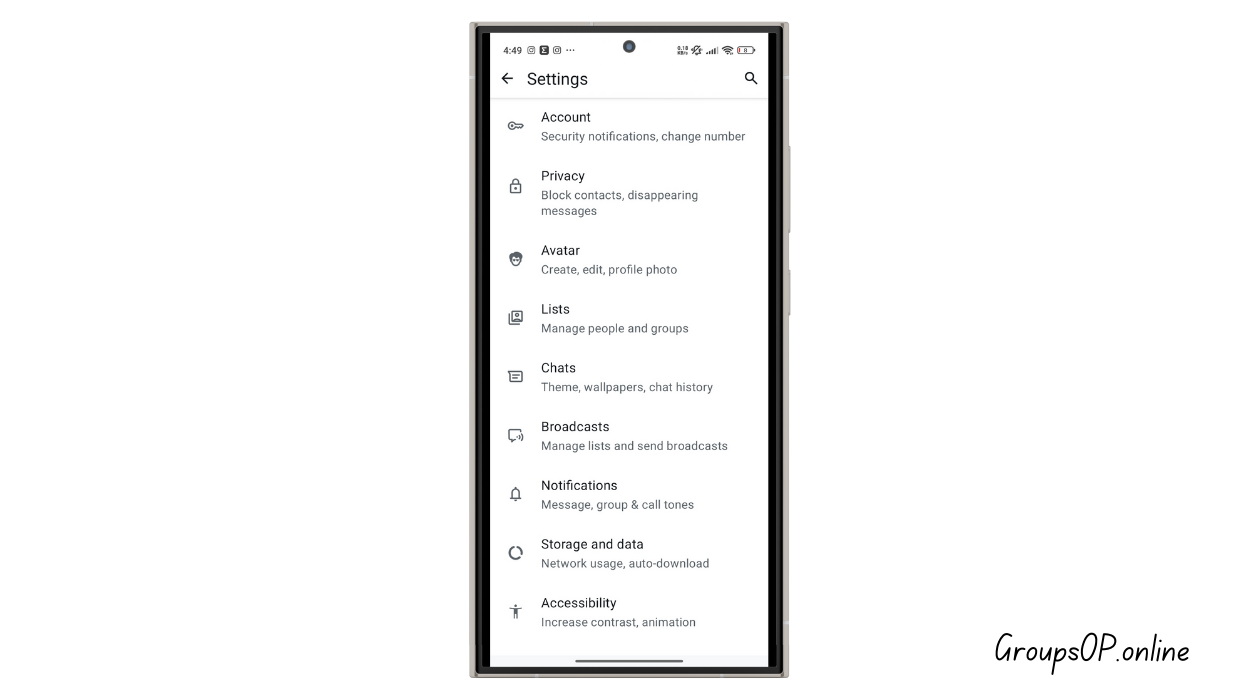
- Open WhatsApp
- Go to Settings
- Tap Storage and Data
- Tap Manage Storage
You’ll now see:
- Large Files
- Forwarded Many Times
- Chats Sorted by Size
This reveals the real reason your WhatsApp storage full on Android problem keeps happening.
Delete Large Files You Don’t Need (Safest First Step)
In Manage Storage, tap Large Files.
You will likely see:
- Long videos
- Status downloads
- Screenshots
- Forwarded clips
- Random videos you forgot existed
Why this matters:
Videos take up the majority of WhatsApp storage.
Tip:
Select only unwanted videos — not personal ones — then tap delete.
Common mistake:
Deleting from inside the chat instead of the storage panel.
Deleting through Manage Storage is safer and more accurate.
Clean Up Your Biggest Chats
Go to Chats by Size.
You’ll see which chats occupy the most space. Usually:
- Family group
- Friends’ group
- Work group
- College group
- Movie/status-sharing group
Tap any chat → then tap Manage → select unwanted media → delete.
Why this matters:
A single group can fill 5 GB easily.
Tip:
You can delete only videos in a chat without deleting photos.
Helps preserve personal memories.
Turn Off Auto-Download (Prevents Storage Filling Again)
This setting alone can save gigabytes over time.
Steps:
-
Open WhatsApp
-
Settings → Storage and Data
-
Under Media Auto-Download, disable:
-
Photos
-
Audio
-
Videos
-
Documents
-
Now media will download only when you tap it.
Why this matters:
WhatsApp silently downloads every file from every chat unless this is turned off.
Common mistake:
Leaving videos set to auto-download — the fastest way to fill storage.
Stop WhatsApp from Saving Photos to Gallery
Android often shows WhatsApp photos in the phone gallery, creating the impression that files exist twice.
Steps:
- Open WhatsApp
- Settings
- Chats
- Turn OFF Media Visibility
Why this matters:
When ON, Android indexes every WhatsApp photo, making your gallery huge.
Natural tip:
This doesn’t delete anything — it just stops showing photos in the gallery.
Move WhatsApp Media to SD Card (If Your Phone Supports It)
This works only on Android phones with SD card support.
How to do it:
-
Use a File Manager
-
Go to:
Internal Storage → WhatsApp → Media -
Select:
-
WhatsApp Images
-
WhatsApp Video
-
WhatsApp Audio
-
-
Move them to SD card
Why this helps:
It frees internal storage instantly without deleting files.
Common mistake:
Moving the Databases folder — do NOT move that.
Clear WhatsApp Cache (Safe & Quick Fix)
Cache is temporary data WhatsApp stores.
Steps:
- Settings → Apps → WhatsApp
- Storage → Clear Cache
Safe?
Yes — cache does NOT delete chats or media.
Tip:
Do NOT tap “Clear Data” unless you know what you're doing.
Delete Duplicate WhatsApp Files
Some Android phones duplicate files when:
- Downloading status videos
- Forwarding media between chats
- Saving to gallery
- Using third-party file managers
Fix:
Use the phone’s file manager → search for WhatsApp → open Media folder → delete redundant copies.
Warning:
Delete only files you recognize.
Use “Forwarded Many Times” Cleanup
Inside Manage Storage, open Forwarded Many Times.
These are usually:
- memes
- Good morning photos
- Random quotes
- 30MB–200MB videos
Deleting them saves huge space without losing personal memories.
Update WhatsApp (Storage Bugs Do Exist)
Older versions of WhatsApp sometimes miscalculate storage.
Fix:
Go to Google Play Store → Update WhatsApp.
Why this matters:
New versions often fix storage indexing issues.
Restart Your Phone (Simple but Effective)
After cleaning, restart your device so Android recalculates free storage.
Some users forget this and still see “Storage Full” warnings even after deleting media.
Real Examples (From Actual User Issues)
Example 1: Storage Full at 64GB
A user told me WhatsApp refused to download a 2MB photo. The phone had 64GB storage but WhatsApp was using 14GB alone.
After deleting large videos and disabling auto-download, their storage usage dropped to under 6GB.
Example 2: Chat Backup Too Big
Another user had a WhatsApp backup stuck at 99% because the local storage was full.
Cleaning the “Forwarded Many Times” section fixed the backup size instantly.
Common Mistakes & Easy Fixes
1. “I cleared cache but storage is still full.”
Cache is small — the real issue is videos.
2. “I deleted chats but storage didn’t reduce.”
You must delete media in Manage Storage, not just messages.
3. “I moved files manually and WhatsApp stopped showing photos.”
You moved files from WhatsApp → Media incorrectly.
Move only Images, Video, Audio, not Databases.
4. “I disabled auto-download but images still appear.”
You need to disable Media Visibility too.
5. “Deleting media removed it from the gallery too!”
This is normal — gallery displays WhatsApp files stored in internal storage.
FAQs
1. Why does WhatsApp take so much space?
Because it saves every photo, video, document, and voice note.
2. Is it safe to delete WhatsApp media?
Yes — but make sure to save important files first.
3. Will clearing cache delete my chats?
No — cache is temporary.
4. How often should I clean WhatsApp storage?
Once a month is ideal.
5. Can I move WhatsApp to SD card?
You can move media, but not the WhatsApp app itself.
Safety & Legitimacy Disclaimer
This guide uses only official WhatsApp features. No modified apps, spying tools, tracking methods, or unofficial APKs are included.
Related Tutorials
- How WhatsApp Backup Works
- WhatsApp Storage Explained
- How to Fix WhatsApp Backup Not Working
- WhatsApp Privacy Settings Explained
Final Summary
Fixing “WhatsApp storage full” on Android requires checking what’s actually taking up space, deleting large unnecessary files, cleaning up big chats, and disabling auto-download for the future. Once you understand where WhatsApp stores media and how quickly videos accumulate, keeping your phone clean becomes much easier. Honestly, after you adjust these few settings, WhatsApp becomes lighter, faster, and far less stressful on your storage.
Feel free to explore the related guides for deeper control over WhatsApp storage and performance.